Inventory Management
The NinjaInventoryManagerComponent is the core of the Ninja Inventory System. It manages containers, items, ownership, and data flow between inventory instances and other systems like Gameplay Abilities and Save/Load.
This page provides an overview of the key systems and methods available to developers.
Initialization
The Inventory Manager must be initialized before it can be used. Initialization is usually performed automatically during the component's InitializeComponent function, which is invoked as part of the standard Actor Lifecycle.
The manager can function without a Gameplay Ability System, which may be appropriate in scenarios that don't require complex inventory interactions—such as chests, vendors, or other non-playable containers.
To know more about the Inventory Setup, please check the corresponding setup page.
Inventory Events
The Inventory Manager exposes several events that can be used so other systems can react to changes at runtime:
Event Name | Description |
|---|---|
| Broadcast when the inventory is successfully initialized. |
| Broadcast when the inventory fails to initialize. |
| Broadcasts a change in a container managed by the inventory. |
| Broadcasts a change in an item managed by the inventory. |
The Inventory Manager centralizes all events related to its managed instances. This means all containers, items and their fragments will only broadcast events through the Inventory Manager, making it a central Event Hub.
Container and Item events will contain a generic payload, a FInstancedStruct, and varies depending on the source (container, item, or fragment). This allows downstream systems to deserialize and react accordingly.
Inventory Avatar
The Inventory Avatar is the actor most closely associated with the inventory when representing it in the game world. This is usually:
The Pawn owning the inventory.
The Pawn associated with the Player State owning the inventory.
Or the Ability System Component Avatar, if bound through a
UAbilitySystemComponent.
This distinction matters for gameplay logic that relies on the owner of items or containers, especially when applying effects or evaluating interactions.
Container Management
Containers are dynamic structures that hold items and define available inventory space or rules. They can be added and removed at runtime. To know more about containers, please check the corresponding Container page.
Containers can be managed using the following transactional functions:
Function | Description |
|---|---|
| Adds a container from a |
| Adds a container and invokes a callback with direct access to the new Container Instance. Returns a GUID for the instance. Must be called on authority. |
| Adds a nested container related to an inventory item. Useful to represents items that are container themselves, like pots or boxes. Must be called on authority. |
| Removes a container from the inventory. |
| Removes a container using its unique identifier as a target criteria. |
Containers can be queried using the following read-only functions:
Function | Description |
|---|---|
| Returns the number of containers currently assigned to this inventory. |
| Finds and returns a container by its unique GUID. |
| Retrieves containers that are flagged as default for this inventory instance. |
| Returns all container instances created from a specific |
| Retrieves all containers matching a |
| Retrieves all containers owned by an Inventory Item (nested containers). |
Item Management
Even though items are ultimately stored in their assigned containers, the Inventory Manager is completely aware of them, and it's also the entry-point for item maintenance. To know more about items, please check the corresponding Item page.
Items can be managed using the following transactional functions:
Function | Description |
|---|---|
| Adds a new item using the given |
| Adds a new |
| Adds items from a Pickup Actor that implements |
| Transfers an item from one inventory to another, returning the new item GUID. Requires an authorization session. |
| Transfers an item, overriding or adding new memories to it. Requires an authorization session. |
| Transfers a default item structure, which must include a source item and inventory. Requires an authorization session. |
| Removes an item from the inventory. Optionally drops it if set to do so and the item has a valid drop fragment. |
| Removes an item using its unique identifier as a target criteria. |
When you add an item to the Inventory Manager, the system will automatically determine container placement, stacking, and other behaviors based on your configuration.
You can influence this process using:
Preferred Container Query on the Container Placement Fragment, used to suggest preferred containers for a given item.
Item Eligibility Query on containers, to filter valid items, plus the container's priority.
Default Placement Memories (e.g., Container Position), which the system will try to honor if possible (i.e. no items already occupying the position).
Items can be queried using the following read-only functions:
Function | Description |
|---|---|
| Returns the number of item instances in the inventory (does not account for stack sizes or volumes). |
| Retrieves all items stored in the Inventory. |
| Retrieves all items that match a specific |
| Retrieves all items that match a |
| Returns the first item that matches a given |
Authorization Sessions
The Inventory Manager provides functions used to authorize an external inventory to perform certain operations, the most common example being the item transfer.
Before executing operations between two distinct Inventory Managers you need to initiate a handshake resulting in an authorization session. This is only necessary in the authoritative inventory. Also, keep in mind that a session allows an operation to happen from either direction.
Function | Description |
|---|---|
| Checks if an Inventory Manager is authorized. |
| Opens an authorization session for an inventory. |
| Closes the authorization session for an inventory. |
When managing your own inventory, operations like "move", "swap" and so on won't require this session, even in multiplayer, since an Inventory Manager is always authorized to interact with itself.
Item Processor
The logic responsible for processing new items is separated from the Inventory Manager, so developers can easily adjust their own flows if needed, without having to extend large pieces of the main component.
Item processors are created by extending UNinjaInventoryItemProcessor.
The processor will use your configuration (e.g., queries, default memories) to determine valid placement and stacking. For most cases, you won’t need to override this unless you're building a custom flow (e.g., forced container injection or loot-specific routing).
Stranded Items
A stranded item is an item that no longer has a valid container. This can happen if:
A container is removed while still holding items.
An item fails to be placed during loading or initialization.
Stranded items are automatically handled by a chain of registered Stranded Item Handlers, added to the Inventory Manager by the StrandedItemHandlerClasses property. If no handler resolves the item, it will be destroyed and a warning will be logged.
By default, the Inventory system provides the following handlers:
Handler | Description |
|---|---|
| Attempts to place the item into another valid container. |
| Spawns the item as a Pickup Actor (if a supporting fragment exists). |
You can create new Stranded Item Handlers by subclassing NinjaInventoryStrandedItemHandler. This class is quite simple and only expects one function to be implemented: HandleStrandedItem.
If this function is able to handle the stranded item, then it should return true, which will interrupt the handler chain and move on to the next item, if any.
Default Values
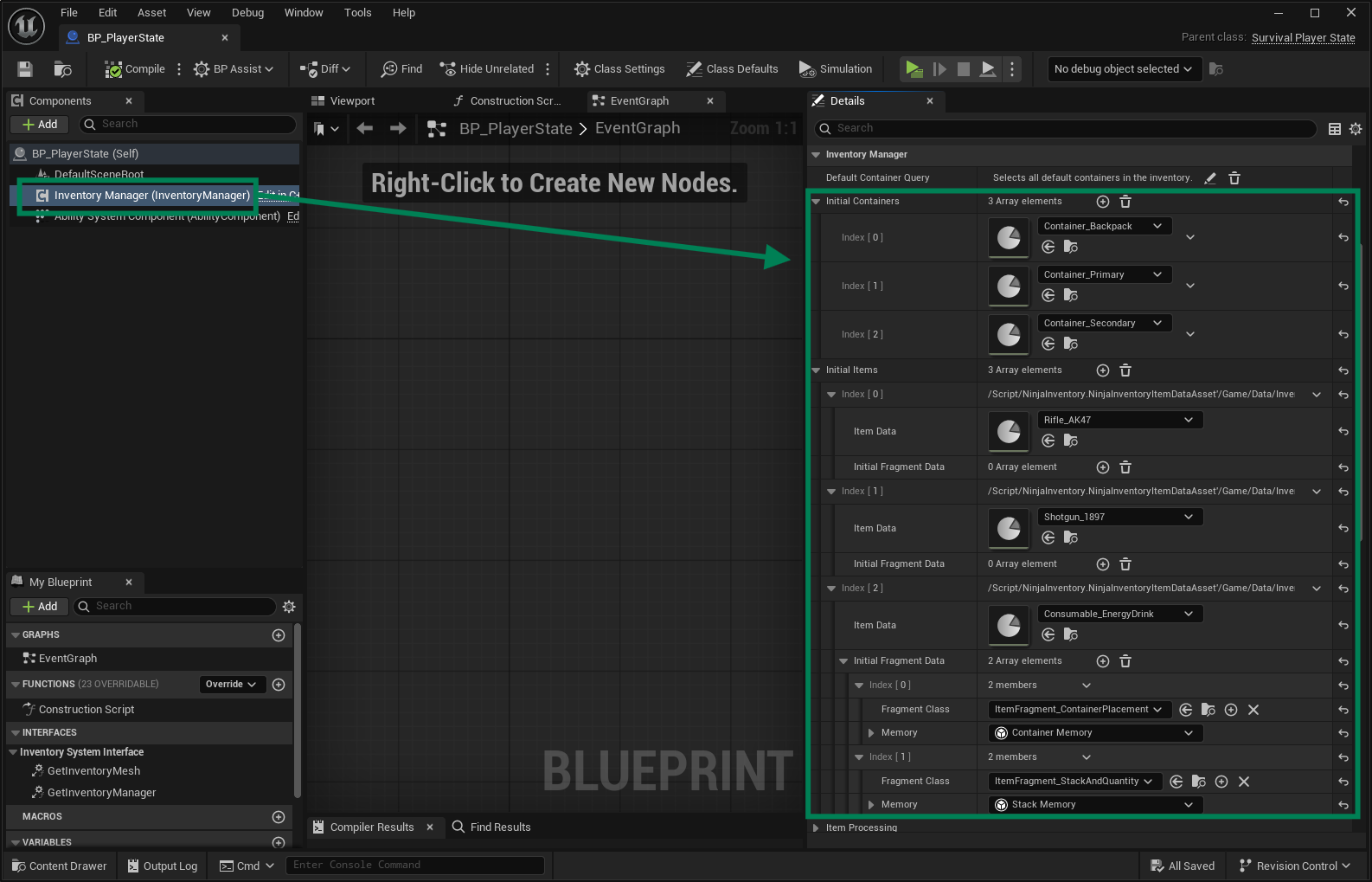
You can assign default containers and items directly to the Inventory Manager using the exposed properties in the component's Details Panel.
Both data types go through the standard validation pipeline. Items can also include default fragment memories, which will be evaluated during item processing.
Deferred Initialization
When the Inventory component is added to the Player State, it may take a few frames before it fully replicates to the Inventory Avatar.
During this short delay, it's common for the avatar to need its own exclusive items, that are not meant to be shared across different avatar types, and therefore should not be added directly to the Player State's inventory.
This creates a situation where the avatar must wait for the Inventory system to finish initializing before it can safely add those items. Since this process doesn't complete immediately after Begin Play, a deferred initialization flow is required.
There are two recommended ways to handle this:
Use an asynchronous task that waits for the inventory system to finish initializing.
Implement the Initialization Watcher Interface to receive a callback when initialization completes (or fails).
Async Inventory Initialization Task
You can use the built-in Wait For Inventory System task, which automatically notifies you when the inventory has successfully initialized and is ready for item operations.
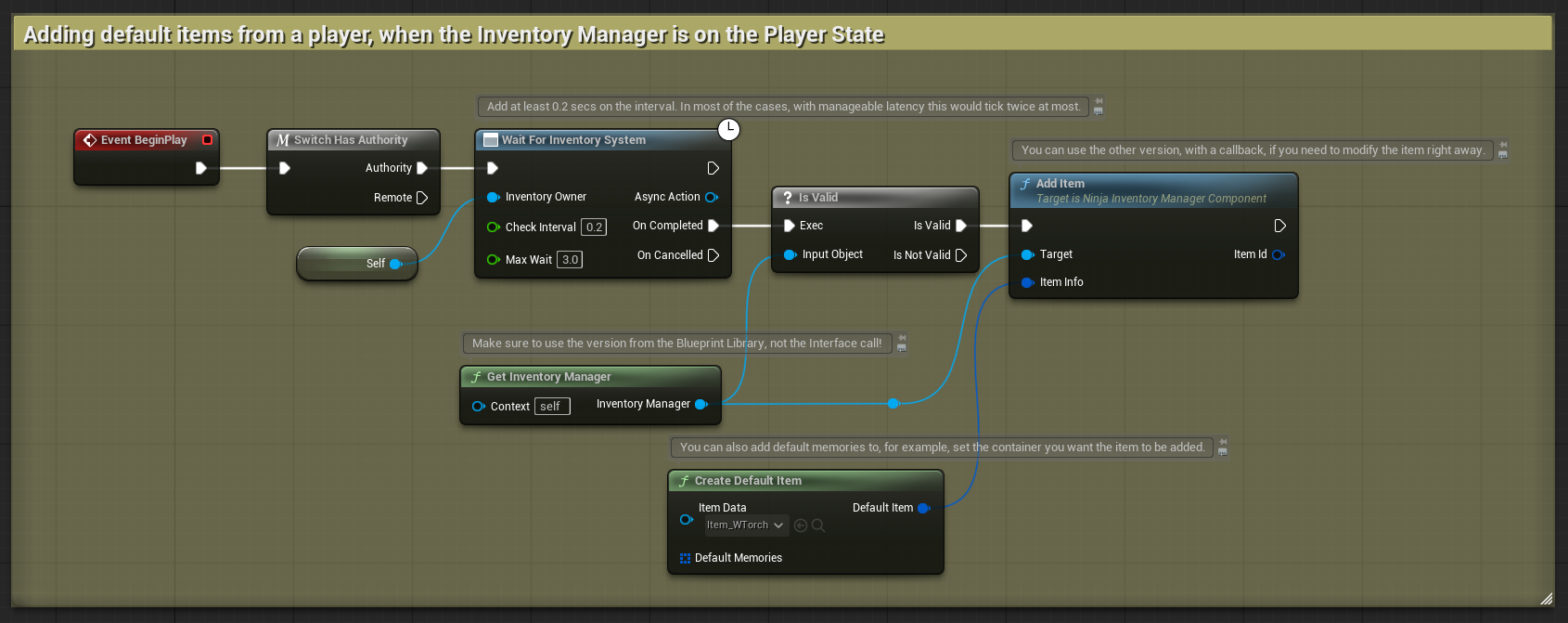
When using this task, keep the following in mind:
Set a reasonable pooling interval and also a timeout.
Always retrieve the Inventory Manager via the Inventory Function Library.
Add items only from the authoritative instance (the server, in most cases).
Initialization Watcher Interface
For simpler or event-driven setups, you can instead use the InventoryInitializationWatcherInterface. This interface can be implemented by either the inventory owner or the inventory avatar.
When the Inventory system reaches a final initialization state, the interface functions will be automatically invoked, allowing you to react immediately without polling or tasks.
Function | Description |
|---|---|
| Called when the inventory has successfully initialized. |
| Called when the inventory fails to initialize. |