Inventory Items
Inventory Items represent any object that can be stored, equipped, consumed, or manipulated through the Inventory System.
They are instantiated at runtime as NinjaInventoryItem objects and can represent things like weapons, potions, materials, or keys. Items can be defined by the following concepts:
Data-Driven: Each item is created from a
UNinjaInventoryItemDataAsset, defining its fragments and tags.Fragment-Based: Item behavior is defined by modular fragments, acting like components.
Instanced Runtime Object: At runtime, items become
UNinjaInventoryItemobjects with their own state, memory, and container reference.
Item Data Asset
Items are defined by a Primary Data Asset, and as such, must be added to the Asset Manager configuration as described in the Asset Manager setup.
The Item Data Asset contains essential properties that define the identity and behavior of the item.
Property | Description |
|---|---|
| Internal name for the item (used for debugging/logging). UI name should come from a fragment. |
| Tags that categorize the item for filtering, searching, and querying. Items should have at least one identifying tag, even if they simply represent a category. |
| A cache of all tags added by fragments. These are merged with the Gameplay Tags, and are used to further identify the item. |
| Default class used for the runtime instance of this item. Usually left as the default. |
| List of item fragments that define how the item behaves (e.g., stackable, equipable, consumable, etc.). |
You can create an Item Data Asset by right-clicking in the Content Browser, navigating to Ninja Bear Studio > Ninja Inventory, and selecting Item Definition.
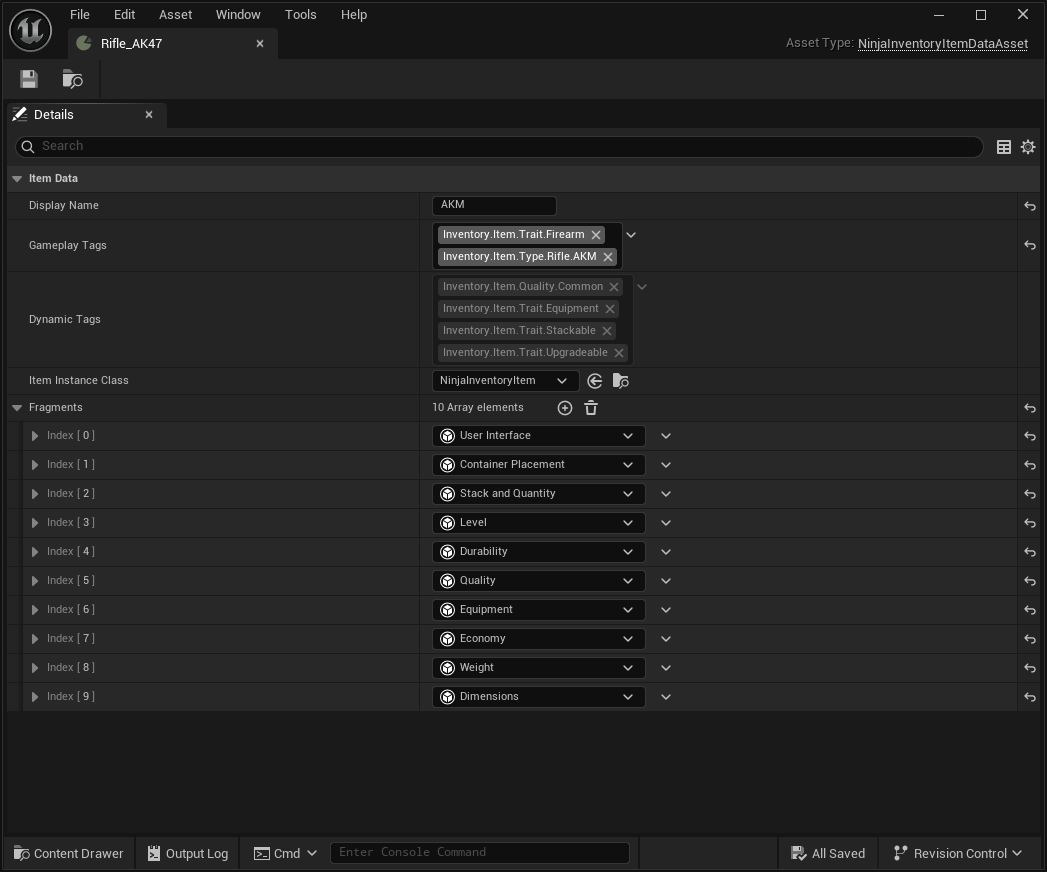
Items usually have traits which are useful when querying for certain items stored in the inventory. You can define traits directly as item tags, or via fragments. Some fragments are already configured to add gameplay tags for the traits they represent.
Item Fragments
Items are composed via aggregation of fragments, small pieces of logic and data that define item behavior.
Each fragment is tied to the Data Asset and shared across all instances of that item.
Fragments control all core inventory functionality, such as:
Stacking and Quantity: Manage how items stack and split.
Container Placement: Determine valid containers, layouts, and positioning.
Consumables: Allow items to apply effects and be consumed.
Equipment: Define physical representation and equipment logic.
Fragments are automatically initialized when an item is created and can perform cleanup when the item is removed.
Each fragment may also broadcast events via the Inventory Manager, which can be used to trigger logic such as UI updates, animations, or gameplay effects. Fragments may also handle events from a specific item, via the HandleItemEvent function.
Refer to each fragment's documentation for specific behavior, memory structure, and event payloads.
Item Instances
At runtime, an item becomes a NinjaInventoryItem instance. These are instanced objects that:
Stores runtime state (container, position, equipment state, etc.).
Reference the original Data Asset and all resolved fragments.
Includes a unique GUID used for save/load and networking.
Support replicated memory for multiplayer scenarios.
You can customize item behavior further by subclassing NinjaInventoryItem and assigning the new class in the Item Data Asset’s ItemInstanceClass property.
When added to an inventory, items have a registration process, that can inform where in the initialization an item currently is. Possible values are:
Accepted: The item was accepted and will be processed by the inventory.
Fragments Initialized: Fragments will initialize and prepare their initial memories.
Fragments Activated: Fragments have been initialized and executed any activation logic.
Dynamic Magnitudes
Items can automatically apply SetByCaller magnitudes to any Gameplay Effect applied from the item (e.g., Fragments).
Whenever a Gameplay Effect is about to be applied by the item, any dynamic attributes will be collected from all fragments implementing IInventoryItemMagnitudeInterface, such as the Dynamic Attributes fragment.
If you need to apply these magnitudes to an external Gameplay Effect, not applied by the item, then you can request the item to do so, by calling ApplyMagnitudesToSpec.