Equipment System
The Equipment System manages Equipment, providing a flexible way to handle items that require in-world representation, such as spawned actors, mesh components, and loaded assets via the Asset Manager.
This system should be added to the Avatar Actor, usually the Player Character or controlled Pawn.
Equipment Manager Component
The Equipment Manager Component should be added to any actor expected to show equipment in the world. This is typically your Inventory Avatar (e.g., the Player Character).
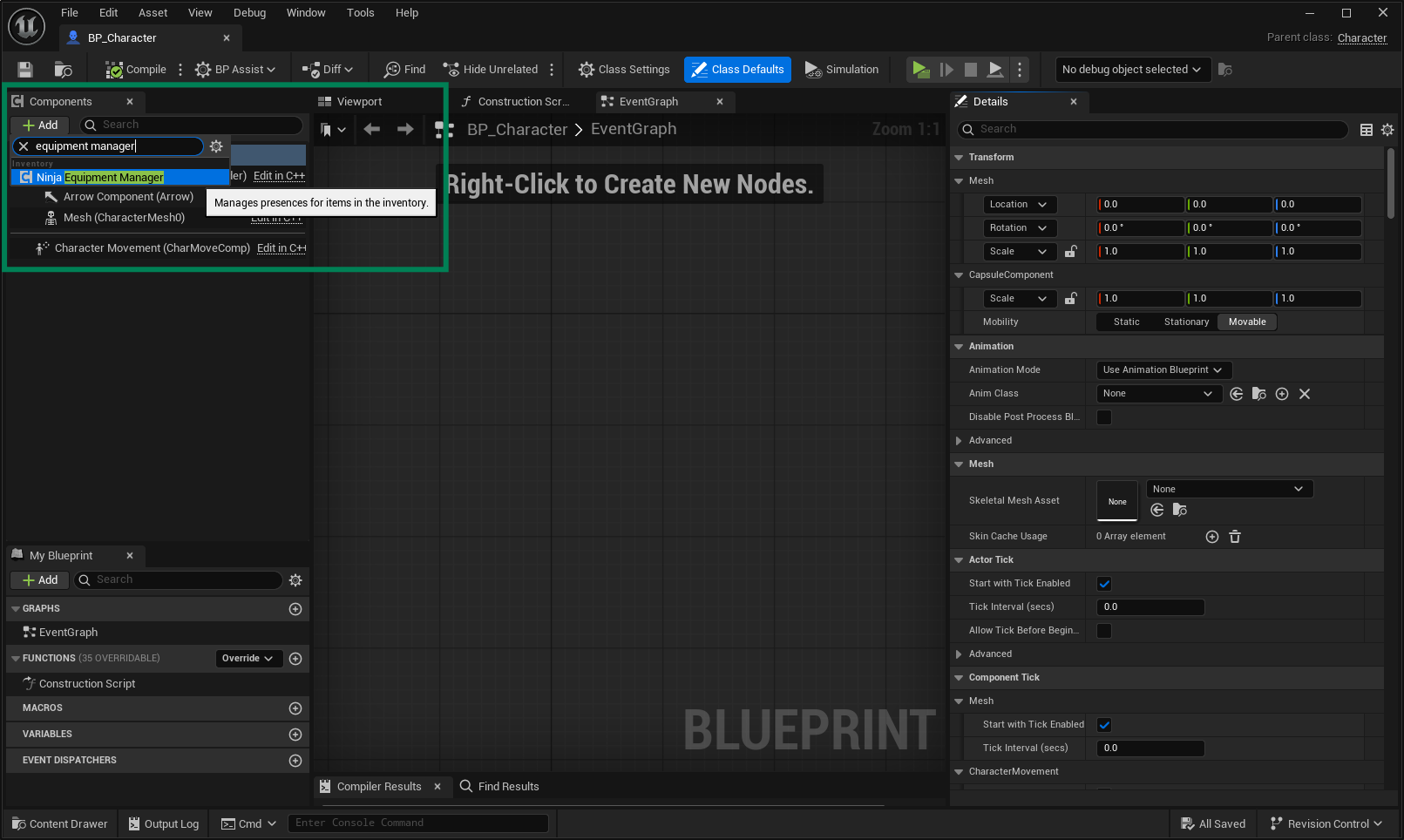
Add the Equipment Manager Component
In your Inventory Avatar Actor (i.e., the Player Character), add the Equipment Manager Component.
The component can be added using either Blueprint or C++:
Header
public: ANBSPlayerCharacter(const FObjectInitializer& ObjectInitializer); private: /** Equipment Manager component. */ UPROPERTY(EditDefaultsOnly, BlueprintReadOnly, Category = "Components", meta = (AllowPrivateAccess = "true")) TObjectPtr<UNinjaEquipmentManagerComponent> EquipmentManager;Implementation
#include "Components/NinjaEquipmentManagerComponent.h" ANBSPlayerCharacter::ANBSPlayerCharacter(const FObjectInitializer& ObjectInitializer) : Super(ObjectInitializer) { EquipmentManager = CreateDefaultSubobject<UNinjaEquipmentManagerComponent>(TEXT("EquipmentManager")); }
The Equipment Manager provides important key settings that can be used to adjust its behavior.
Property | Description |
|---|---|
Equipment Container Query | A query used to select all Equipment Containers in the Inventory Manager. |
Default Attach Finder Class | Default strategy used to select attachment parent components for Equipment Actors and Meshes. |
Inventory Component Binding
The Equipment Manager Component will automatically bind to an Inventory System Component. When that happens, it will automatically process any necessary equipment instance for all eligible items.
Equipment System Interface
The recommended way to retrieve the Equipment Manager is through the GetEquipmentManager function provided in NinjaInventoryEquipmentFunctionLibrary.
This function searches common ownership chains—such as Actor → Controller → Player State—to locate the Equipment Manager.
To avoid repeated lookups, you can optionally implement EquipmentSystemInterface on the actor that owns the Equipment Manager. This allows the system to retrieve the component directly.
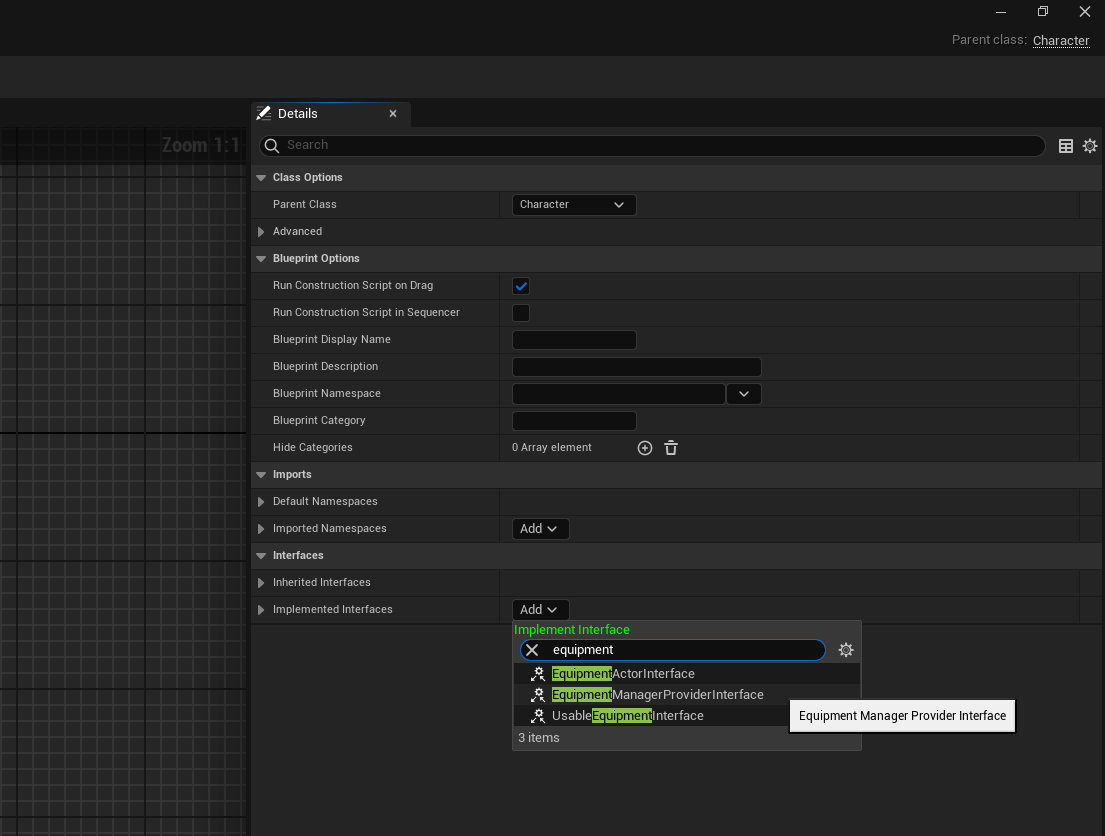
Add the Equipment System Interface
In your Inventory Avatar, add the
EquipmentSystemInterface.Implement the
GetEquipmentManagerfunction so it returns the Equipment Manager Component.
Header
Implementation
The EquipmentSystemInterface not only streamlines retrieval of the Equipment Manager, but also allows you to define how the Main Avatar Mesh is selected.
This is especially useful in more complex setups, such as characters using a real-time retargeting system, modular pawn assemblies, or gameplay-driven mesh changes.
When calling GetAvatarMesh through the interface, the following logic is used:
Tagged Component Search: The system will first search for a USkeletalMeshComponent tagged with
Inventory.Component.MeshCharacter Fallback: If no component is explicitly tagged, and the avatar is a
ACharacter, the system will fall back to using theGetMesh()result.
This mechanism ensures flexibility while providing a sensible default for common character setups. You may override this logic in your own implementation if your avatar requires special handling.