Interaction Duration
Many interactions are hold-to-activate: the player must press a button for a set duration before the interaction actually occurs. The Interaction System supports this pattern with minimal changes to assets you've already created, no new gameplay concepts required.
Smart Object / Interaction Behavior
Set a non-zero Duration on the interaction's behavior so the system treats it as hold-to-activate. (Leave at0for instant interactions.) See Interaction Targets.State Tree
Ensure the State Tree used by this interaction gates execution by duration (e.g., tracks progress, respects cancellation on release, and commits when the timer completes). This is the same tree referenced by your Smart Object slot configuration.UI Widget (Prompt)
In your prompt widget from User Interface and ViewModels, react to interaction state and optionally display progress (e.g., a ring/bar bound to a ViewModel field) during the hold window. The prompt should also hide/rollback cleanly on cancel.
Smart Object
Set a non-zero Duration on the interaction's Interaction Behavior to make it hold-to-activate. A value of 0 keeps the interaction instant.
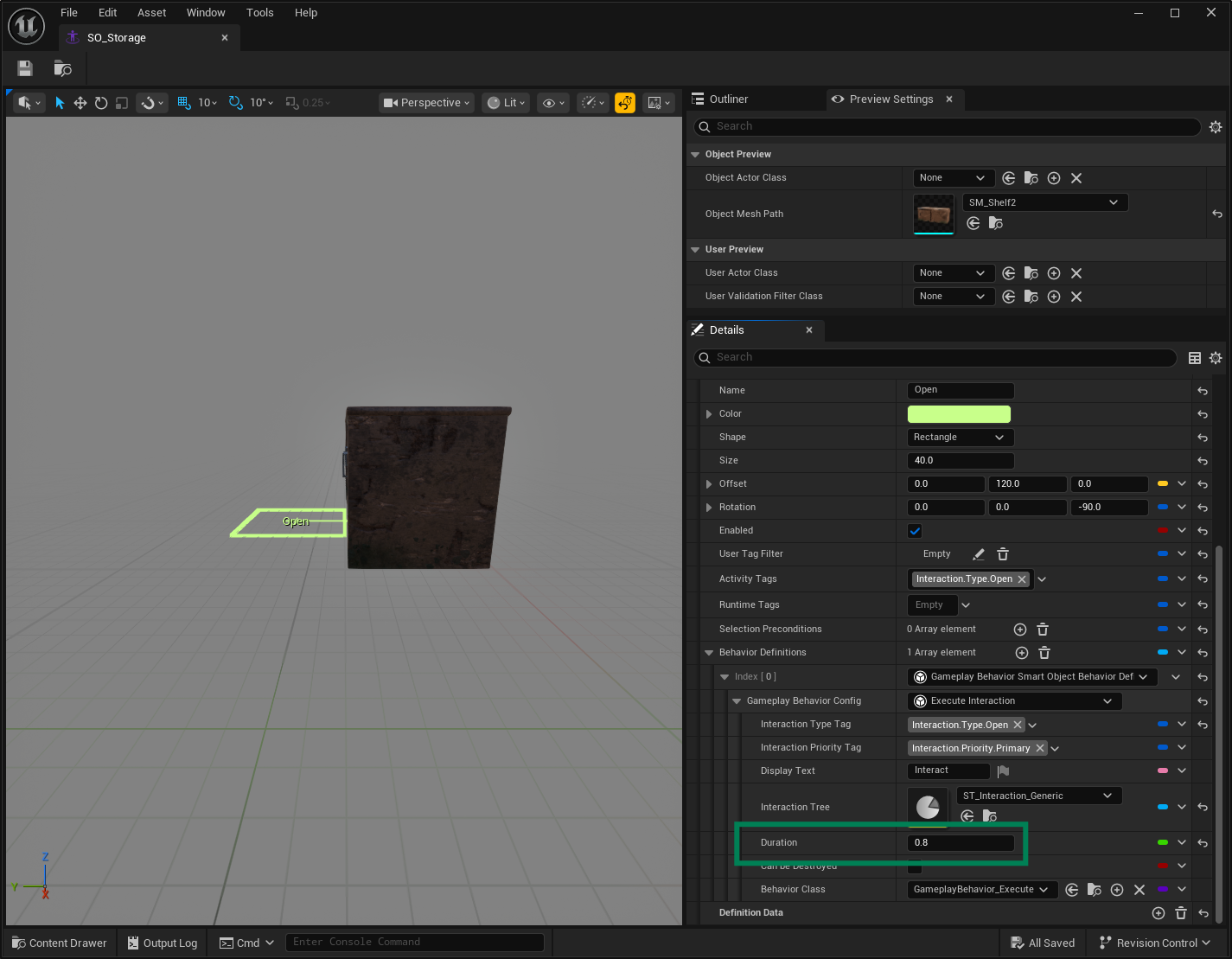
Setting a Duration in the Smart Object
Open the Smart Object previously created for the Interaction Target and navigate
In the Interaction Behavior configuration, set Duration to
0.8seconds.
State Tree
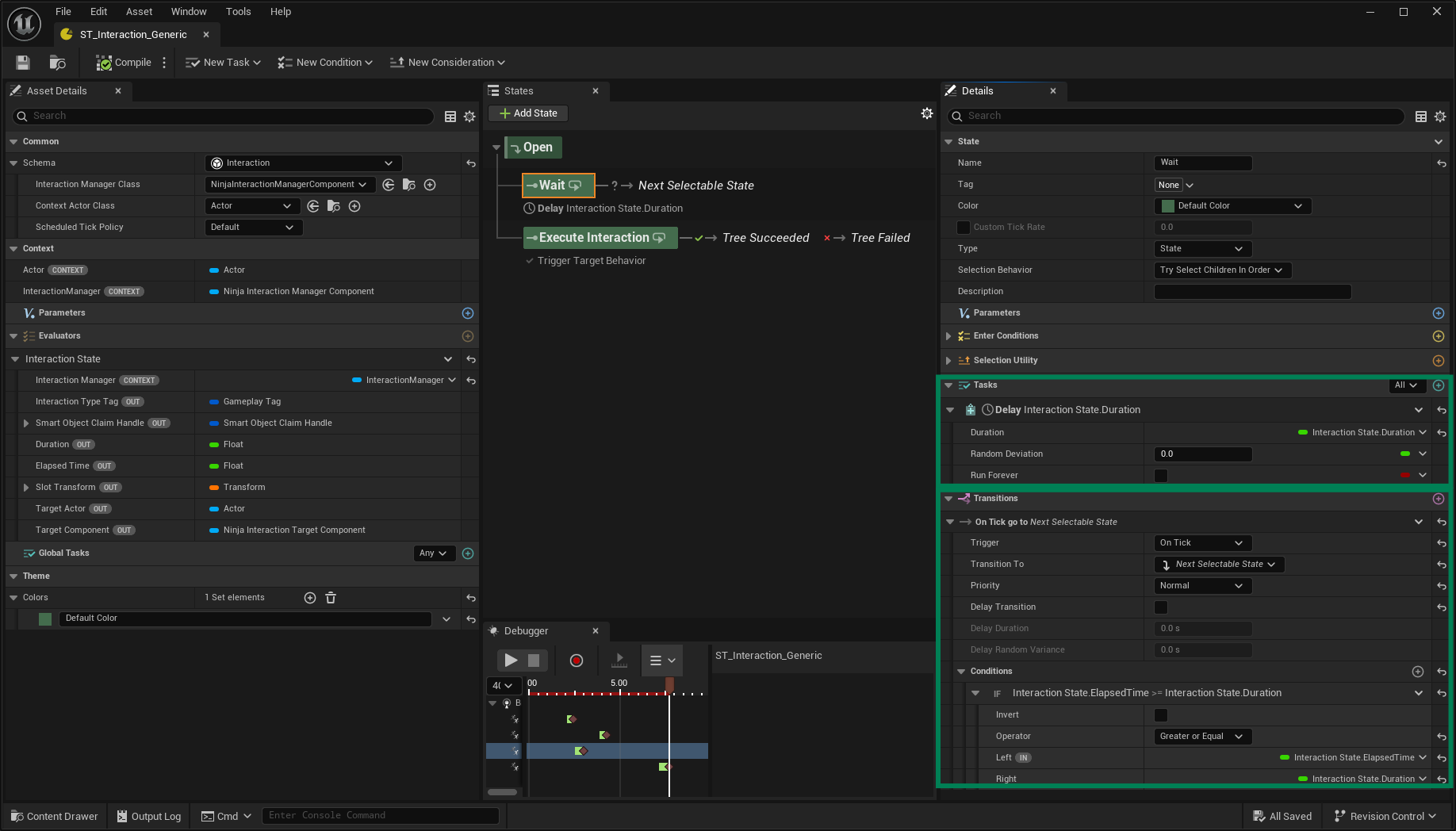
For the State Tree, we need to wait for the interaction's Duration to complete before executing the behavior.
Waiting for the Duration in the State Tree
Open the State Tree previously created and assigned to the Interaction Target.
Add a new child state (e.g., Wait) directly under the Root, and add a Delay Task to it. Bind the task's Duration to the value exposed by the Interaction State evaluator.
In the Wait state, add a transition with an OnTick trigger to the next executable state (typically Execute Interaction). Add a Condition that checks: ElapsedTime (from the Interaction State evaluator) Greater or Equal Duration (from the same evaluator).
Interaction Prompt
Now update the Interaction Prompt you added on the actor in the UMG ViewModels page.
Updating the Interaction Prompt on the Actor
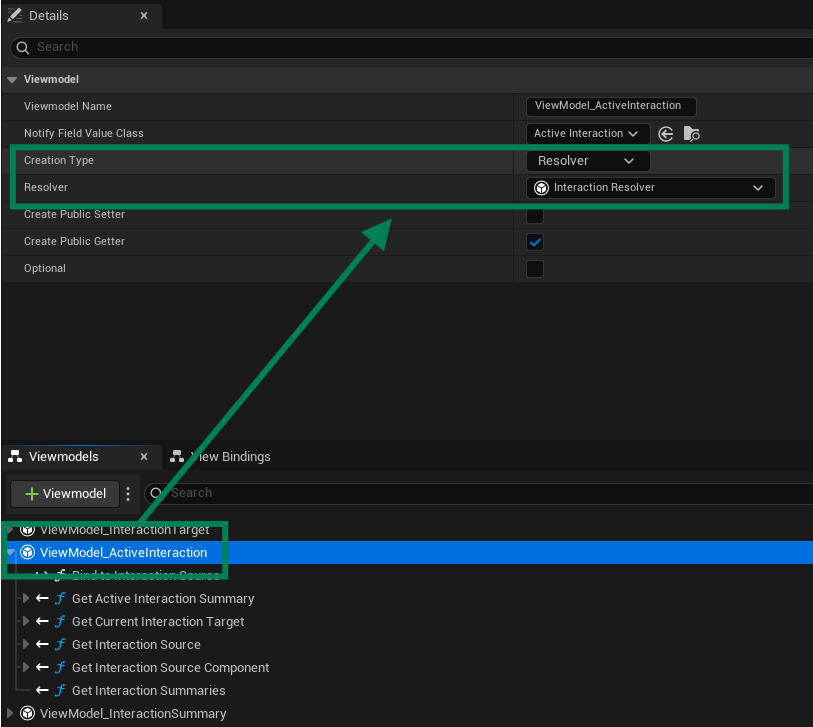
Add the Active Interaction ViewModel to the widget. Set Creation Type to Resolver and select the Interaction Resolver.
Add the Interaction Summary ViewModel to the widget. For this one, set Creation Type to Manual (it will use an instance provided by the Active Interaction ViewModel).

Add a Progress Bar (or equivalent progress indicator) to the widget. We'll configure the binding later.
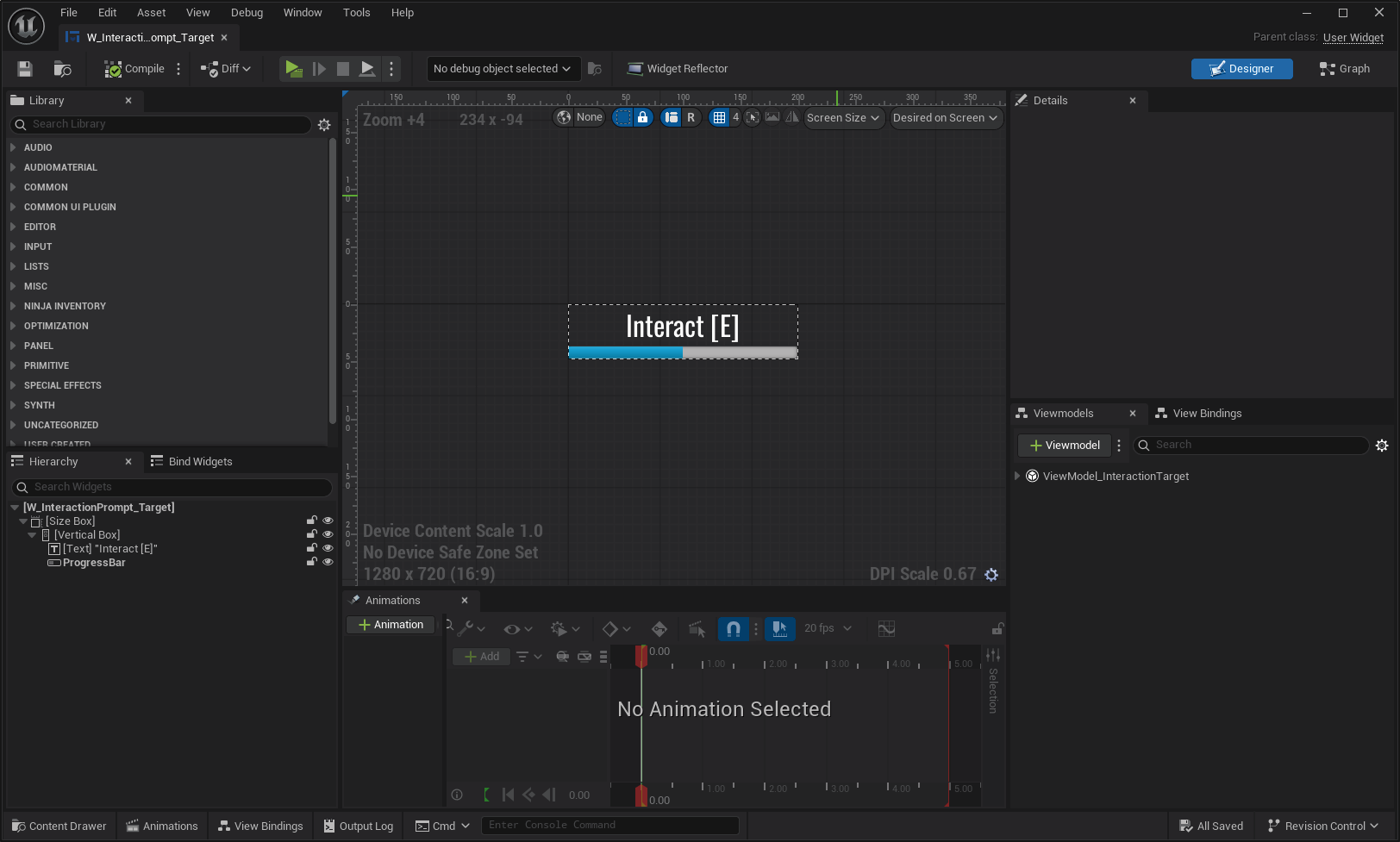
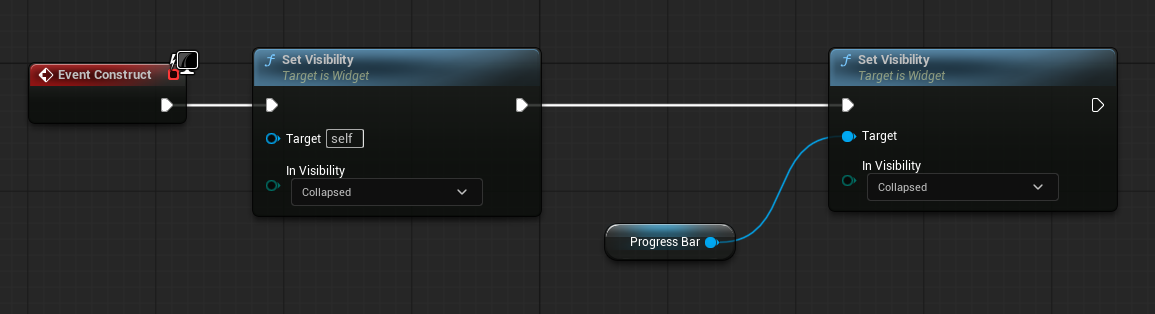
Update the Event Graph to hide the Progress Bar by default.
Update
SetFocusStateto also hide the Progress Bar when no focus is applied.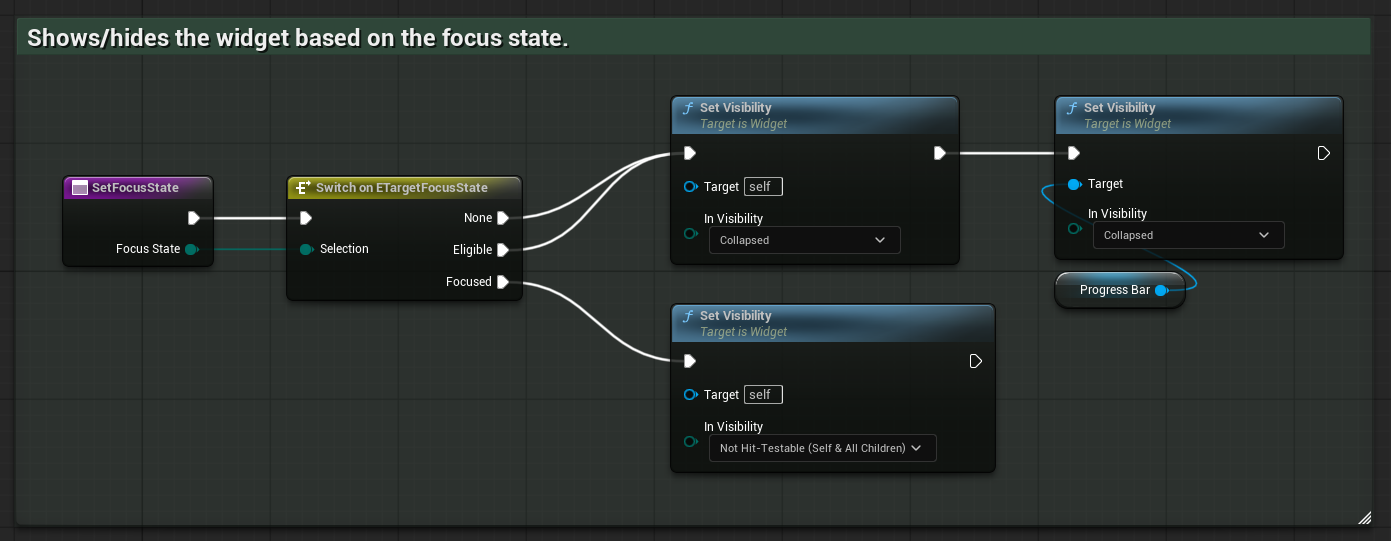
Update
SetInteractionStateto also hide the Progress Bar when no interaction is in progress.
Create
SetCurrentTarget. This function receives the current target actor, sets the active summary on the widget, and shows the Progress Bar.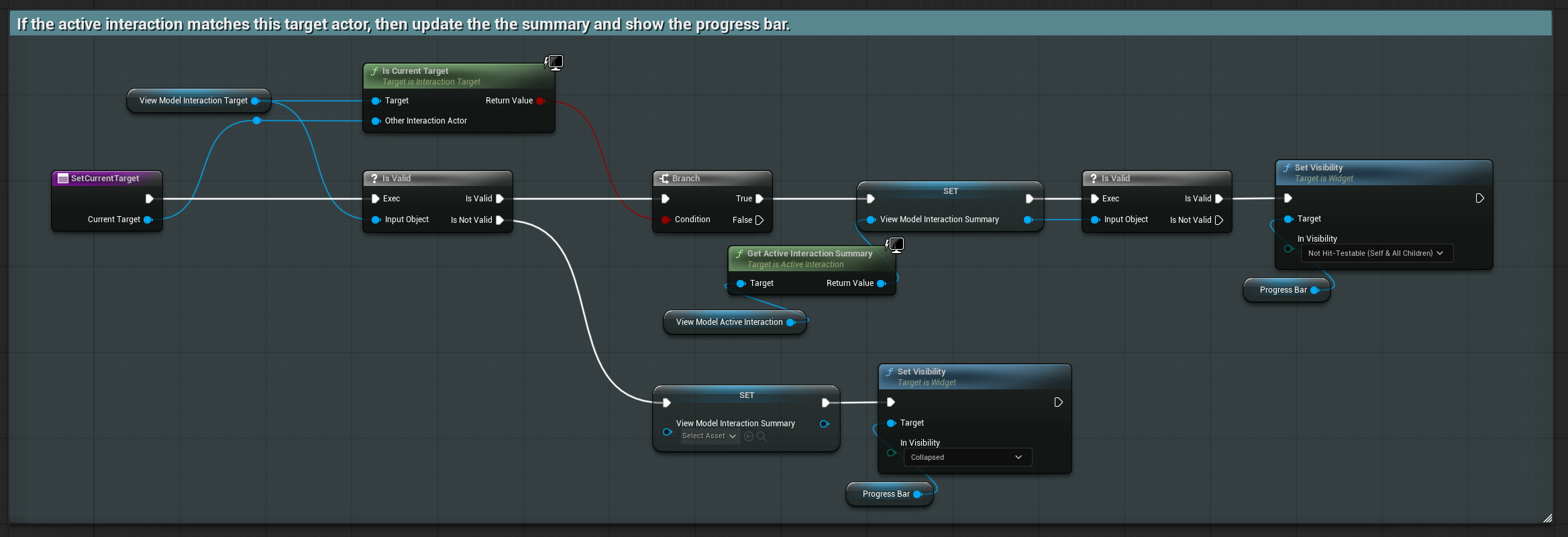
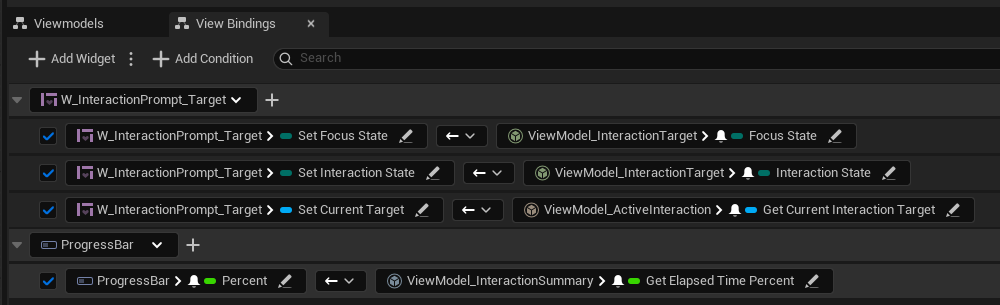
Add bindings so the widget reacts automatically:
ActiveInteraction.GetCurrentInteractionTarget→SetCurrentTargetInteractionSummary.GetElapsedTimePercent→ProgressBar.Percent