Input Integration
Use Ninja Input to forward button events to the Interaction Manager, so it attempts to start an interaction with an eligible target and, optionally, interrupt an ongoing interaction that hasn’t been committed yet.
Creating the Input Handler
Creating the Input Handler
Create an Input Action (e.g.,
IA_Interact).Add a Pressed trigger.
Optional: add a Released trigger for hold-to-activate / cancellable interactions.
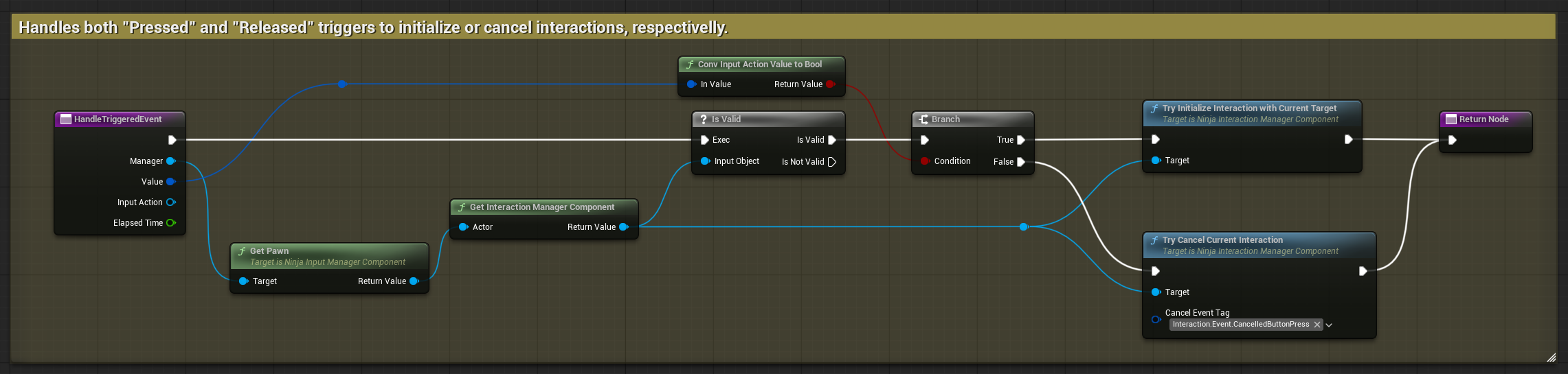
Create an Input Handler that extends
NinjaInputHandler(from Ninja Input), and implementHandleTriggeredEvent.Retrieve the Interaction Manager from the pawn associated with the Input Manager, and verify it is valid.
Branch on the incoming Input Action Value (convert to bool):
true→ callTryInitializeInteractionWithCurrentTargetfalse→ callTryCancelCurrentInteractionwith reason tagInteraction.Event.CancelledButtonPress
Bind the handler in your input setup (mapping context / action bindings) so it runs for
IA_Interact.
Blocking Input
While playing interaction animations, you can block inputs via the Gameplay Effect applied during the animation ability's execution. The default effect adds tags that Ninja Input recognizes automatically:
Gameplay Tag | Outcome |
|---|---|
| Blocks character movement in Movement Input Handlers. |
| Blocks camera/actor rotation in related Input Handlers. |