Interaction Targets
An Interaction Target is any actor in the world that responds to an interaction request from another actor, usually an Interaction Instigator, such as a player character or AI agent.
Interaction Targets are implemented using two Unreal Engine frameworks: Smart Objects and Gameplay Behaviors. At the core, a dedicated Interaction Target Component ties these frameworks together, orchestrating the foundation of the system while exposing the functionality required by Ninja Interaction.
Interaction Target Component
The UNinjaInteractionTargetComponent is the core component that must be added to any actor intended to participate in interactions. It serves as the bridge between the actor, Smart Objects, and the Interaction System, with the following responsibilities:
Handle incoming interaction events, such as focus gained/lost and interaction started.
Track and manage interaction sources currently focusing on the actor, enabling them to initiate interactions.
Provide access to interaction details defined by the assigned Smart Object.
Integrate seamlessly with the Smart Object Subsystem.
Forward relevant functions from the Interaction Target Interface to the owning actor.
The component provides several events that can be used to react to changes in focus, registration, or the interaction lifecycle.
Event | Description |
|---|---|
| Fired when an interaction source becomes aware of this target. |
| Fired when an interaction source loses awareness of this target. |
| Fired when an interaction source begins focusing this target. |
| Fired when an interaction source stops focusing this target. |
| Fired when an interaction with this target begins. |
| Fired when an interaction with this target completes successfully. |
| Fired when an ongoing interaction with this target is cancelled. |
The UNinjaInteractionTargetComponent also exposes several Blueprint-accessible functions for querying and controlling interactions. These functions let you check availability, retrieve details, and activate or deactivate specific interaction slots.
Function | Description |
|---|---|
| Returns |
| Retrieves a list of all interaction summaries defined by this component. Set |
| Returns the |
| Retrieves the |
| Provides the location and rotation for an interaction identified by a Gameplay Tag. Returns |
| Provides the location and rotation for a specific slot handle. Returns |
| Activates the interaction slot identified by the Gameplay Tag, usually when gameplay conditions are met. |
| Deactivates the interaction slot identified by the Gameplay Tag, usually when requirements are no longer met. |
| Executes the interaction behavior associated with a slot claim handle and a source actor. Returns |
Interaction Target Interface
The IInteractionTargetInterface defines how an Interaction Target Actor communicates with its Interaction Target Component and the overall interaction system.
This interface is implemented by the UNinjaInteractionTargetComponent, which already provides default implementations for many behaviors (such as focus handling or availability checks). Because of this, some functions are optional for the actor to override, while others are required and must always be implemented to define the actor's actual interaction logic.
Optional Functions
These functions have neutral defaults. They can be left unimplemented unless the actor needs to customize how it responds to availability, focus, or registration events.
Function | Description |
|---|---|
| Checks if the target can currently be focused. Default: always available. |
| Checks if the target can handle a given interaction type. Default: always true. |
| Allows the target to override the display text for a given interaction type. |
| Called when the target is registered by an interaction source. Default: no-op. |
| Called when the target is unregistered by an interaction source. Default: no-op. |
| Called when focus is applied by an interaction source. Default: no-op. |
| Called when focus is removed by an interaction source. Default: no-op. |
Required Functions
These functions must be implemented by the actor, as they define the core interaction behavior.
Function | Description |
|---|---|
| Returns the |
| Starts the interaction logic for this object. From here, the actor controls the lifecycle of the interaction, including when to end the associated Gameplay Behavior. |
| Ends the interaction logic for this object, either because it completed naturally or was interrupted. |
Smart Objects
Interaction Targets are built on top of the Smart Objects framework, which enables multiple possible interactions, represented as slots. Each Interaction Target Component requires a Smart Object Definition to define these slots.
Each slot may include one or more Gameplay Behaviors, which apply the logic and data associated with that specific interaction. The Interaction System provides a dedicated Interaction Behavior, responsible for orchestrating the Interaction Interface and handling the associated animations.
By using Smart Objects to define interactable targets, you can also take advantage of additional framework features:
Filter Tags: Require specific tags (e.g.
tag.player) before certain interactions are available.Preconditions: Define conditions such as requiring an inventory item (e.g. a key) before a slot can be activated.
Slot Transform Adjustments: Fine-tune the transform used for the Interaction Source actor placement.
Interaction Gameplay Behavior
Each slot in a Smart Object can include Behavior Definitions that define the gameplay logic executed when the slot activates for a given target. These behaviors are provided by the Gameplay Behavior Smart Objects module.
Once a behavior is added, you can configure its properties. An interaction slot should typically use the Execute Interaction behavior (or a custom subtype). This behavior exposes the following properties:
Property | Description |
|---|---|
| Gameplay Tag that represents this specific interaction on the target. |
| Gameplay Tag that defines the priority of this interaction relative to others on the same target. Useful when a target supports multiple interactions (e.g., Open and Lock) that need to be ordered for systems like the UI. |
| Friendly text used for interaction prompts in the UI. |
| State Tree asset representing the flow and logic of this interaction. Must use the |
| Duration of the interaction in seconds. Clamped to zero or higher. A value of zero means "immediate". |
| If true, the interaction will succeed if the target actor is destroyed during execution. If false, the interaction will be cancelled when the target actor is destroyed. Useful for cases like doors or portals being unloaded mid-interaction. |
Interaction Actor
An Interaction Actor is the actual interactable object placed in the world. It serves as the concrete implementation of an interaction target, combining the component, interface, and visual representation. An Interaction Actor typically:
Contains an Interaction Target Component with a fully configured Smart Object.
Implements the Interaction Target Interface.
Includes a mesh to visually represent the object.
Provides a scene component with its collision set to the Interaction Target preset.
Ninja Interaction includes a core abstract base class and two ready-to-use subclasses:
ANinjaInteractionActor: Abstract base class for custom interaction actors in C++.ANinjaInteractionActor_StaticMesh: Interaction actor represented by a Static Mesh.ANinjaInteractionActor_SkeletalMesh: Interaction actor represented by a Skeletal Mesh.
Configuring an Interaction Target
To put these concepts into practice, we'll walk through the process of building a fully functional Interaction Target. This involves three main steps:
Create a State Tree that defines the flow of the interaction when triggered by a source. We'll start with a simple, generic interaction tree.
Create a Smart Object that includes the Interaction Behavior, and configure its slot to use the newly-created State Tree.
Create the Interaction Actor, add the Interaction Target Component, and assign the newly-created Smart Object to it.
The following procedures will guide you through each step in detail.
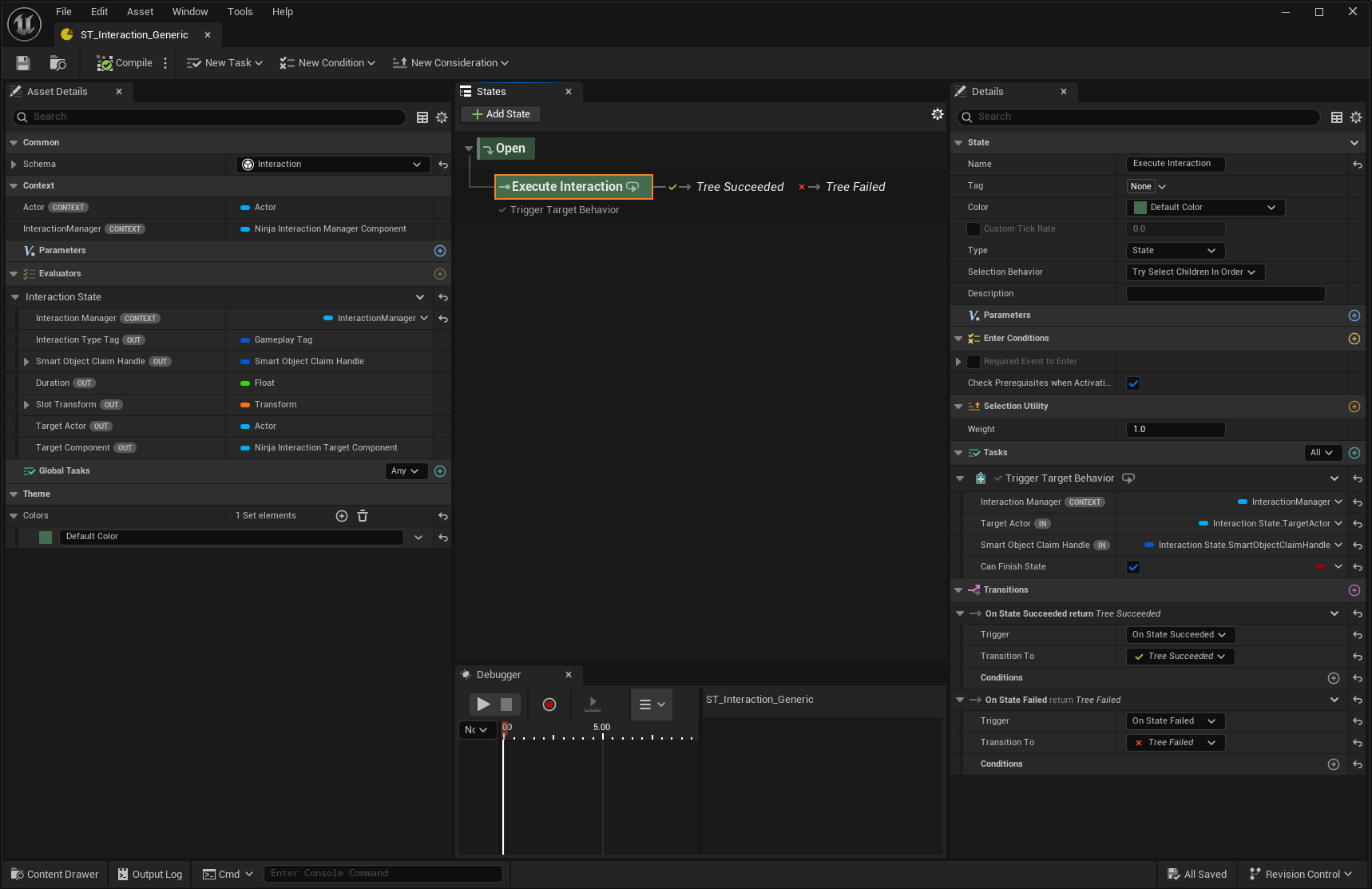
Create a generic Interaction State Tree
Create a new State Tree asset, extending from the NinjaInteractionComponentSchema.
Add the Interaction State Evaluator to the tree, and bind the Interaction Manager property to the context entry.
Add a new state called Execute Interaction, as a child of the root state. This will trigger the actual interaction behavior on the target.
In the Execute Interaction state, add the Trigger Target Behavior task and configure the bindings:
Interaction Manager → context entry
Target Actor → provided by the Evaluator
Claim Handle → provided by the Evaluator
Configure the following transitions for this task:
On State Succeeded → Tree Succeeded
On Tree Failed → Tree Failed.
Create the Smart Object definition
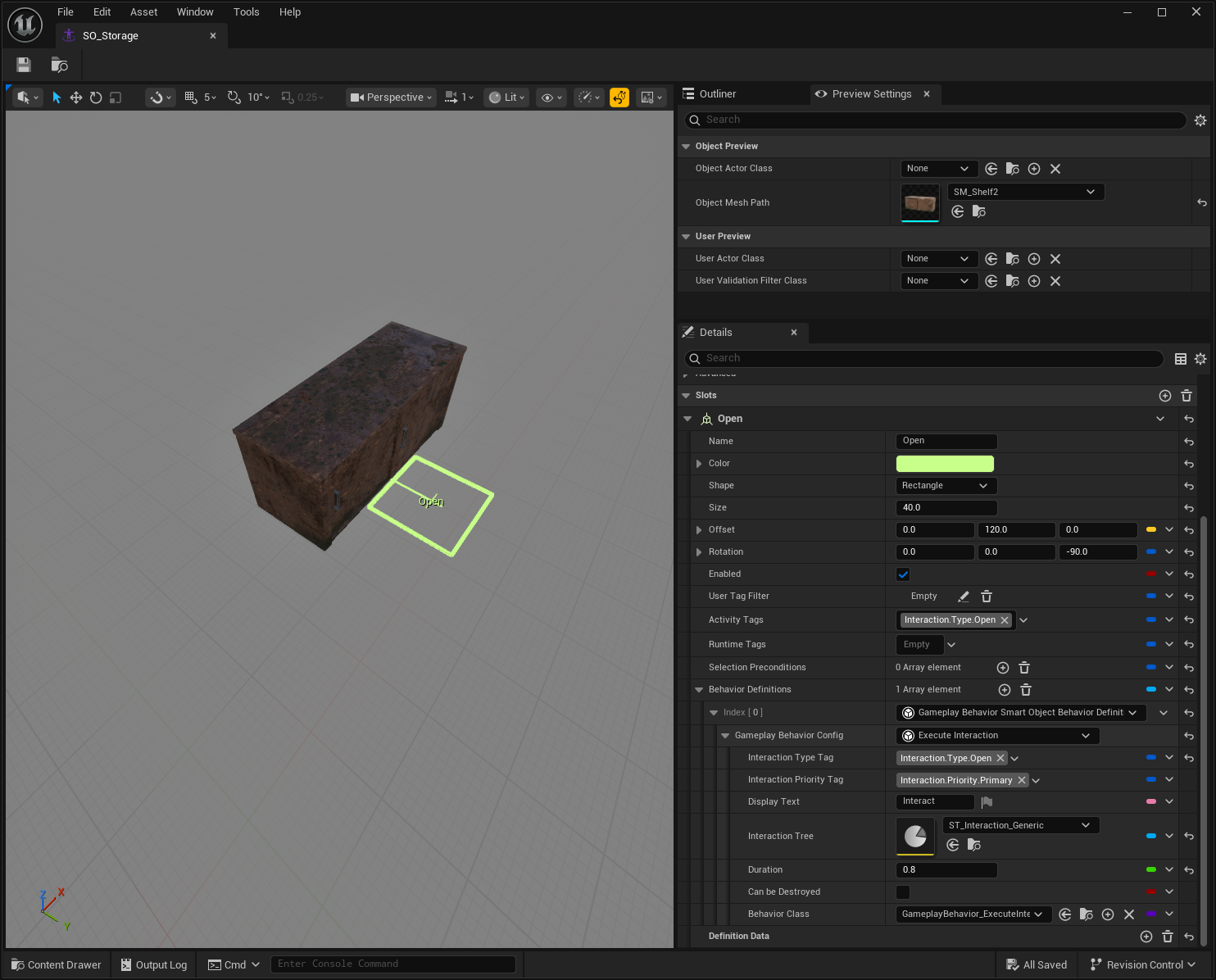
Create a new Smart Object asset.
Set the Object Mesh Path used to preview this interactable target, or select the Actor Class if you already have one.
Add a new slot and give it a meaningful name, such as Open.
Configure the shape (size, offset, and rotation) to represent the slot. This will later be used for Interaction Source placement.
Add an activity tag that identifies this slot, such as
Interaction.Type.Open.Add a new Behavior Definition and select Gameplay Behavior Smart Object Behavior Definition as the type.
Set Execute Interaction as the Behavior Configuration.
Configure the Interaction Type Tag with a tag that uniquely identifies this interaction for this Smart Object, for example
Interaction.Type.Open.Optionally set a Display Text for this interaction, which will be shown by the user interface when displaying interaction prompts.
Assign the State Tree created earlier as the Interaction Tree.
Set a Duration of
0seconds for this interaction. This makes the interaction happen instantly.
Create the Interaction Target Actor
Create a new Actor based on
UNinjaInteractionActor_StaticMesh(or use the Skeletal Mesh variation if appropriate).Set the Smart Object you created earlier to the Interaction Target Component.
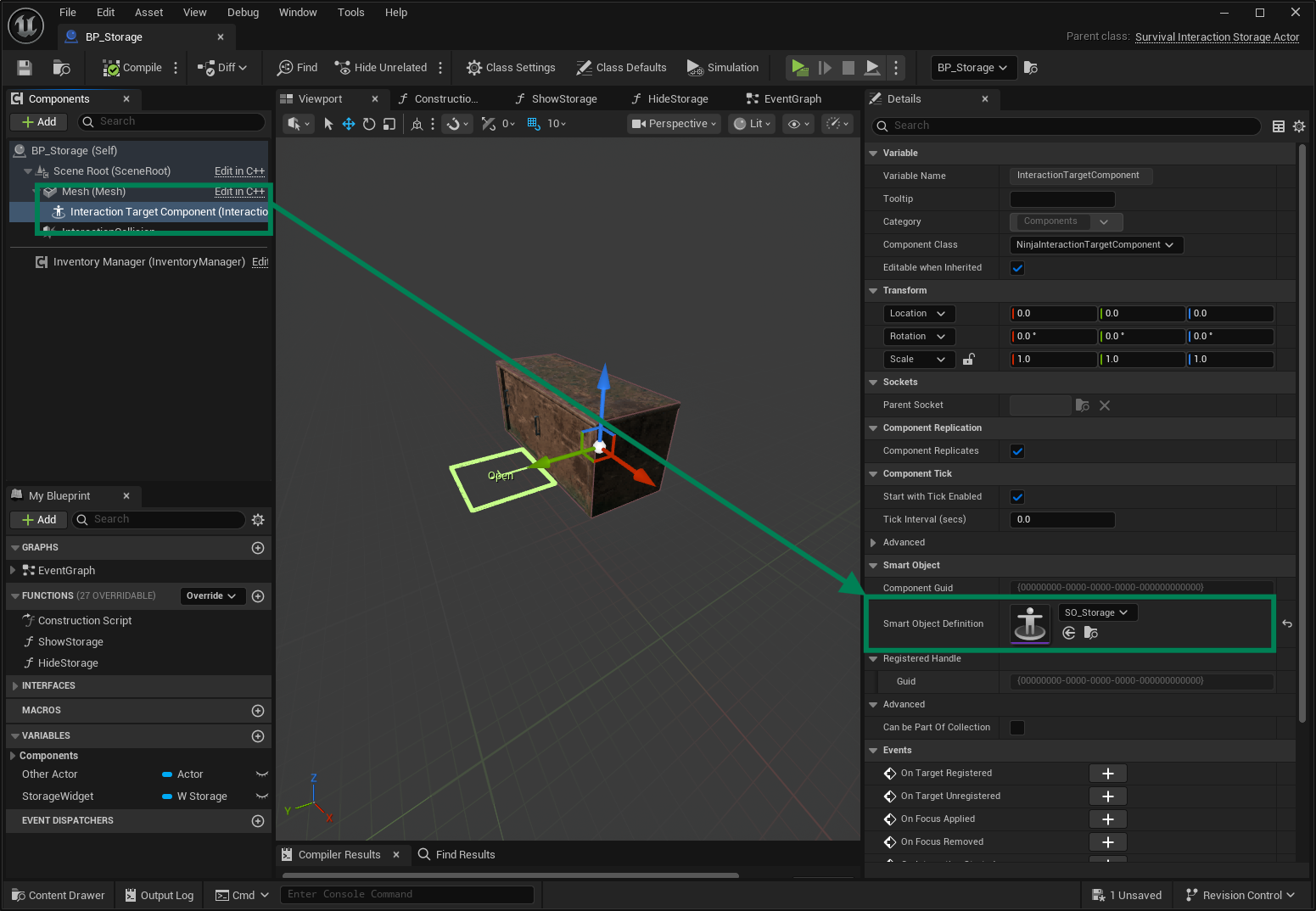
Assign your mesh asset, matching the one used in the Smart Object preview.
Add a collision component (e.g., Box Collision) that matches the object’s shape, and set its Collision Preset to
InteractionTarget, as per the collision setup.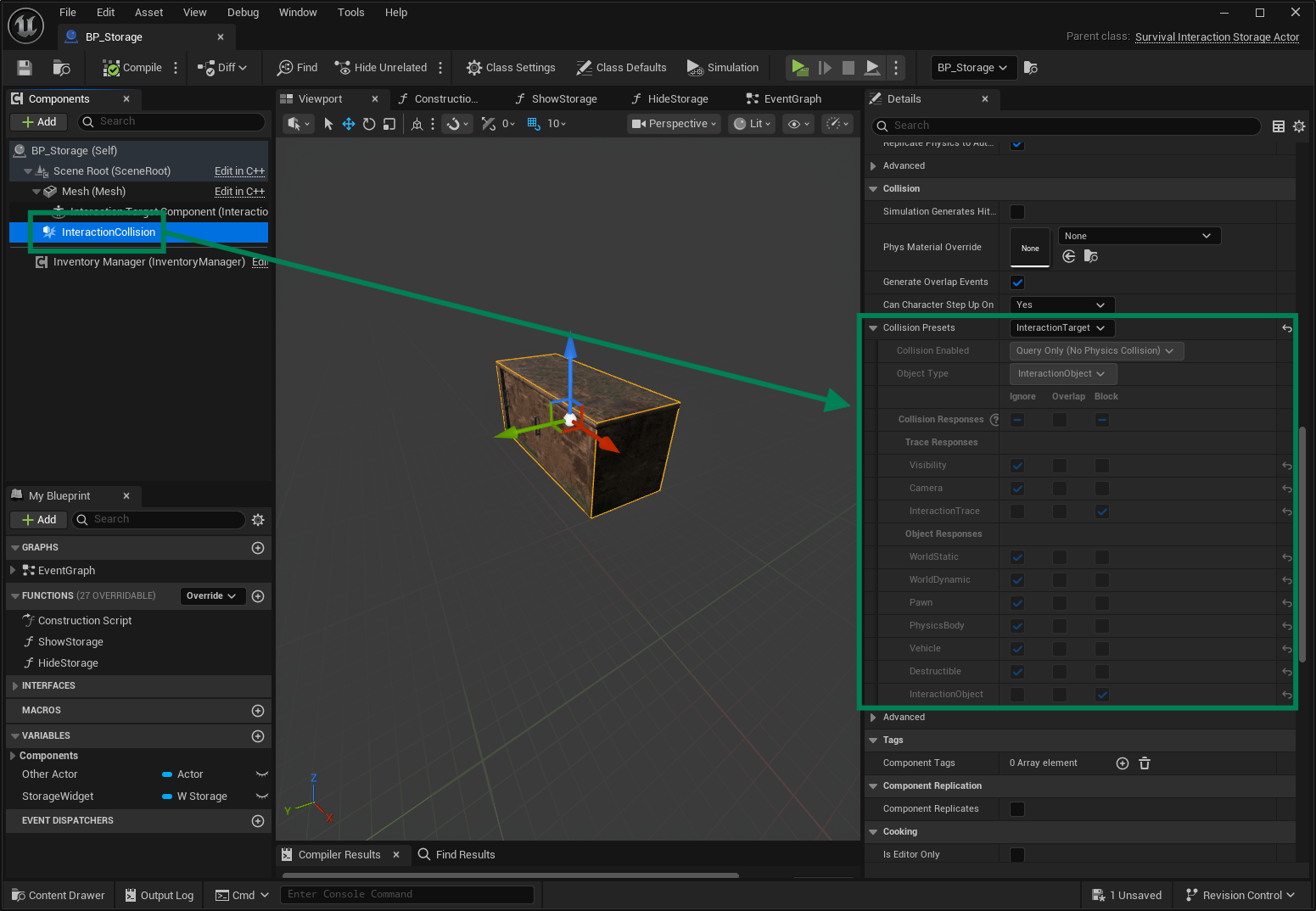
Optionally, add debug strings to track interactions in relevant events such as
HandleTargetRegisteredorHandleFocusRemoved.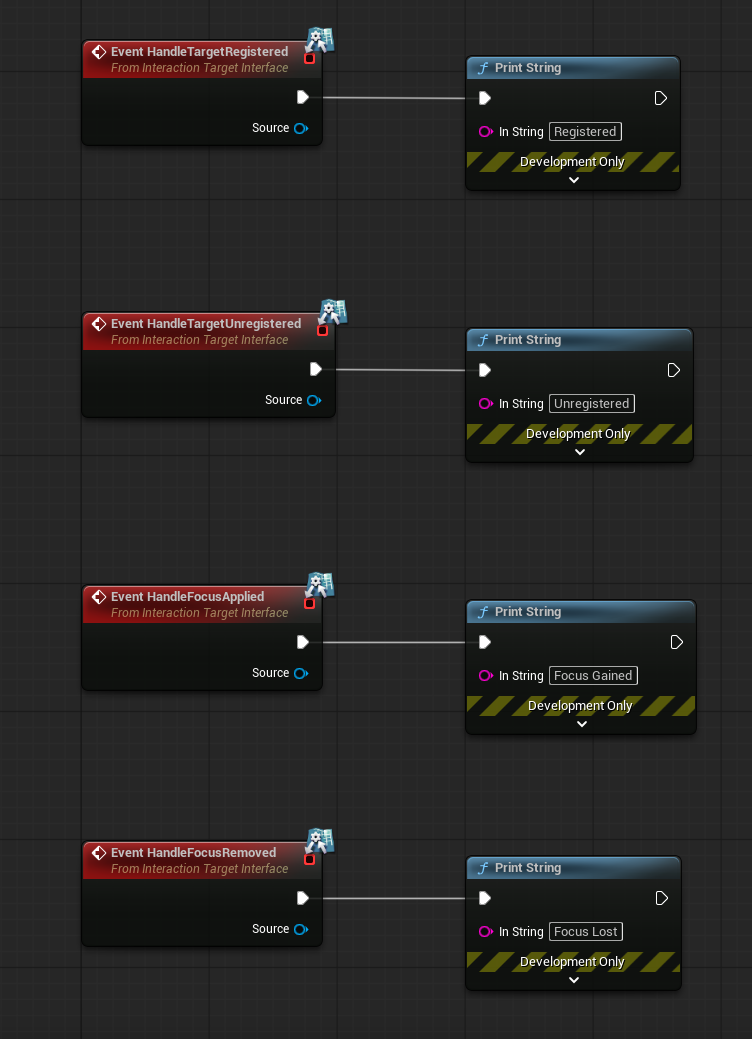
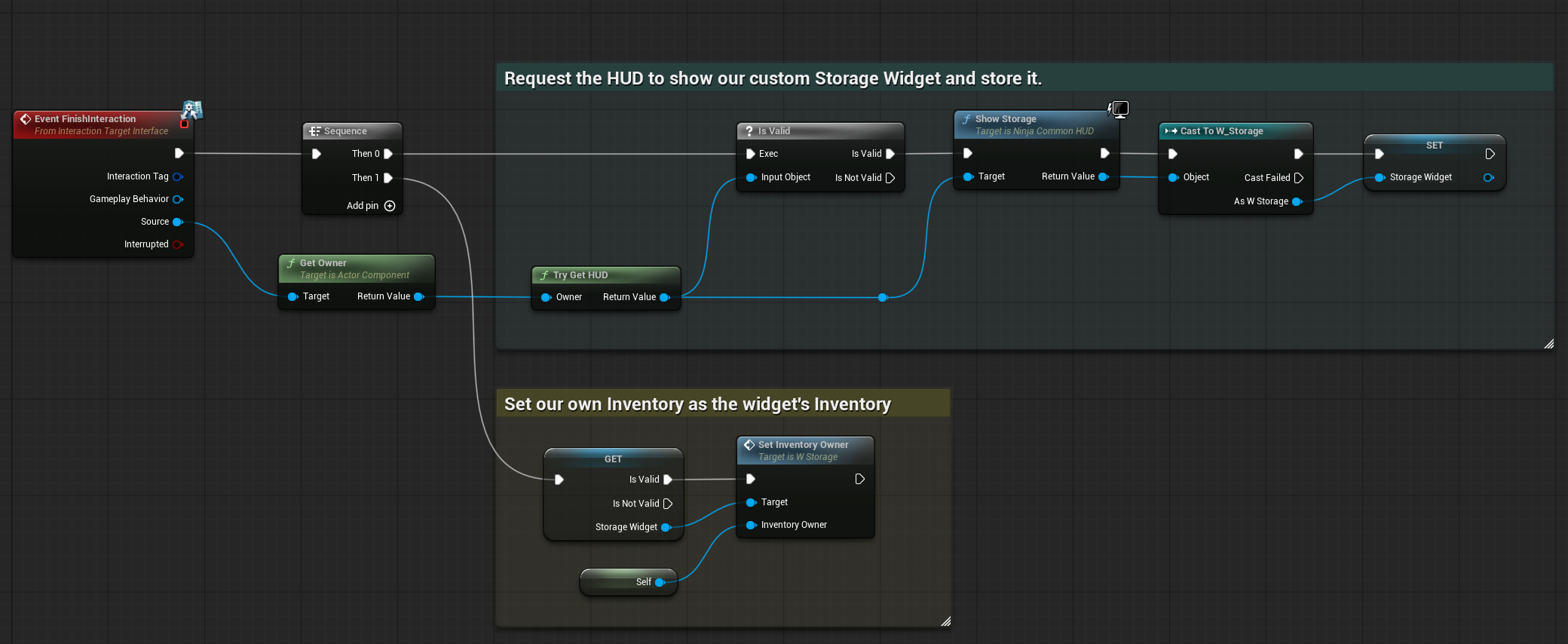
Implement the
FinishInteractionEvent, which will be invoked by the generic interaction tree. For now, you can add a debug string, or implement more complex behavior such as showing an inventory window to the player.