Interaction Animations
You can play animations that match your interactions through the provided State Tree task and Gameplay Ability. Montages can be set directly on the task or selected from a Chooser table, making the system highly flexible.
In this chapter, we'll cover both options and several advanced usages—such as character placement at the Smart Object location and adjusting/extending the animation layer.
Chooser Tables
By default, Ninja Interaction selects animations via a Chooser Table driven by the NinjaInteractionAnimationCriteria class. This class will provide the following selection properties:
Property | Description |
|---|---|
InteractionTags | Tags describing the interaction being executed (e.g., type, subtype). |
SlotTags | Runtime tags added to the Smart Object’s slot at configuration time. |
AbilityTags | Additional tags contributed by the Gameplay Ability during execution. |
Before creating a Chooser table, make sure that all your interaction slots have enough metadata for proper selection. They are also expected to have the required Interaction Type Tag set.
Adding Details to an Interaction Slot
Open your Smart Object definition.
Locate the relevant Interaction Slot and add tags to the Runtime Tags container that help identify the correct animation for this slot/interaction.
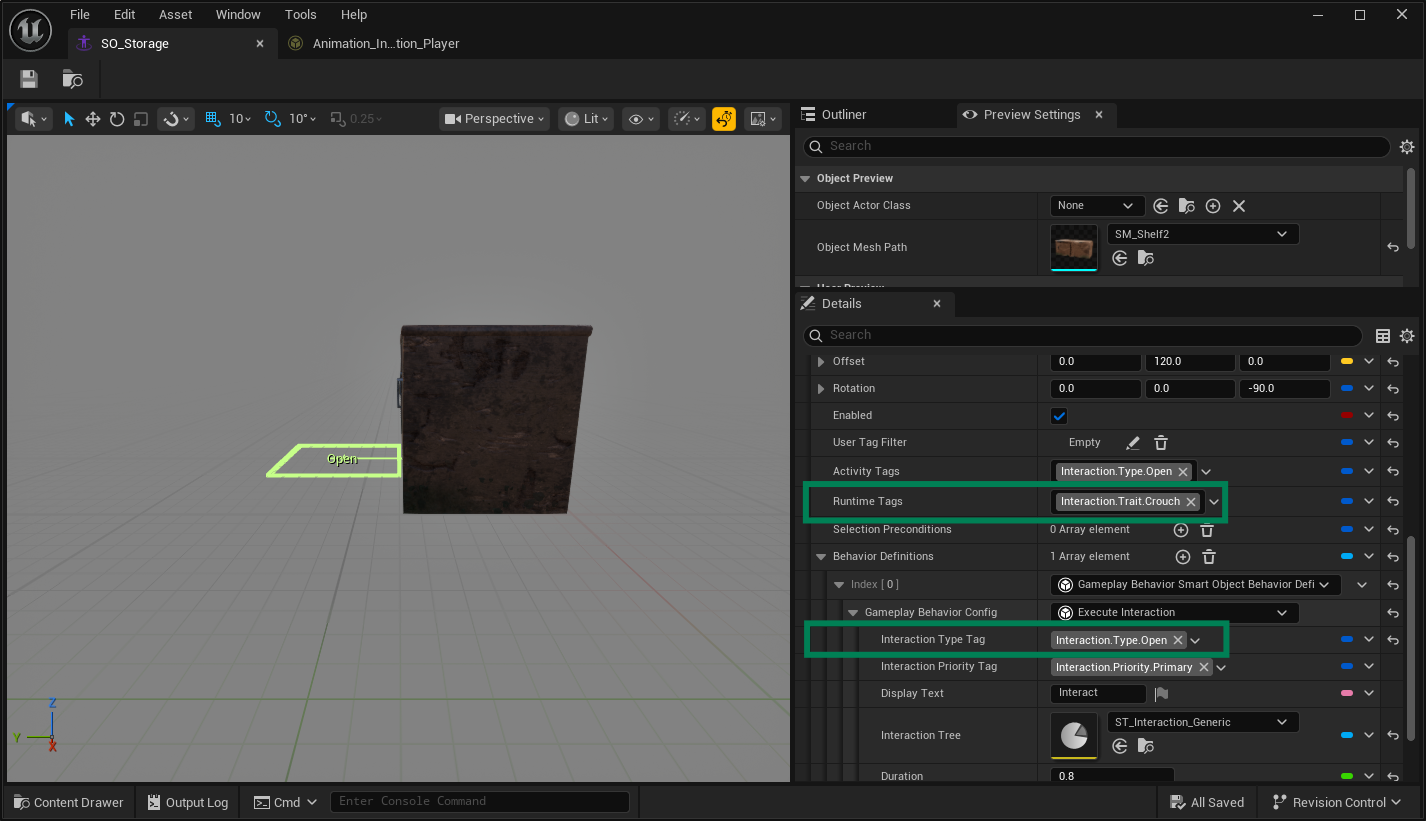
With slots enriched by metadata, create a Chooser Table that catalogs your character's animations.
Creating a Chooser Table
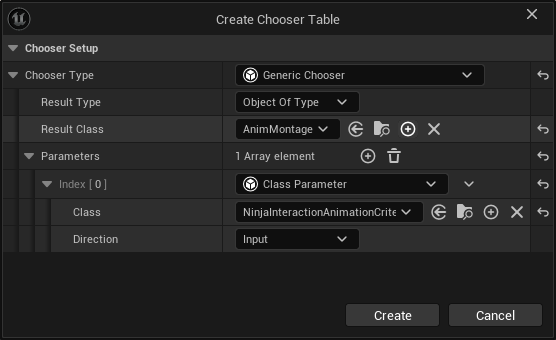
Create a new Chooser Table and select Generic Chooser as the Chooser Type.
Set the Result Class to Animation Montage.
In Parameters, add a Class Parameter using
NinjaInteractionAnimationCriteriaand set its Direction to Input.
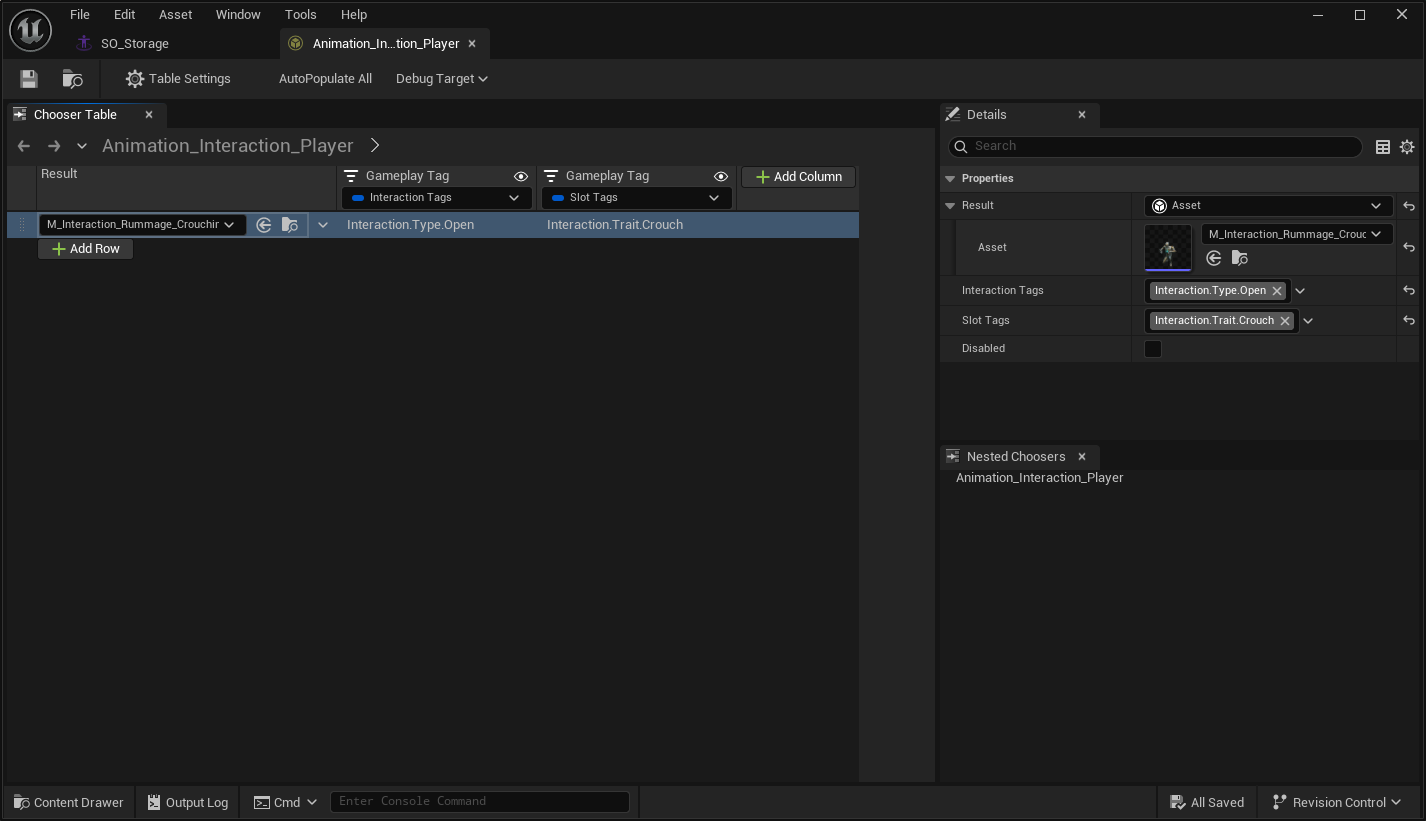
Now add rows/entries to map criteria to the appropriate montages. You can match using simple tag sets or Gameplay Tag Queries for more advanced logic (AND/OR/NOT).
Interaction Animation Ability
This Gameplay Ability should be granted by default to the Interaction Instigator. It is usually triggered by a Gameplay Event sent from the State Tree task, but you may also activate it manually for custom scenarios.
This ability receives the Chooser Table, or a montage specified in a payload, and plays the appropriate animation. You can fine-tune its behavior via properties or by overriding base functions as needed.
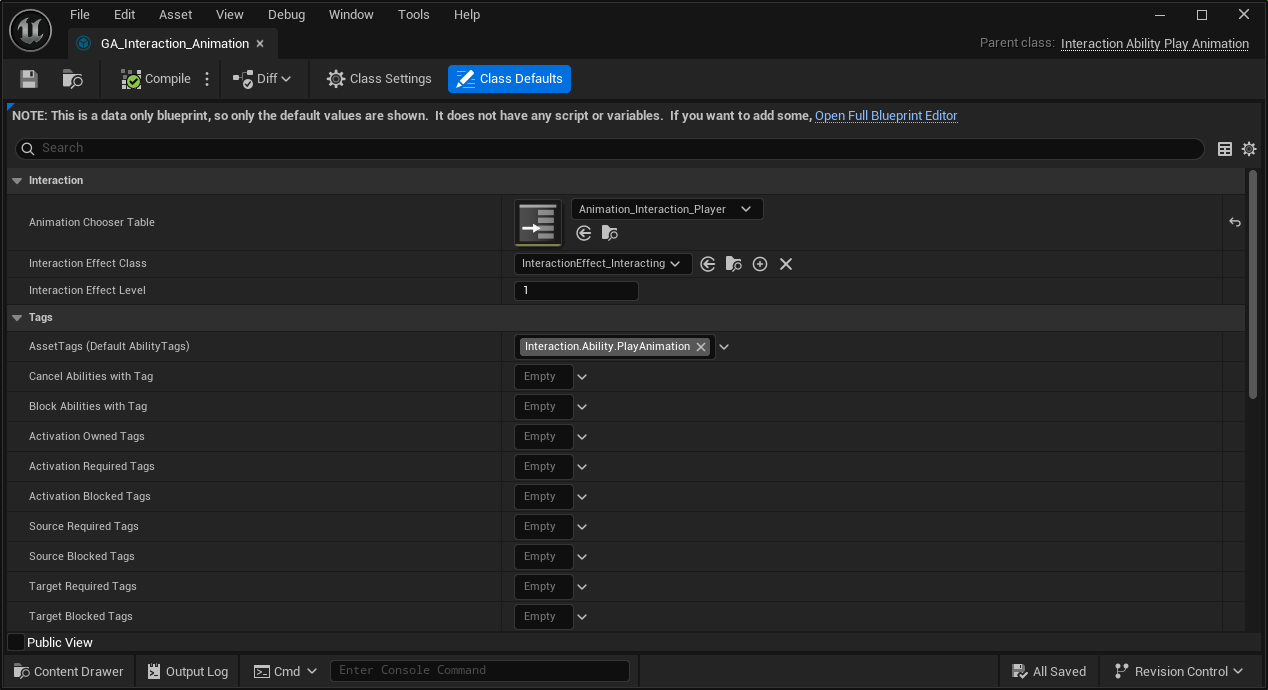
This ability also applies a Gameplay Effect during its execution. This is a powerful extension point to add gameplay tags, cues, and other transient logic tied to the animation window.
State Tree Task
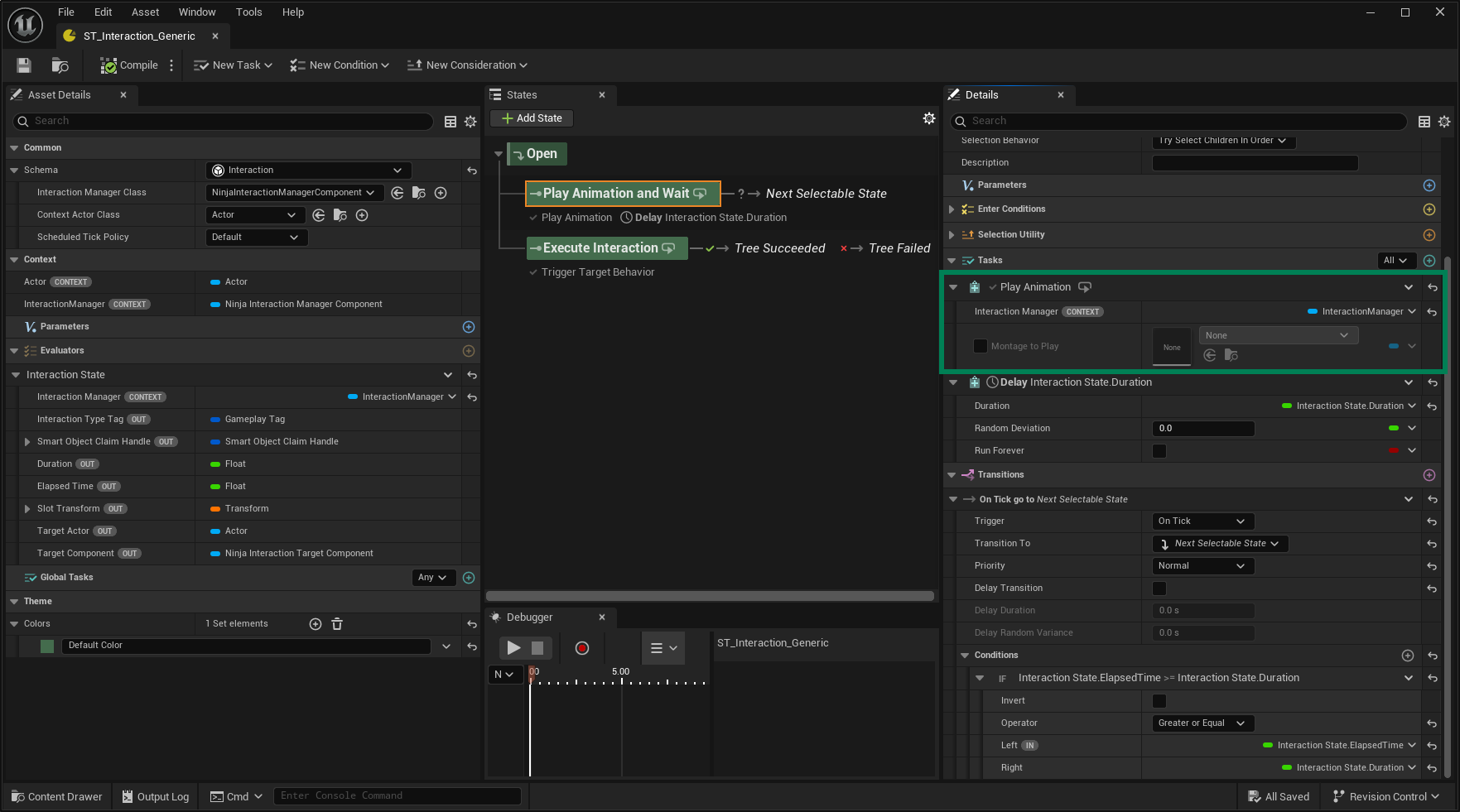
Interaction animations are usually played from the State Tree using the Play Animation task. Use this task in a dedicated state for instant interactions, or pair it with a preceding Delay/Wait node for timed interactions.
This task is straightforward and also lets you specify an Animation Montage override. When provided, the override is used instead of a Chooser selection—handy for unique scenarios or simpler projects that don’t need a Chooser Table.