Configuring Damage Pipelines
This guide shows how to create a Gameplay Effect that applies damage through the default Damage Execution, configure the target's mitigation pipeline, and define the outcomes and cosmetics that run after damage is resolved.
For a deeper explanation of the systems and settings used by these examples, see the related concepts.
Prerequisites
Combat Attributes
Make sure the source and target have the Combat Attribute Set, since the default Damage Execution uses combat attributes such as Base Damage, Critical Hit Chance, Block, Defense, Armor, and Absorption.
Damage Ability
You need an ability or gameplay flow that can apply a damage Gameplay Effect to a target. You can use Melee Attacks, Ranged Attacks, Cast Attacks, or any custom Gameplay Ability that applies a Gameplay Effect.
Damage Gameplay Effect
You may have already done this while creating offensive abilities. Ninja Combat provides base damage Gameplay Effects that you can use as a starting point, or you can create your own Gameplay Effect and add the Damage Execution to it.
Create the Gameplay Effect
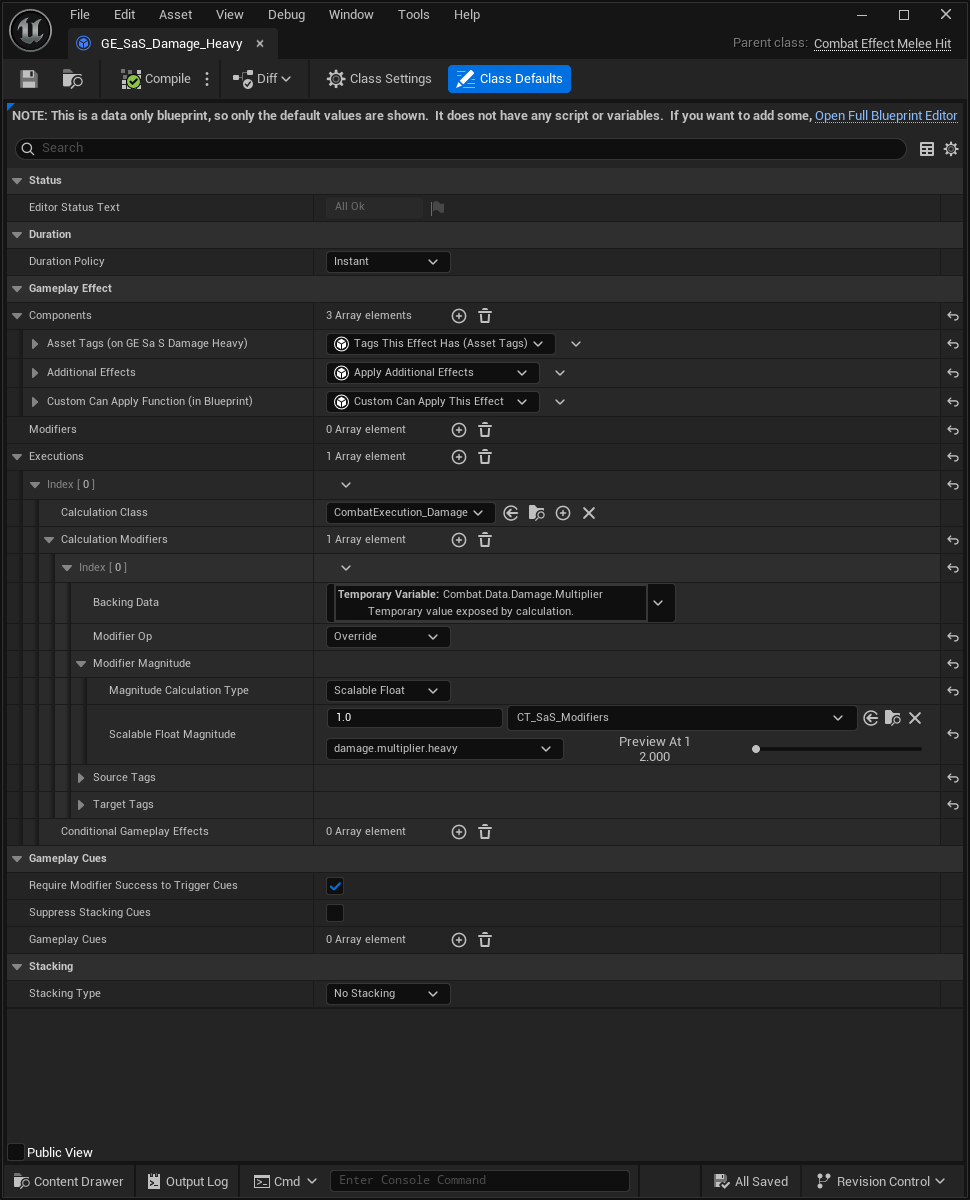
Create a new Gameplay Effect based on one of the provided Gameplay Effect classes, such as
CombatEffect_MeleeHit.Set the effect Duration Policy to Instant, if needed.
Add
CombatExecution_Damageto the effect's Executions, if needed.Optionally, add Calculation Modifiers using
Combat.Data.Damage.Multiplierto modify the Base Damage.Save the Gameplay Effect and add it to your Gameplay Ability.
Defense Data
The target's Defense Data Asset controls the mitigation pipeline. Ninja Combat provides a generic Defense Data Asset assigned to the Combat Manager by default, but projects can duplicate that asset or create new ones to adjust their pipelines as needed.
Create Defense Data
In your Combat Data folder, create a new Defense Data Asset using the Content Browser contextual menu: Ninja Bear Studio → Ninja Combat → Defense Definition.
Open the new Defense Data Asset and expand the Mitigation Pipeline.
Add or remove mitigations as needed, ordering them from broad cancellation checks to regular reductions.
Assign the Defense Data Asset to the target's Combat Manager, using the Defense Data property.
Damage Data
The target's Damage Data Asset controls what happens after damage has been resolved. Ninja Combat provides a generic Damage Data Asset assigned to the Combat Manager by default, but projects can duplicate that asset or create new ones to adjust their pipelines as needed.
Create Damage Data
In your Combat Data folder, create a new Damage Data Asset using the Content Browser contextual menu: Ninja Bear Studio → Ninja Combat → Damage Definition.
Open the new Damage Data Asset and expand the Damage Outcomes.
Add or remove damage outcomes as needed. Order them from the most drastic outcomes to milder ones, so the pipeline can stop as early as possible.
Expand the Damage Cosmetics.
Add or remove damage cosmetics as needed. Order is less important for cosmetics, since they cannot interrupt the execution chain.
Assign the Damage Data Asset to the target's Combat Manager, using the Damage Data property.