Collision Settings
In this page, you will learn how to configure the necessary Collisions that will be used by Ninja Interaction. These are used by Interaction Scans and Line-of-Sight Validation between an interactor and a target.
Object and Trace Channels
Ninja Interaction uses Object and Trace channels to detect interaction targets and to validate visibility between the scanner and the interactable. For more details about Object and Trace Channels, check the official Unreal Engine documentation.
Configure the Interaction Object channel
In the Engine, navigate to your Collision settings (Edit → Project Settings → Engine).
In the Object Channel section, create a new channel, by clicking the New Object Channel button, and name it InteractionObject. Set its default response to ignore.
Configure the Interaction Trace channel
In the Engine, navigate to your Collision settings (Edit → Project Settings → Engine).
In the Trace Channel section, create a new channel, by clicking the New Trace Channel button, and name it InteractionTrace. Set its default response to ignore.
Collision Presets
To simplify assigning the correct channels and responses to relevant actors, we will create two Collision Presets: one for the scanner (Source) and one for the targets (Target).
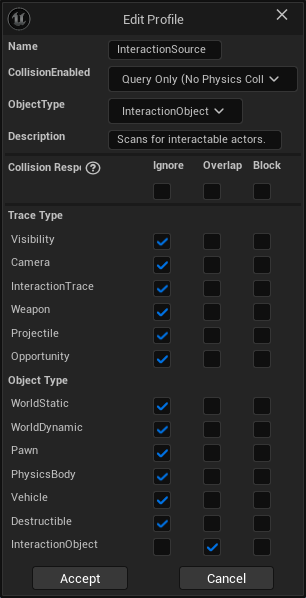
The InteractionSource preset can be assigned to any scanning component (usually attached to the Interaction Manager's owner). It detects and overlaps with Interaction Objects.
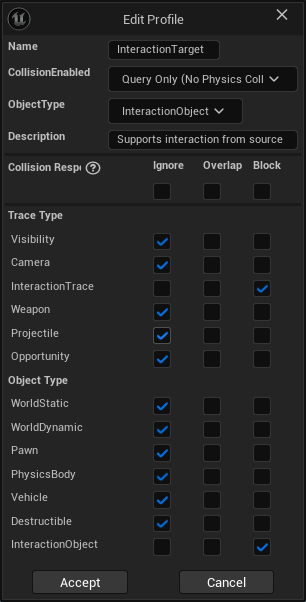
The InteractionTarget preset can be assigned to any Interactable Actor. It ensures it can be detected by scans and also blocks line-of-sight traces.
Configure the Interaction Object Channel
In the Engine, navigate to your Collision settings (Edit → Project Settings → Engine).
In the Object Channels section, create a new entry, name it InteractionObject.
Set its Default Response to Ignore.
Configure the Interaction Trace
In the Engine, navigate to your Collision settings (Edit → Project Settings → Engine).
In the Trace Channels section, create a new entry, name it InteractionTrace.
Set its Default Response to Ignore.
Configure the Interaction Source preset
In the Engine, navigate to your Collision settings (Edit → Project Settings → Engine).
In the Preset section, create a new entry, name it InteractionSource.
Set Collision Enabled to Query Only, the Object Type to InteractionObject and a meaningful description like Scanner preset that overlaps with interaction targets.
Set the Collision Responses so everything is ignored, except for InteractionObject, which should be set to Overlap.
Configure the Interaction Target preset
In the Engine, navigate to your Collision settings (Edit → Project Settings → Engine).
In the Preset section, create a new entry, name it InteractionTarget.
Set Collision Enabled to Query Only, the Object Type to InteractionObject and a meaningful description like Allows targets to be detected for interactions.
Set the Collision Responses so everything is ignored, except for InteractionObject, which should be set to Block.
Set Line of Sight on Relevant Presets
In the Engine, navigate to your Collision settings (Edit → Project Settings → Engine).
In the Preset section the Block All preset and set the Interaction Trace response to Block.
Repeat this for any other preset that could potentially block line-of-sight for interactions, such as Pawn and Destructible.
These settings cover the most common interaction scenarios, and should be sufficient for the majority of interaction targets.
For more specialized cases, it is optional but recommended to create dedicated collision presets for interaction targets with unique behavior or requirements, such as vendors, pickups, corpses, or other bespoke gameplay actors.
This helps keep interaction rules explicit, predictable, and easy to reason about as complexity grows.