Melee Attacks
Melee Attacks are one of the core features of Ninja Combat. They are usually implemented using a combination of Animation Montages and Gameplay Abilities, collecting potential targets, and applying specified Damage Effects.
Melee Weapon Interface
Any object, such as Pawns or Weapons, meant to execute melee attacks must implement CombatMeleeInterface. It contains functions meant to expose relevant data and objects used by the combat system to process targets and apply damage.
Function | Description |
|---|---|
| Provides the mesh used by Melee Scans. Usually the Weapon Mesh. |
| Provides the mesh used by Melee Scans, identified by a specific tag. For cases where a weapon has more than one scan area. |
| Provides a Gameplay Effect applied when this actor generates a hit. Overrides the Ability Hit Effect. |
| Level used when instantiating the Damage Gameplay Effect. |
| Optionally provides a damage value magnitude set to the Gameplay Effect using |
| Optionally provides a poise value magnitude set to the Gameplay Effect using |
| Defines a strength applied when physical reactions are enabled. |
| Provides cosmetic trails that should be activated by the Melee Scan, during a melee attack. |
| Provides cosmetic impact trails used when the weapon hits (i.e. blood trails). |
| Activates attack trails and sounds when necessary. |
| Deactivates attack trails and sounds when necessary. |
| Invoked by the Damage System to render cosmetics from a registered hit, via the Gameplay Cue system. |
Weapon Actor
The Weapon Actor (NinjaCombatWeaponActor) is an abstract class that can be used as a base for all your weapons. It properly implements the Melee Weapon Interface, executing the expected logic and exposing properties for adjustment.
The Base Weapon Actor comes with the Weapon Cosmetics Component, used to handle all cosmetic assets registered to the weapon, such as sounds and particles. This component is also integrated with the Asset Manager, supporting soft references and loading on demand.
Prepare the Weapon for Melee Scans
Open the Static or Skeletal Meshes used to represent your melee weapons.
Disable their default collisions, so they won't interfere with your gameplay.
Place sockets along the scan area, such as the blade. These will be used by both melee scans and weapon trails.
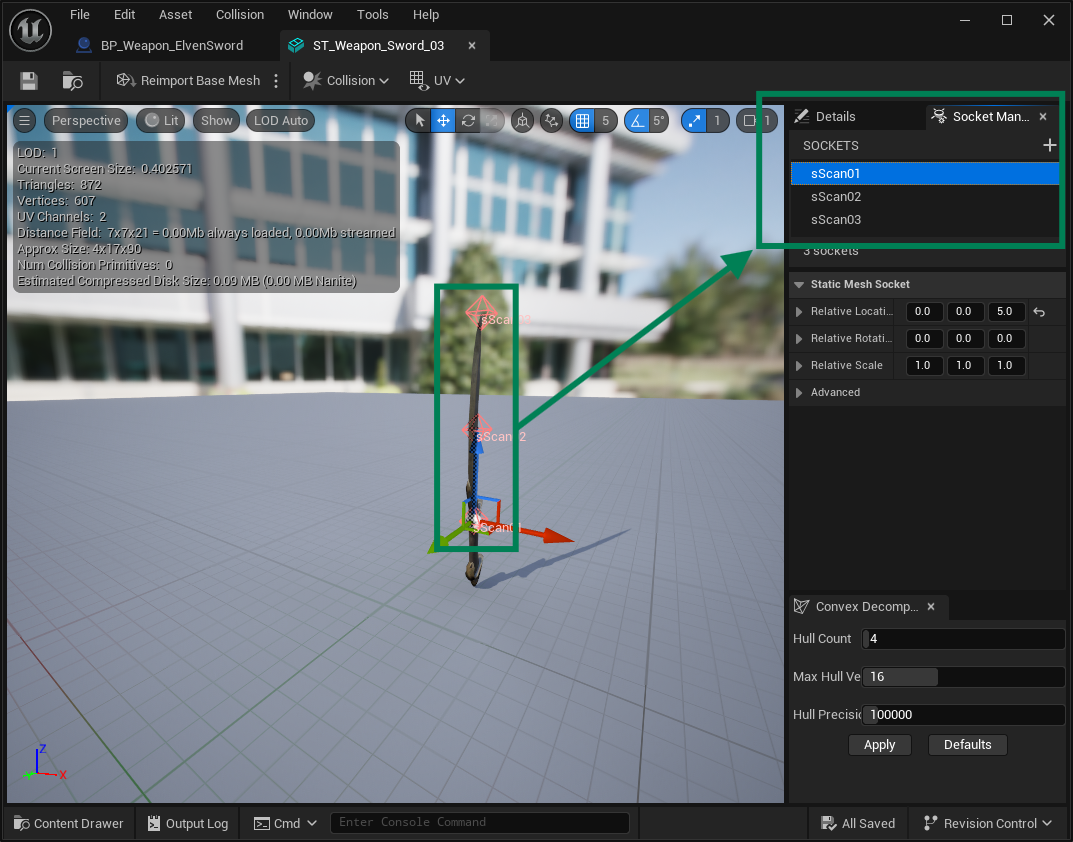
Configure a Melee Weapon
Open one of your melee weapon Blueprints, such as the Sword Weapon Actor, created in the Weapon Actors page.
Implement the
GetMeleeMeshfunction, returning the Static or Skeletal Mesh that will be used for Melee Scans.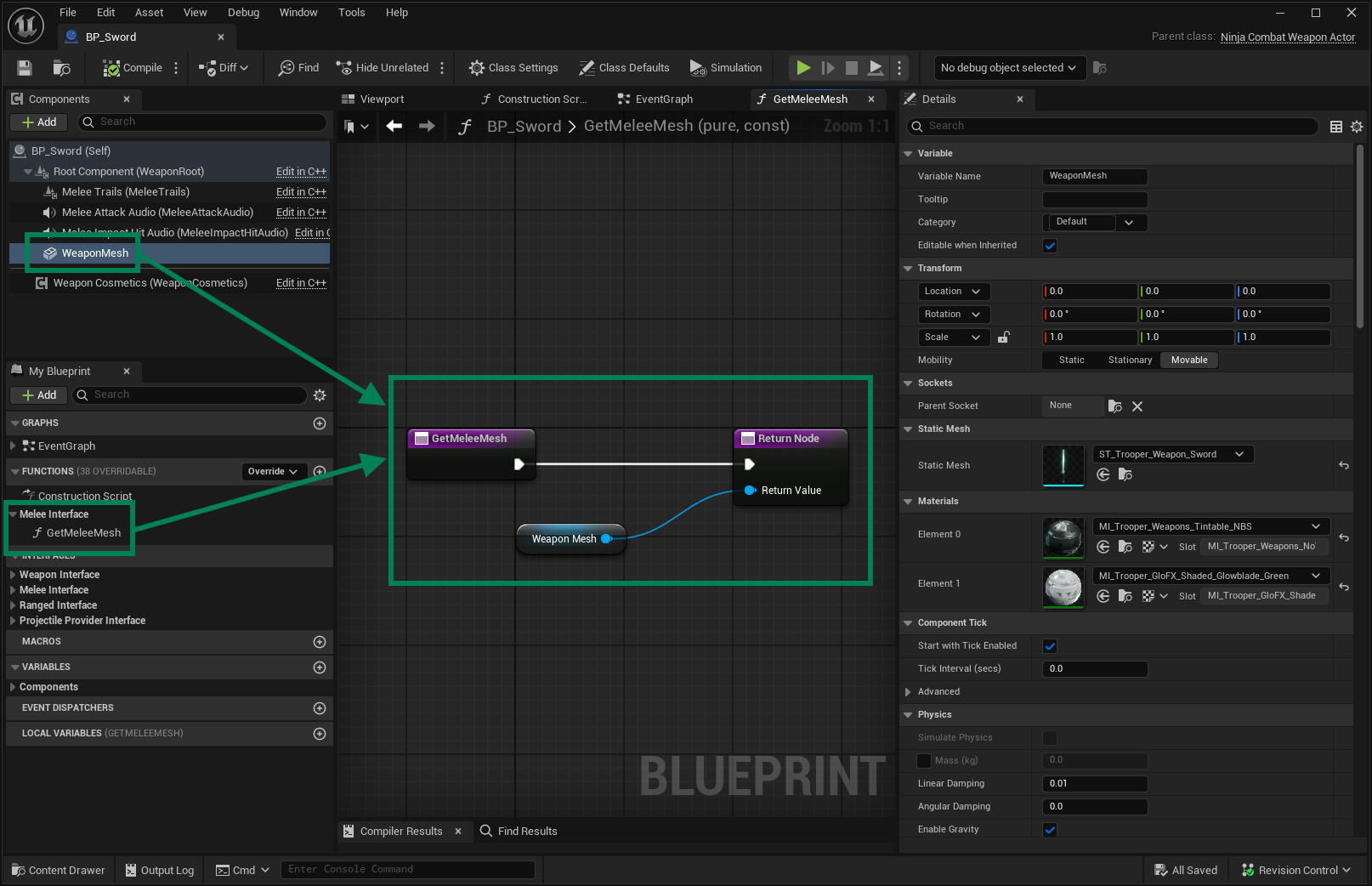
In the Melee category, in the Defaults panel, add any cosmetics that you'd like, such as the Impact particles and sounds.
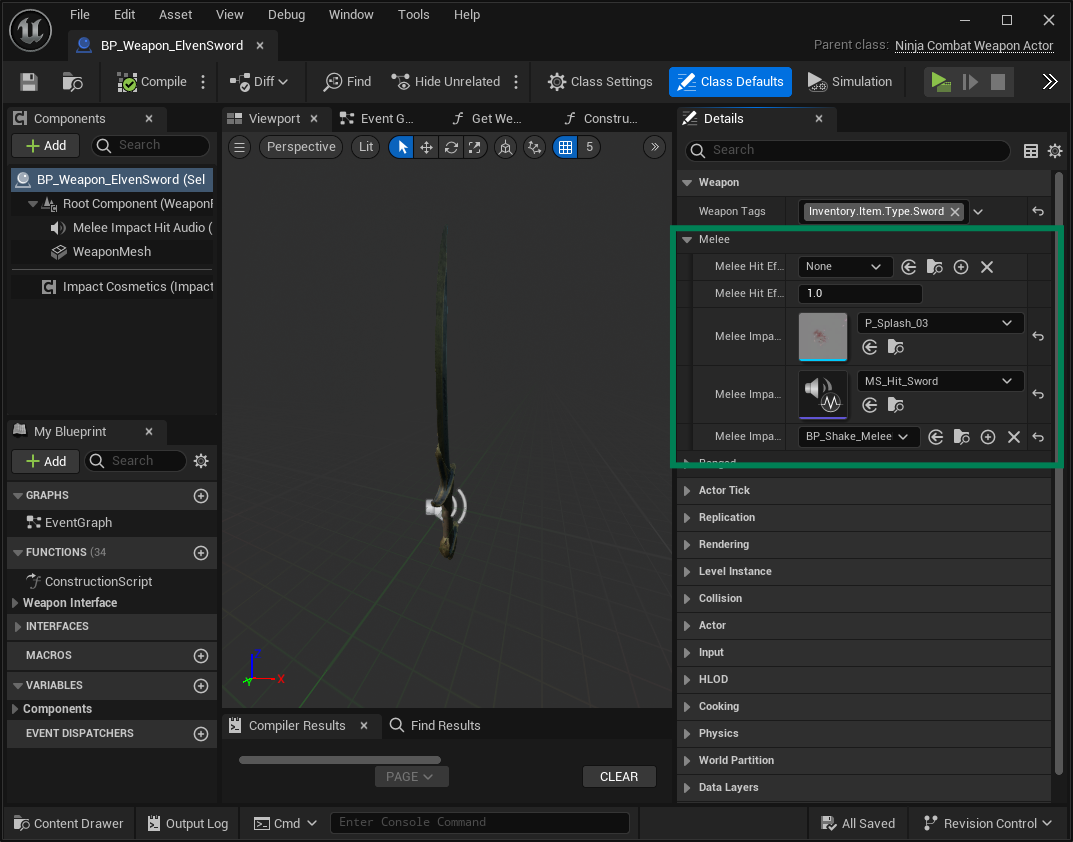
Melee Scans
Melee Scans are used to detect weapon hits during an attack. They are usually driven by animation, but the system has a clear separation between the Animation Notify State, placed in each attack Animation Montage, and the backend that actually scans for targets.
Configuring a Melee Scan
Create or open an Animation Montage that represents the melee attack.
Add the Melee Scan Notify State, covering all frames where the melee scan should occur.
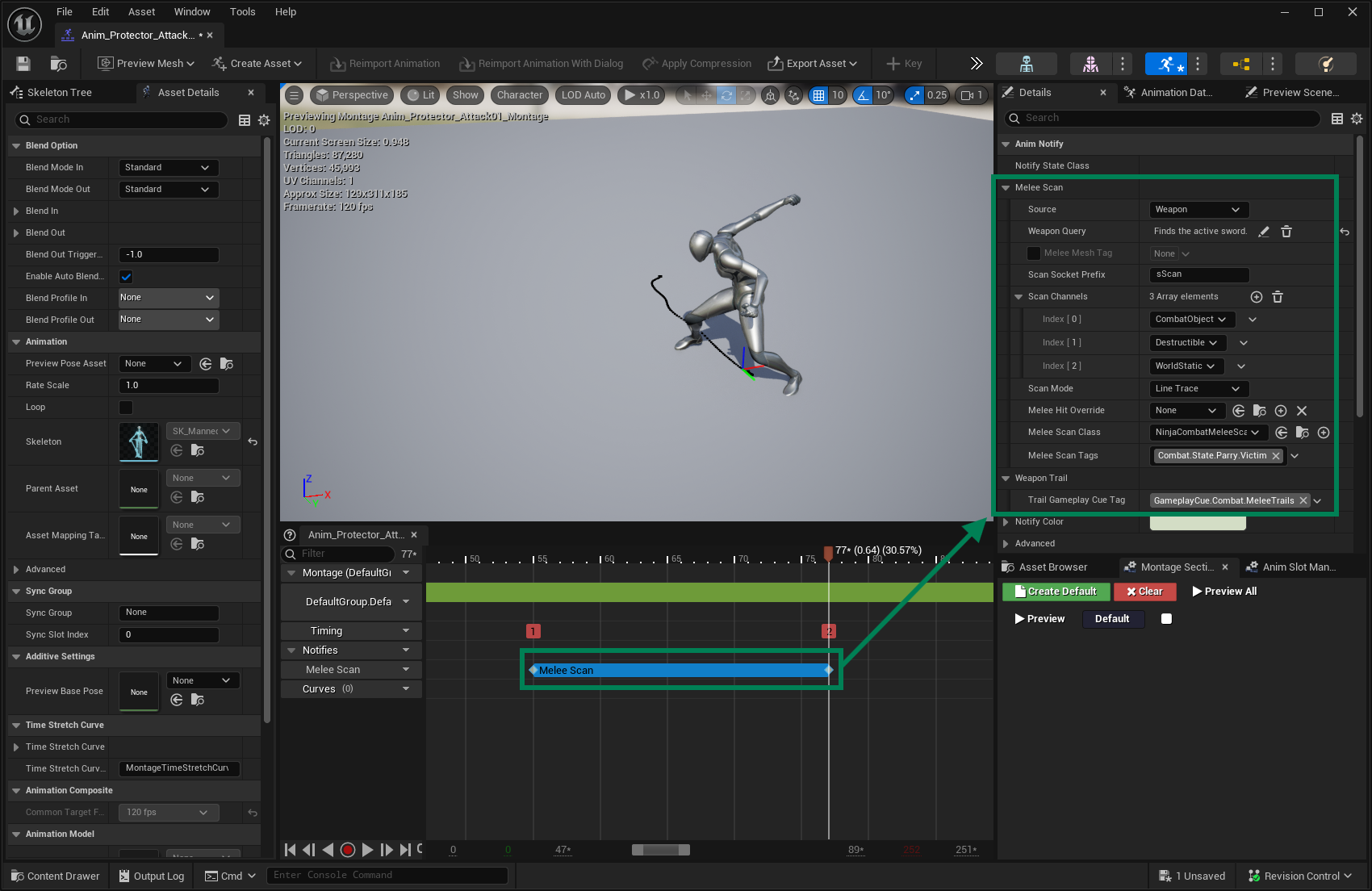
In the Melee Scan details, configure the Gameplay Tag Query used to retrieve the correct weapon from the Weapon Manager, to retrieve the weapon.
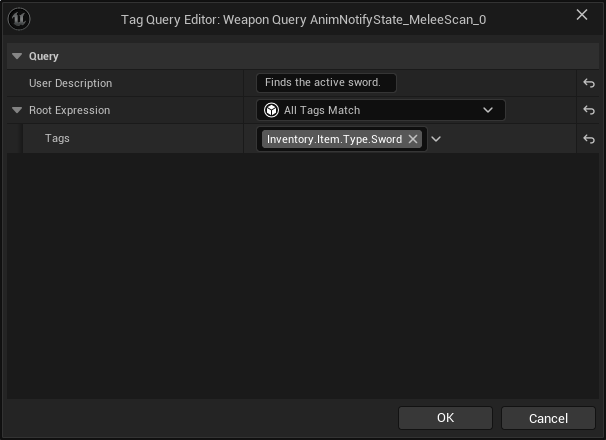
Ensure that the selected Scan Channels include CombatObject.
Here is a summary of each property available in the Melee Scan panel.
Property | Description |
|---|---|
Source | Determines if this Melee Scan happens from the owner or from a weapon. |
Weapon Query | For Melee Scans happening from the weapon, this query is used to retrieve the correct weapon from the Weapon Manager. |
Melee Mesh Tag | An optional Gameplay Tag that can identify a specific mesh, in case multiple meshes are available. |
Scan Socket Prefix | A prefix for all sockets in the source mesh used to perform the scan. |
Scan Channel | All collision object types that will be detected by this Melee Scan. |
Scan Mode | How the scan is performed (i.e. line traces or shape sweeps. Appropriate settings will be shown for each option. See list below for details on each option. |
Melee Hit Override | An optional Gameplay Effect that overrides the one set in the Ability or provided by the melee scan source. Follows the priority previously defined: Melee Scan > Melee Interface > Attack Ability |
Melee Scan Class | The Melee Scan Request class, that defines how this scan collects and filters hit targets. Can be customized to change scan logic. |
Melee Scan Tags | Gameplay Tags containing additional traits to this melee scan, such as being a parry opportunity for its targets. |
Trail Gameplay Cue Tag | Gameplay cue that will be added and removed during the Melee Scan. |
The following options are available for the Scan Mode:
Line Trace: Creates lines between each socket and then between their current positions and their positions on last frame. This is the default option.
Box Sweep: Creates a box shape, with the provided extent, centered at the defined socket.
Capsule Sweep: Creates a capsule shape, with the provided extent, centered at the defined socket.
Sphere Sweep: Creates a sphere shape, with the provided radius, centered at the defined socket.
Melee Scan Request Class
This object is used to transfer melee scan data between all the framework layers: Animation, Ability, and Task. It also contains the logic to perform scans and consolidate targets.
If you need to modify the Melee Scan logic, this is the place to look into. You can set a Melee Scan Class to each Melee Scan Animation Notify State or globally, in the Ninja Combat Project Settings.
Weapon and Owner Scans
Both scan types support the same set of functionalities. However, for owner-based scans, you may need to adjust your base class to include the same elements already provided by Ninja Combat’s base weapon class:
Melee Interface: Implements relevant attributes and functionalities for melee combat.
Cosmetics Component: Handles visual and audio effects such as particles, sounds, and camera shakes.
Configuring a Character for Melee Attacks
Open your base character class in C++ or Blueprint.
Add a
NinjaCombatCosmeticsComponentto your character.Add the
CombatMeleeInterfaceto your character.Implement
GetMeleeMeshfrom the Melee Interface. This should return the main visible mesh from your character, which will be used for melee scans.Implement
HandleMeleeDamageCosmeticsfrom the Melee Interface. This function should pass relevant data to the component'sHandleImpactDamageCosmeticsmethod using aCombatImpactCosmeticsstructure.If your owner-based melee attacks include weapon trails, implement
StartMeleeTrailsCosmeticsandStopMeleeTrailsCosmetics, and call the corresponding functions on the cosmetics component.
Cosmetics
The default Trail Gameplay Cue, defined as GameplayCue.Combat.MeleeTrails, is handled automatically by the Combat Manager Component, using the sound and particle effects defined in the Melee Weapon.
The Combat Manager triggers this Gameplay Cue and delegates it to the Melee Effect Causer—either the Weapon or the Combatant—which then starts and stops the trail using the StartMeleeTrailsCosmetics and StopMeleeTrailsCosmetics methods.
You can handle cosmetics using standard Gameplay Cues, as defined by the Gameplay Ability System. Alternatively, you can use the pipeline provided by Ninja Combat, which still leverages local Gameplay Cues but centralizes default behavior, such as Niagara Systems, Sounds, and Camera Shakes—within the UNinjaCombatCosmeticsComponent.
Attack Ability
The Attack Ability is responsible for Melee and Ranged attacks. To get started with Melee Attacks, all you need to do is setting the Default Animation Montage and make sure to assign this Gameplay Ability to your character.
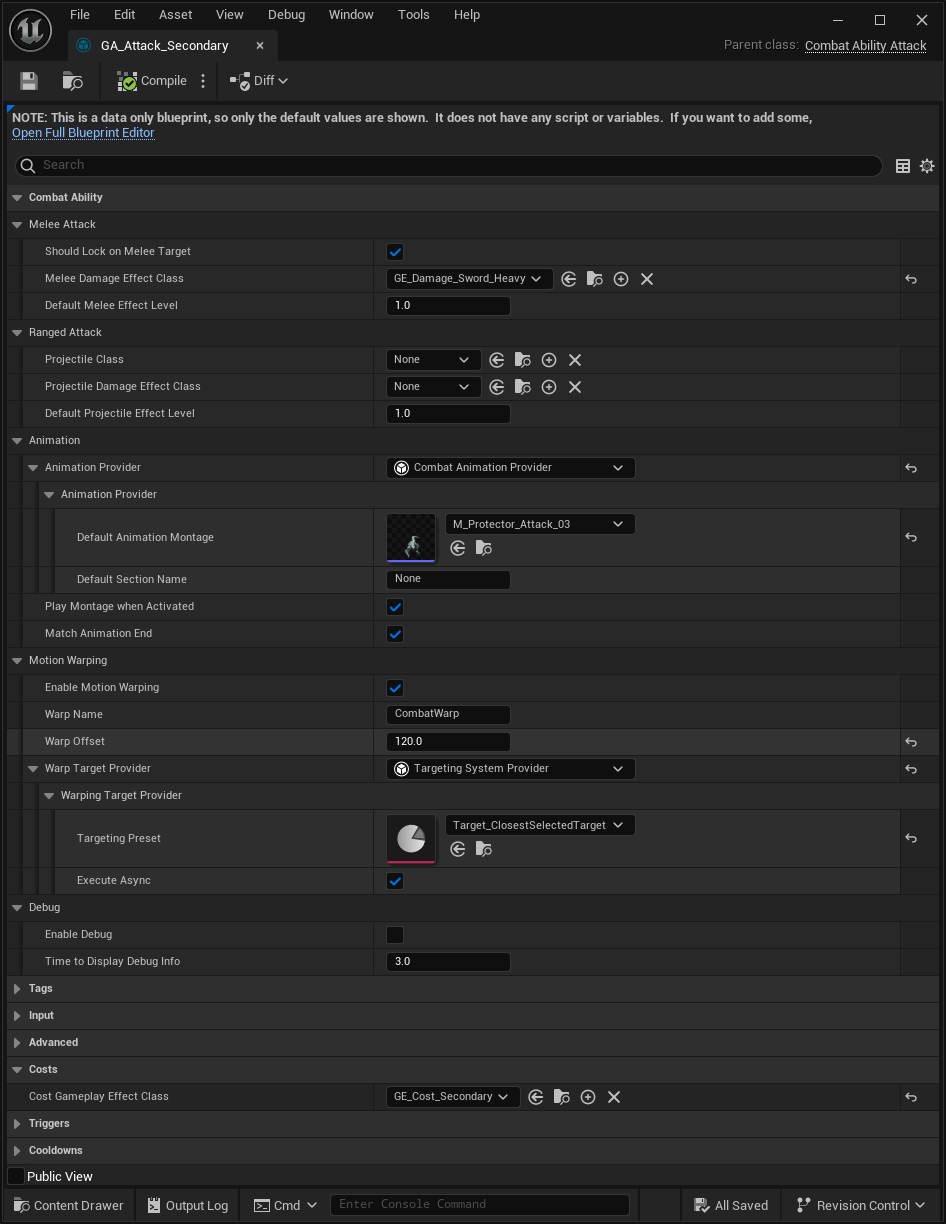
There are three important property groups in this Ability, that are relevant for melee attacks.
Melee Attack: All properties that will define the melee attack's behavior. More information about this ability can be found in its reference page.
Animation: Here you can set your Animation Provider and the Animation Montage. We'll cover this in more detail in the Character Animation page.
Debug: Enabling debug in this ability will show the trajectory and targets hit by the melee scan.