Collision Settings
In this page, you will learn how to configure the necessary Collisions that will be used by Ninja Combat. These are used by Melee Scans, Projectile Traces and Opportunity Line-of-Sight.
Object and Trace Channels
Ninja Combat uses Object and Trace channels to detect important gameplay events, such as melee hits. For more details about Object and Trace Channels, check the official Unreal Engine documentation.
Configure the Combat Object channel
In the Engine, navigate to your Collision settings (Edit → Project Settings → Engine).
In the Object Channel section, create a new channel, by clicking the New Object Channel button, and name it CombatObject. Set its default response to ignore.
Configure Combat Trace channels
In the Engine, navigate to your Collision settings (Edit → Project Settings → Engine).
In the Trace Channel section, create a new channel, by clicking the New Trace Channel button, and name it ProjectileScan. Set its default response to ignore.
Create another new channel, by clicking the New Trace Channel button, and name it OpportunityScan. Set its default response to ignore.
Collision Presets
To simplify assigning the correct channels, and their block responses, to relevant actors in the world, we will create Collision Presets that can be easily assigned.
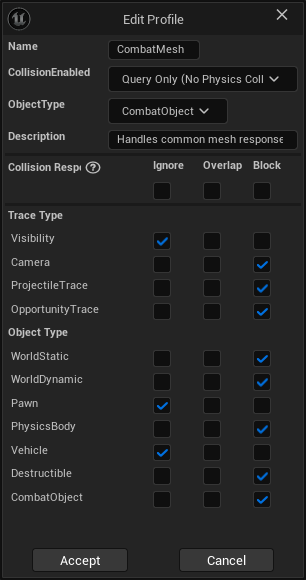
The CombatMesh preset can be assigned to any Combat Mesh (such as the main character mesh) and has the exact same responses as the CharacterMesh, but it includes the combat-related traces.
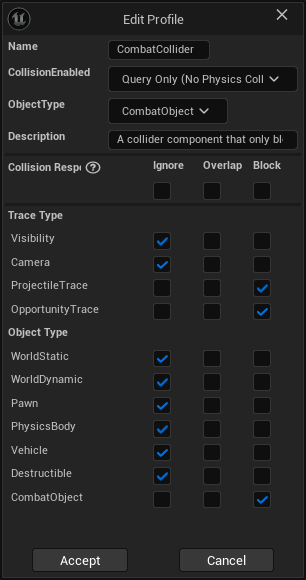
Other colliders, such as projectiles or dedicated character collision components can use the CombatCollider preset that only blocks combat-related traces.
Configure the Combat Mesh preset
In the Engine, navigate to your Collision settings (Edit → Project Settings → Engine).
In the Preset section, create a new entry, name it CombatMesh.
Set Collision Enabled to Query Only, the Object Type to CombatObject and a meaningful description like Handles common mesh responses and blocks combat traces.
Set the Collision Responses so they match the Character Mesh responses, making sure to block combat-related types.
Configure the Combat Collider preset
In the Engine, navigate to your Collision settings (Edit → Project Settings → Engine).
In the Preset section, create a new entry, name it CombatCollider.
Set Collision Enabled to Query Only, the Object Type to CombatObject and a meaningful description like Only blocks channels related to the combat system.
Set the Collision Responses so only combat-related types are blocked.
Default Melee Scan Collisions
Set default channels for melee scans so they automatically use the correct setup without requiring manual configuration for each notify. You can still fine-tune them in each notify, as needed.
Configure default Melee Scan channels
In the Engine, navigate to your Ninja Combat settings (Edit → Project Settings → Ninja Combat).
Set the Melee Scan Channels to
CombatObject,DestructibleandWorldStatic.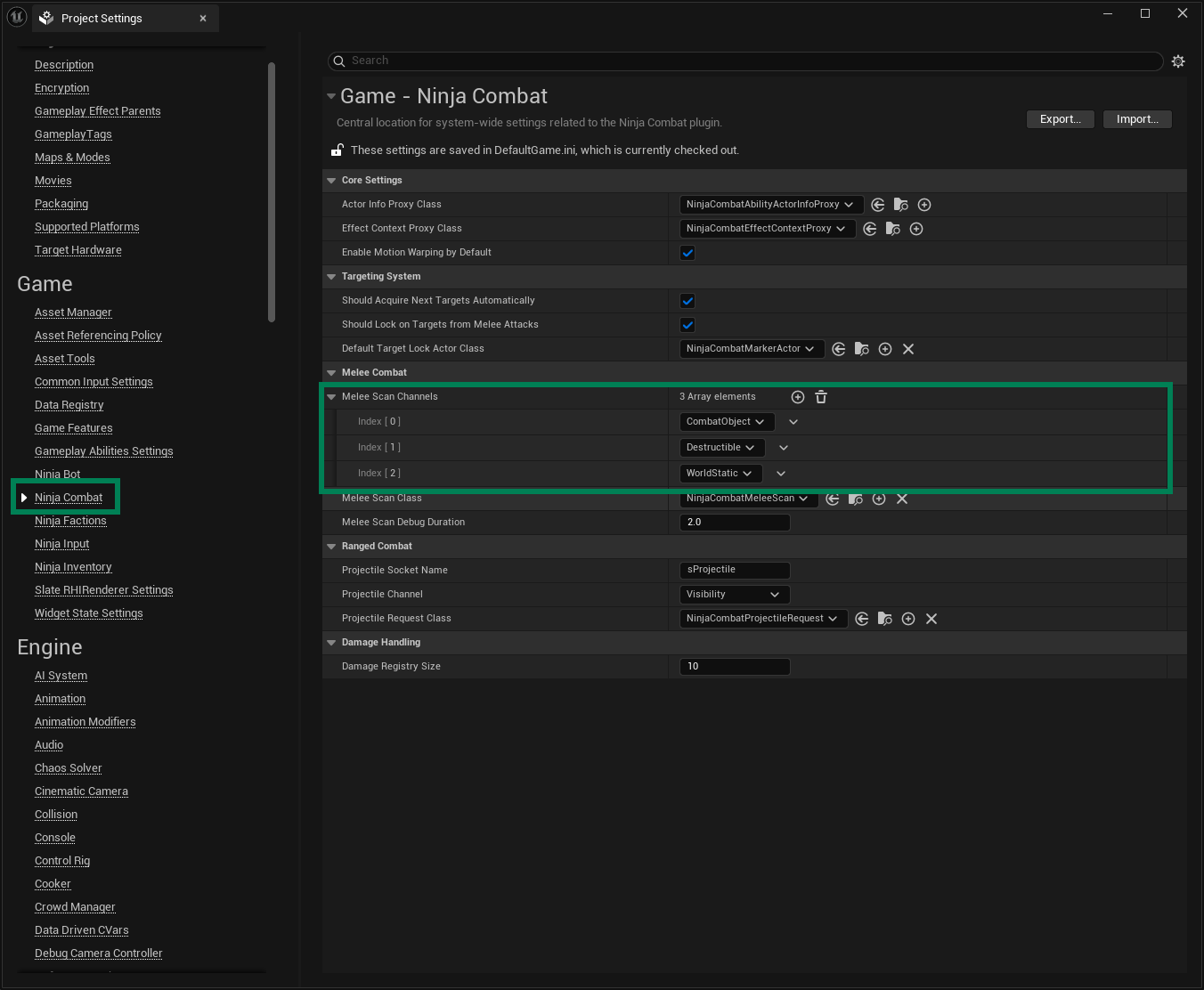
C++ Collisions
In many cases, you may want to reference your collision channels directly in C++. You can create a simple header file (e.g., CollisionChannels.h) and define aliases for your custom channels: