Weapon Manager
This page provides information about the Weapon Manager, the most important combat component, after the Combat Manager.
Class Hierarchy
The Weapon Manager is a common extension target, so it is built with a class hierarchy designed to accommodate this requirement.
Weapon Manager Interface
The Weapon Manager is defined by the Weapon Manager Interface (CombatWeaponManagerInterface). It defines a single function, GetWeapon, used by other classes to obtain a weapon using a Gameplay Tag Query. Any Actor Component implementing this interface is considered a valid Weapon Manager in the system.
Base Weapon Manager Component
This abstract class can be used as a base class for Blueprint or C++ implementations. It is useful to define a character hierarchy that requires different weapon managers for different character types. A common example is:
An abstract character class defining the Weapon Manager using this base class.
An AI subclass using a simpler version of the Weapon Manager, such as the Default Weapon Manager.
A player subclass using a more complex version of the Weapon Manager, such as the Equipment Weapon Manager, to integrate with an Inventory System.
Default Weapon Manager Component
This concrete implementation is the main version provided by the framework that can be used for common combat requirements or as a base for more complex weapon management requirements.
Setup
To configure the Default Weapon Manager, you need to create the weapon sockets in your character mesh, add the component to your character and configure the weapon class/socket mapping.
Configuring Weapon Sockets
Open the Skeletal Mesh used by the Combat Mesh in your character Blueprint.
Navigate to the bones where your weapons should be attached, such as the hand bones.
Create all necessary sockets, such as
sSword,sShieldand so on, adjusting their locations and rotations.
Configuring the Weapon Manager
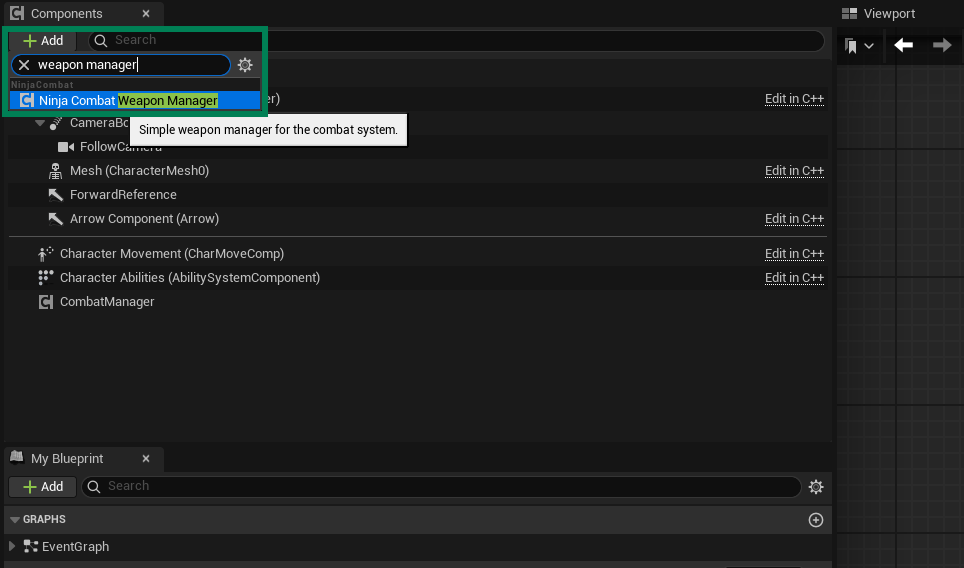
In your combatant Blueprint, add a new Default Weapon Manager Component.
Header
public: /** Name that can be used with FObjectInitializer to override the default class. */ static FName WeaponManagerName; ANBSCharacter(const FObjectInitializer& ObjectInitializer); // -- Begin CombatSystem implementation virtual UActorComponent* GetWeaponManagerComponent_Implementation() const override; // -- End CombatSystem implementation private: /** Base Weapon Manager for the character. */ UPROPERTY(VisibleAnywhere, BlueprintReadOnly, Category = "Components", meta = (AllowPrivateAccess = "true")) TObjectPtr<UNinjaCombatBaseWeaponManagerComponent> WeaponManager;Implementation
#include "Components/NinjaCombatWeaponManagerComponent.h" FName ANBSCharacter::WeaponManagerName = "WeaponManager"; ANBSCharacter::ANBSCharacter(const FObjectInitializer& ObjectInitializer) : Super(ObjectInitializer) { // ... WeaponManager = CreateOptionalDefaultSubobject<UNinjaCombatWeaponManagerComponent>(WeaponManagerName); } UActorComponent* ANBSCharacter::GetWeaponManagerComponent_Implementation() const { return WeaponManager; }Implement the
GetWeaponManagerfunction, from theCombat System Interface, returning this component.Navigate to the component's Defaults Panel and map all weapon classes to their sockets.
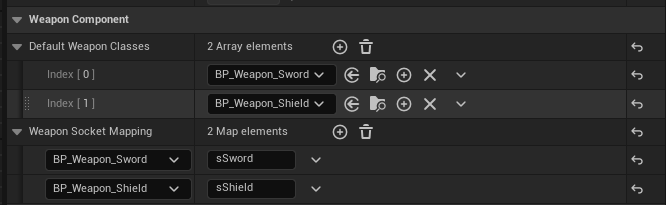
Optionally, add any default Weapon Classes that should be added to the character by default.
Managing Weapons
The Weapon Manager Interface and the Default Weapon Manager Component provide functions that you can use to retrieve and manage weapons.
Get Weapon
The GetWeapon function, provided by the CombatWeaponManagerInterface is available to any valid implementation and can be used to retrieve any weapons by the matching Weapon Tags, from the Weapon Interface.
Default Weapons
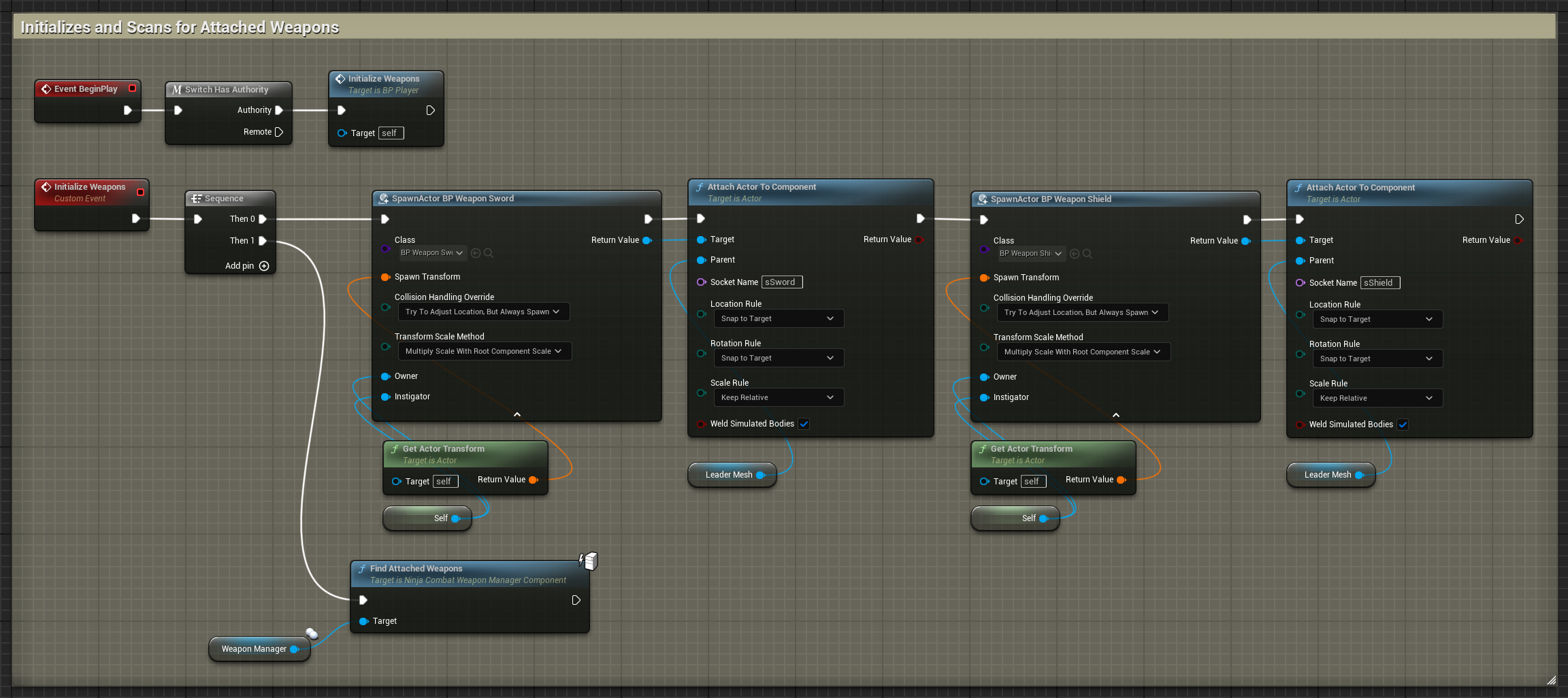
You can add default weapon classes that will be instantiated when the Weapon Manager initializes. These weapon classes will be automatically attached to the sockets they are mapped to.
Automatic Detection
Weapon Actors that are deliberately spawned and attached to the combatant can be detected and registered by the Weapon Manager. For that, you need to call FindAttachedWeapons.
Add and Remove Weapons
You can add and remove weapons using the Default Weapon Manager, using the following functions.
Function | Purpose |
|---|---|
| Adds a new weapon instance and attaches it to the pre-defined class socket. |
| Instantiates a weapon class and attaches it to the pre-defined class socket. |
| Removes a weapon instance from the weapon collection. |
| Removes a weapon instance returned by the |
Inventory Integration
The Weapon Manager is the perfect bridge to integrate the Combat System with an Inventory Manager. To learn how to integrate with Ninja Inventory, see the Inventory Integration guide.