Creating and Using Patrol Points
Having dynamic behaviors configured opens the opportunity to mix and match assets and create diverse AI archetypes. In this chapter, we will leverage that flexibility by creating another AI agent, replacing the previous random roaming behavior with a patrolling behavior.
To achieve this, we will create the following assets:
A Patrol Point Blueprint that can be further customized to fit your project’s needs.
A Dynamic Behavior/State Tree (search) defining the actions the AI performs upon reaching a patrol point.
A Dynamic Behavior/State Tree (patrol) that overrides the roaming behavior, allowing the AI to locate and use patrol points.
A new Bot Setup and an additional AI Character Blueprint that will use this configuration.
Create and Place Patrol Points
Create a Blueprint based on
ANinjaBotPatrolPointActor.Place four Patrol Point Blueprints in your map so they form a square.
Select the first patrol point and assign the second patrol point as its Next Patrol Point.
Select the second patrol point and assign the third patrol point as its Next Patrol Point.
Select the third patrol point and assign the fourth patrol point as its Next Patrol Point.
Select the fourth patrol point and assign the first patrol point as its Next Patrol Point, completing the patrol path.
Select all patrol points and add a Gameplay Tag to Patrol Point Tags that identifies the patrol path, such as
AI.Patrol.Lookout.
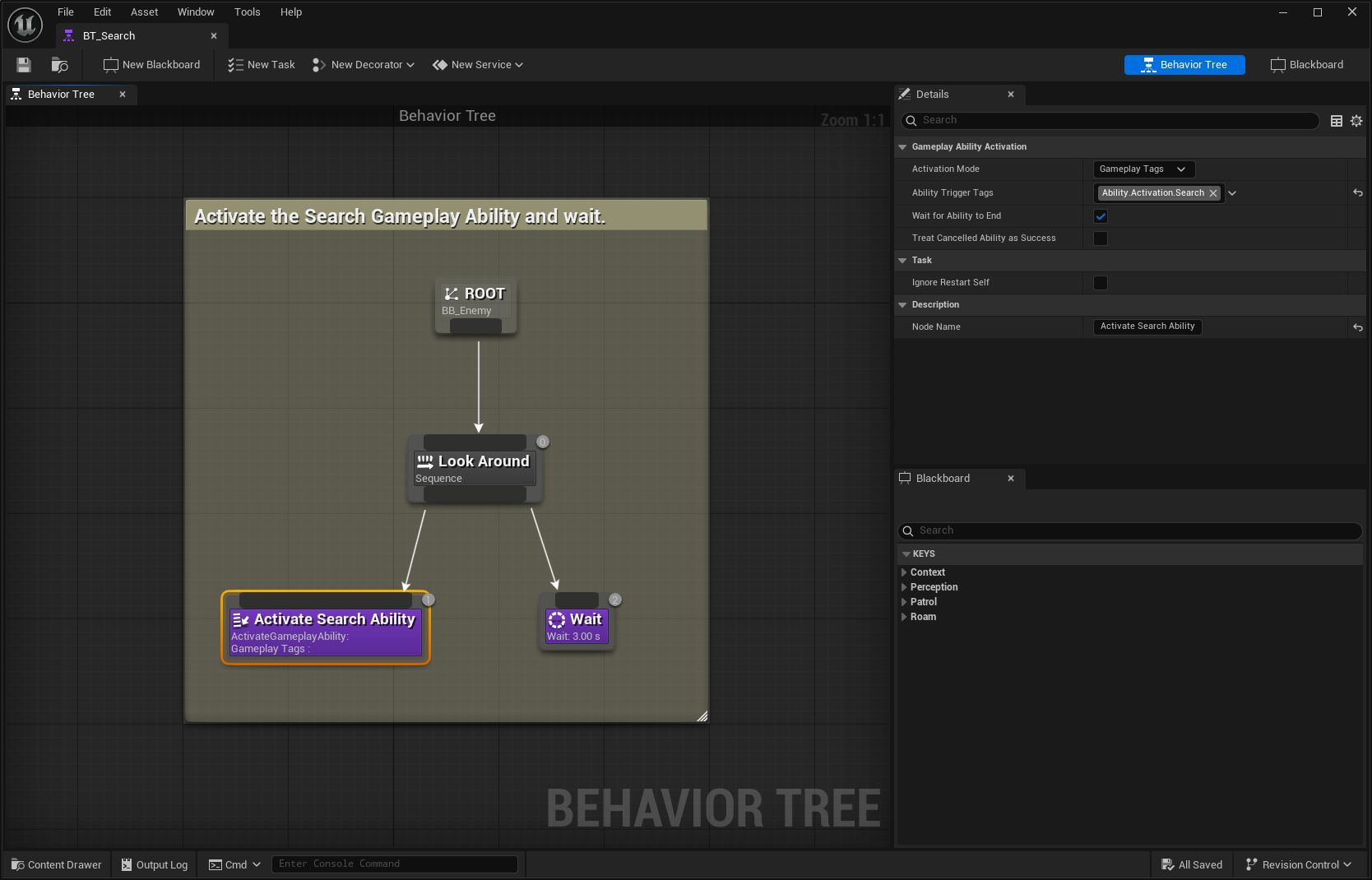
Create the Search Behavior Tree
Create a new Behavior Tree for the Search Behavior, name it
BT_Search, and assign the shared Enemy Blackboard.Create a Sequence and name it Look Around.
Add an Animation Montage or Gameplay Ability task that represents the search action. After that, add a Wait task with a duration of
3.
Open your Patrol Point Blueprint, set its Logic Type to Behavior Tree, and assign
BT_Searchas its Behavior Tree Asset.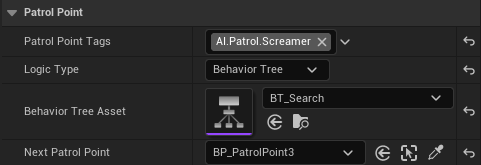
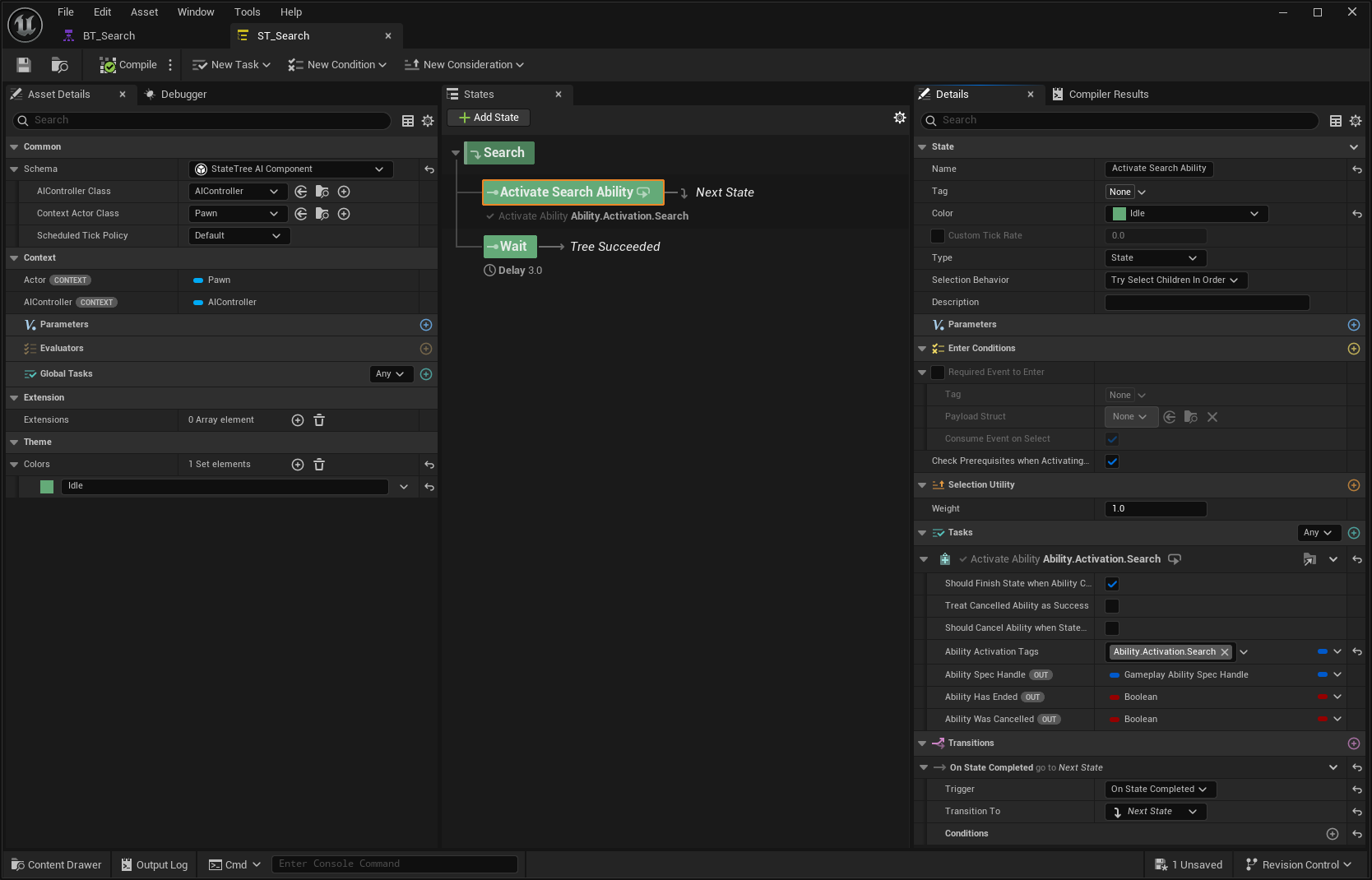
Create the Search State Tree
Create a new State Tree for the Search Behavior, name it
ST_Search, using the AI Component Schema.Rename the Root State to Search and create two Child States from it.
In the first child state, add an Animation Montage or Gameplay Ability task that represents the search action. In the second state, add a Wait task with a duration of
3.
Open your Patrol Point Blueprint, set its Logic Type to State Tree, and assign
ST_Searchas its State Tree Asset.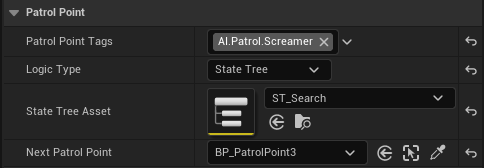
Create the Patrol Point Environment Query
Create a new Environment Query for the Patrol Point Search.
Add an Actors of Class generator. Set
NinjaBotPatrolPointActoras the Searched Actor Class and configure a Search Radius of1400.Add a Gameplay Tag test, set it to Filter Only, and configure the Tag Query to Match so it matches the identifying Gameplay Tag added to your patrol points (for example,
AI.Patrol.Lookout).Add a Distance to Querier test. Set the Float Max Value to
1400and the Scoring Equation toInverse Linear, so closer patrol points are preferred.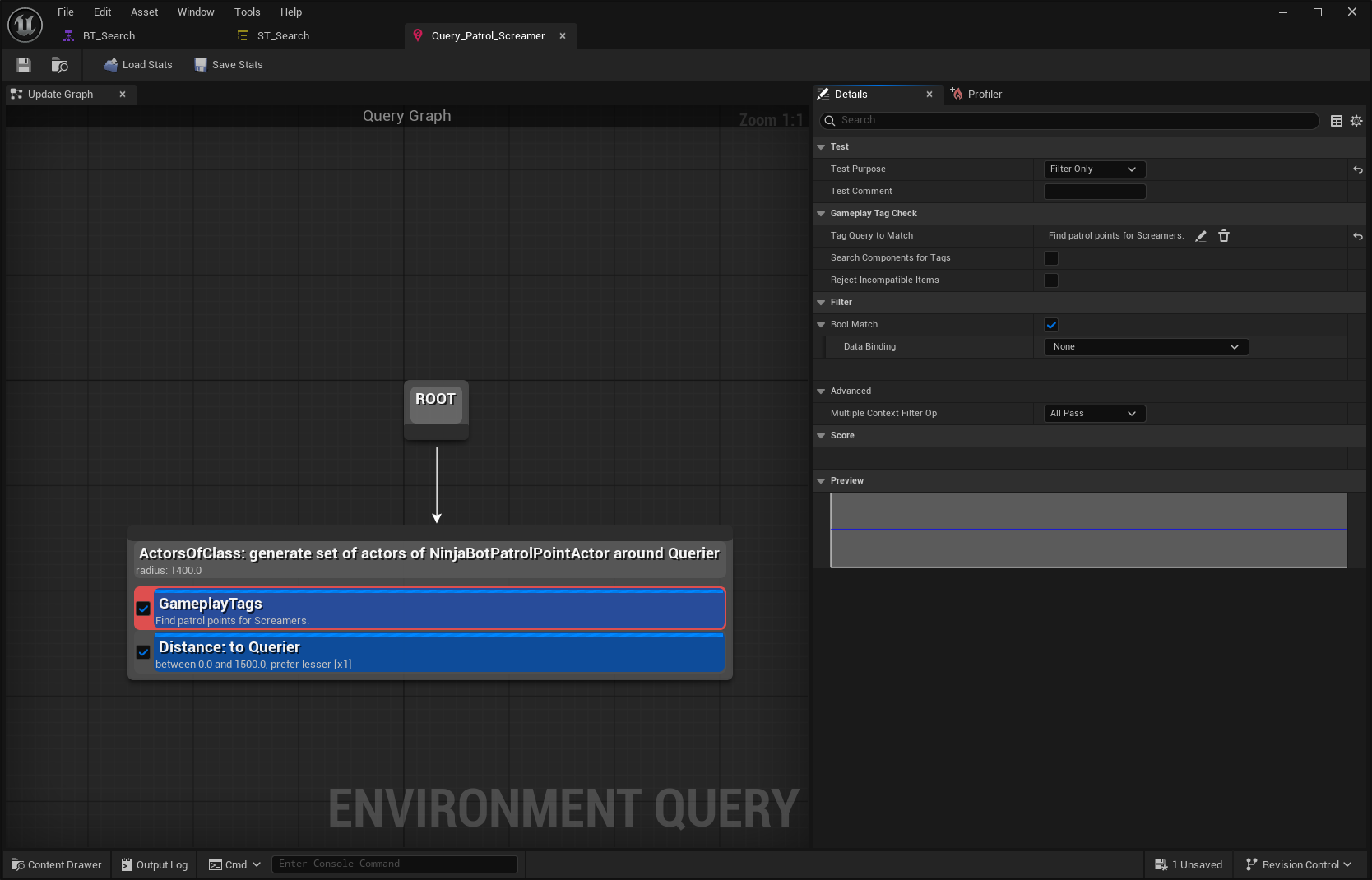
Update the Blackboard for the Patrol Point
Open the shared Enemy Blackboard used by the main Behavior Tree.
Create an additional Object Key Type named PatrolPoint. Set its Base Class to
NinjaBotPatrolPointActorand add it to a new category named Patrol.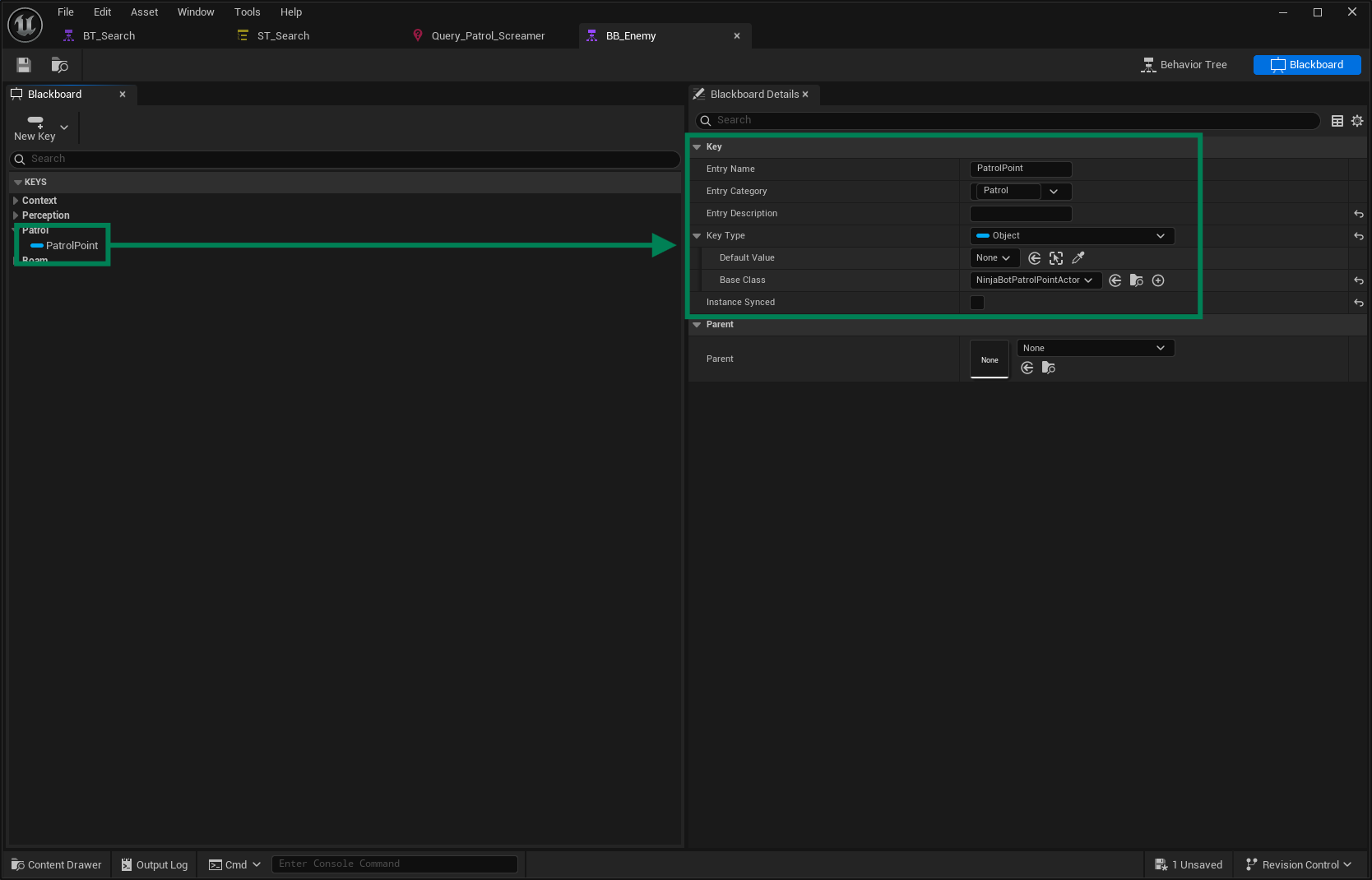
Create the Patrol Behavior Tree
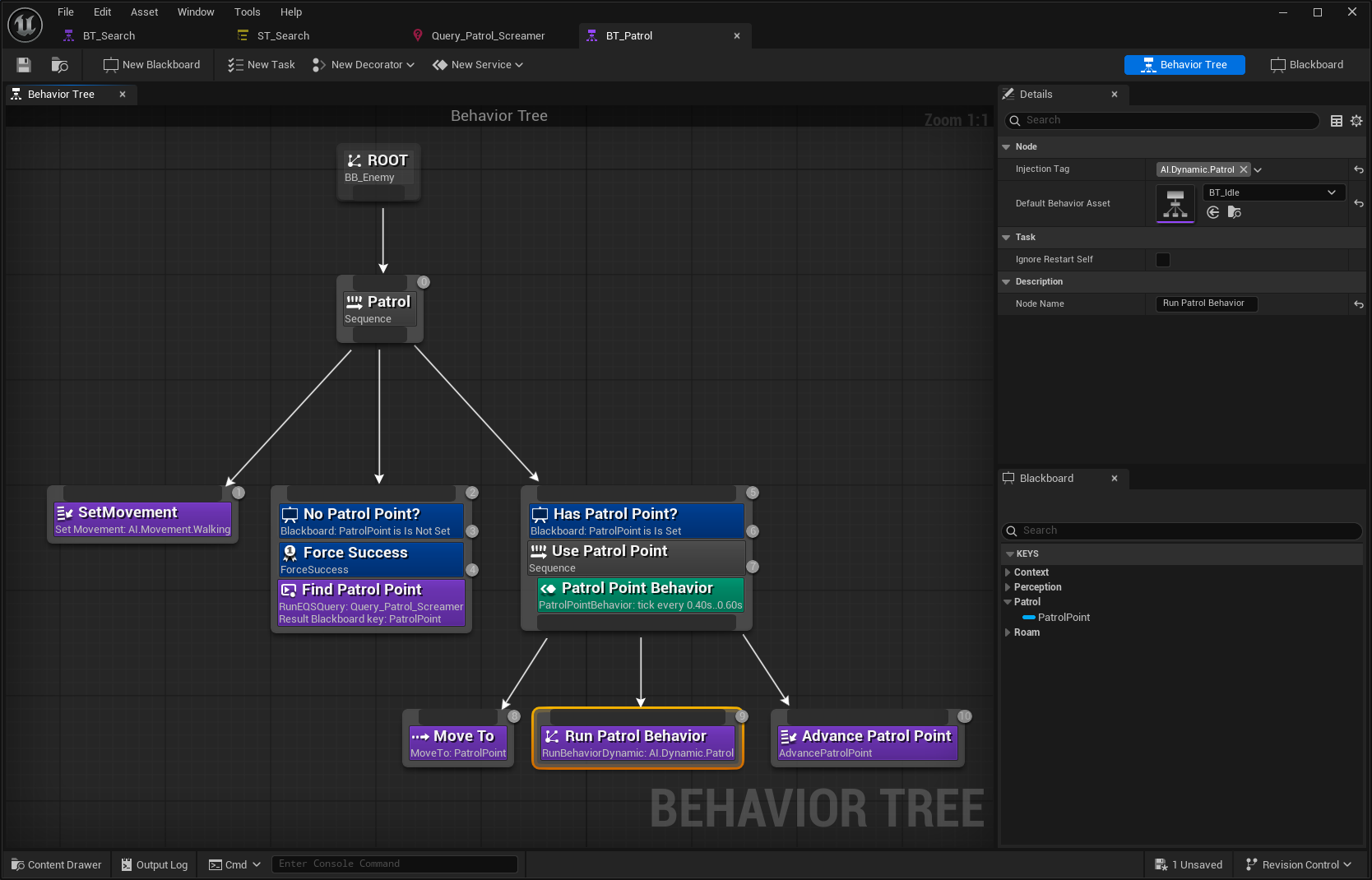
Create a new Behavior Tree for the Patrol Behavior, name it
BT_Patrol, and assign the shared Enemy Blackboard.Create a Sequence and name it Patrol.
Add a Set Movement task and set the Movement Profile Tag to
AI.Movement.Walking.Add a Run EQS Query task, rename it to Find Patrol Point, set the previously created Query Template, and configure the output Blackboard Key to
PatrolPoint.Add a Blackboard Decorator to the Find Patrol Point task that checks whether the PatrolPoint key is not set. Also add a Force Success decorator to this task.
Add a new Sequence composite node named Use Patrol Point. Add a Blackboard Decorator that checks whether the PatrolPoint key is set. Add the Patrol Point Behavior Service to this sequence, set the Dynamic Injection Tag to
AI.Dynamic.Patrol, and select the appropriate Patrol Point Key.Within the Use Patrol Point sequence, add a Move To task using the PatrolPoint Blackboard entry as the target.
Add a Dynamic Behavior task named Run Patrol Behavior. Set the Injection Tag to
AI.Dynamic.Patroland the Default Behavior Asset to the Idle Behavior Tree.
Create the Patrol State Tree
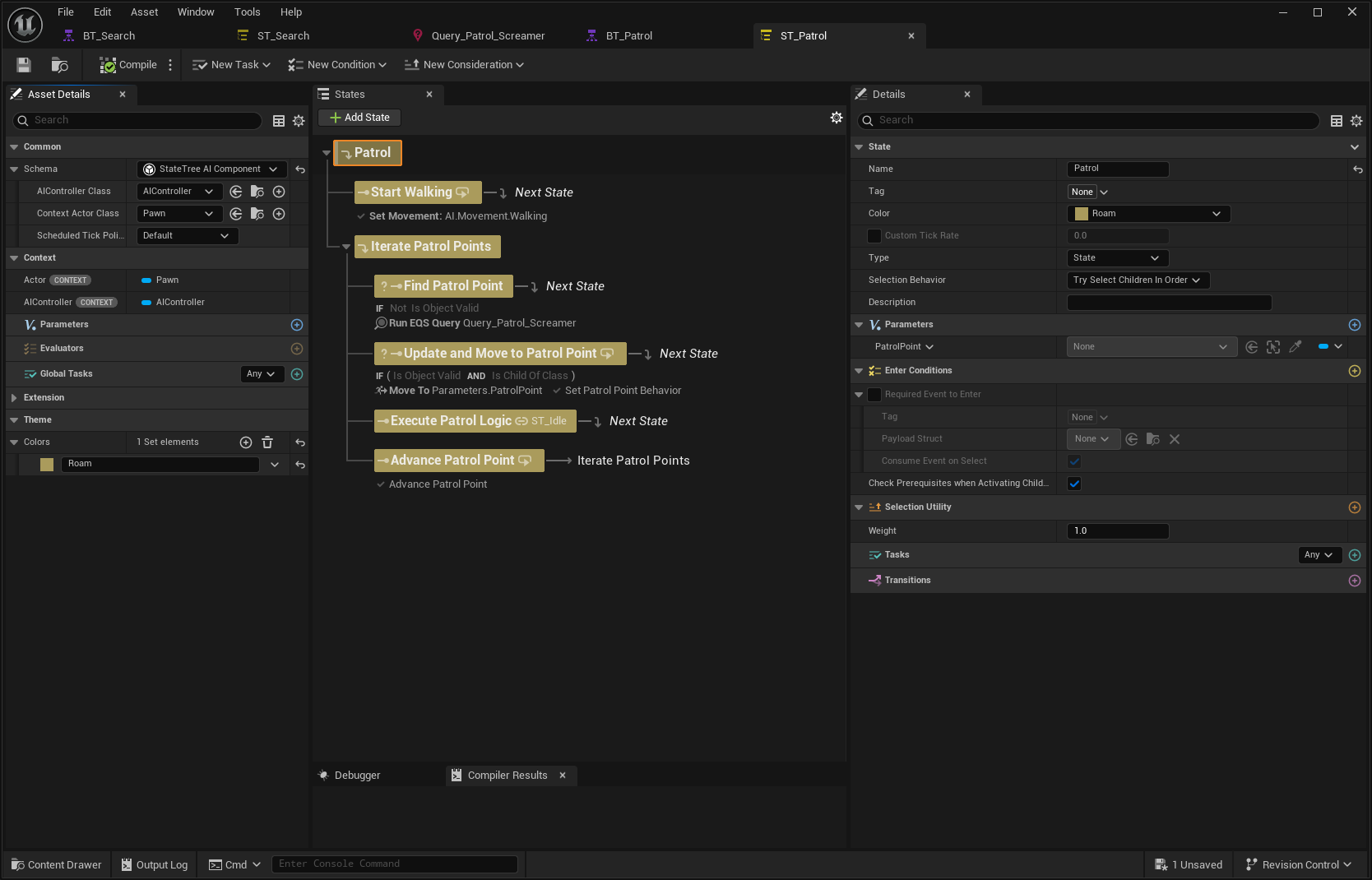
Create a new State Tree for the Patrol Behavior, name it
ST_Patrol, using the AI Component Schema.Rename the Root State to Patrol and create two Child States from it. Add a new Parameter named PatrolPoint and set its type to Vector.
Rename the first child state to Start Walking. Add a Set Movement task applying the
AI.Movement.Walkingprofile, then add an On State Completed transition to the Next State.Rename the second child state to Iterate Patrol Points and create four Child States from it.
Rename the first new state to Find Patrol Point. Add an Object Valid Enter Condition, bind it to
Parameters.PatrolPoint, and invert the condition.In the Find Patrol Point state, add a Run EQS Query task. Bind the Result to
Parameters.PatrolPoint, the Query Owner to the context Actor, and set the previously created Query Template. Add an On State Completed transition to the Next State.Rename the second state in Iterate Patrol Points to Update and Move to Patrol Point. Add two Enter Conditions: first, verify that
Parameters.PatrolPointis a valid object, and second, verify that it is a valid subclass ofNinjaBotPatrolPointActor.In the Update and Move to Patrol Point state, add a Move To task and bind the Target Actor to
Parameters.PatrolPoint. Then add a Set Patrol Point Behavior task, binding the Patrol Point toParameters.PatrolPointand the Dynamic Injection Tag toAI.Dynamic.Patrol. Add an On State Completed transition to the Next State.Rename the third state in Iterate Patrol Points to Execute Patrol Logic. Set its Tag to
AI.Dynamic.Patrol, its Type to Linked Asset, and set the Idle State Tree as the Default Asset. Add an On State Completed transition to the Next State.Rename the fourth state to Advance Patrol Point. Add the Advance Patrol Point task and bind both the Patrol Point and Result to
Parameters.PatrolPoint. Add an On State Completed transition back to Iterate Patrol Points.
Create the Second Bot
Duplicate your existing Bot Setup Asset, including all configured dynamic tags and assets.
Change the asset assigned to
AI.Dynamic.Roamso it uses the new Patrol asset.Duplicate your AI Pawn or Character Blueprint and assign the new Bot Setup Asset to it.
The new Patrol Behavior may appear more complex at first, but it follows a clear and repeatable flow:
If no patrol point is currently set, the AI searches for one using an EQS query.
The selected patrol point is stored, the AI moves toward it, and any logic provided by that patrol point is executed (falling back to an idle behavior when no logic is defined).
Once completed, the next patrol point is retrieved from the current one, and the process repeats.
This loop is driven by the primary Enemy Tree and continues until the main context changes (for example, when a target is sensed and selected).
At this point, you should have a second Bot that follows a defined patrol path in the level. Upon reaching each patrol point, the Bot triggers an additional dynamic behavior, such as a search action.
Meanwhile, your original Bot remains unchanged and continues to wander by selecting random locations from the Navigation Mesh. Together, these setups illustrate how behaviors can be specialized for different requirements and combined into distinct AI archetypes through aggregation and composition of Data Assets.