User Settings
Ninja Input includes a dedicated Enhanced Input User Settings class that extends Epic's base implementation and centralizes player-facing preferences like mouse and gamepad sensitivity, plus axis inversion.
Setting the Custom Class
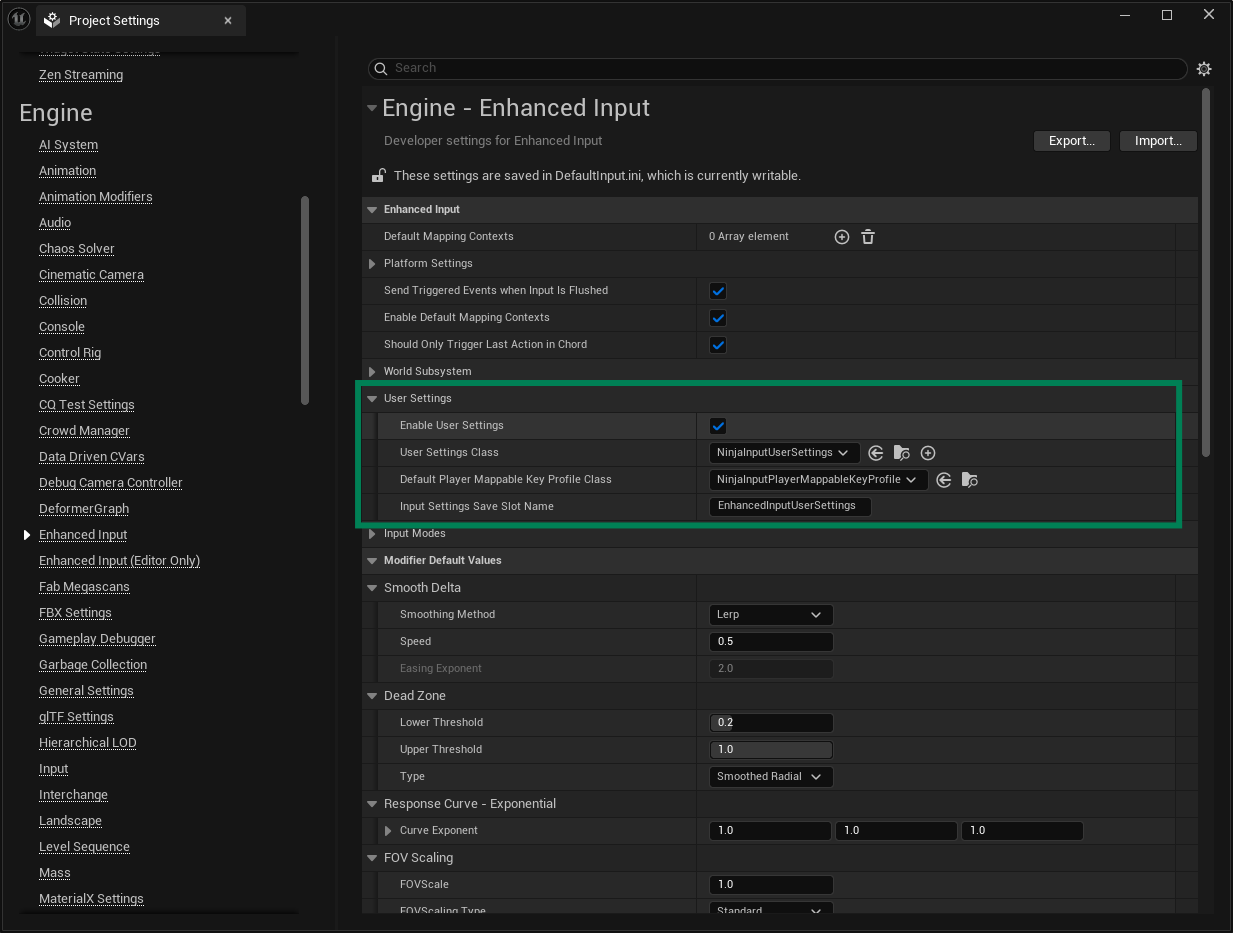
To use the custom class, configure it in Project Settings.
Enable Enhanced Input User Settings
Open Project Settings.
Go to Engine → Enhanced Input and expand User Settings.
Check Enable User Settings.
Set
UNinjaInputUserSettings(or your subclass) as the User Settings Class.
Available Properties
These properties live in the settings object and are consumed by the modifiers at runtime.
Property | Description |
|---|---|
| Inverts the Y component of 2D inputs (and any 1D action you designate as "vertical"). |
| Inverts the X component of 2D inputs (and any 1D action you designate as "horizontal"). |
| Multiplier applied to mouse delta X. |
| Multiplier applied to mouse delta Y. |
| Scalar gain for gamepad sticks (applied per component). |
Input Modifiers
Attach these modifiers to your Input Actions to apply the settings at runtime.
Input Modifier | Description |
|---|---|
Gamepad Sensitivity | Scales gamepad stick values by |
Invert XY Axis | Inverts X and/or Y using |
Mouse Sensitivity | Scales mouse delta per axis using |
Examples
IA_Look (Mouse Delta):
Mouse Sensitivity→Invert XY AxisIA_Look (Gamepad Stick):
Gamepad Sensitivity→Invert XY AxisIA_Move (Gamepad Stick):
Gamepad Sensitivity
User Interface
All values can be exposed and managed through the Input Settings View Model. It's a two-way ViewModel: UI updates propagate to the settings object (and vice versa).
When initializing this ViewModel, set the Resolver to the Ninja Input resolver.
After applying changes from your options screen, call your usual "apply/save" flow so the settings persist. This ViewModel provides a dedicated function for that.