Key Remapping Setup
Ninja Input provides all the necessary classes to support Key Remapping, a common feature in games that allow players to customize controls to their preferences.
Setting up your project to support remapping is straightforward and involves three steps:
Enable input remapping in your project.
Configure your Input Actions or Mapping Contexts for mappable inputs.
(Optional) Configure Common UI to provide platform icons if you are using them with the provided ViewModels.
Enabling Input Remapping
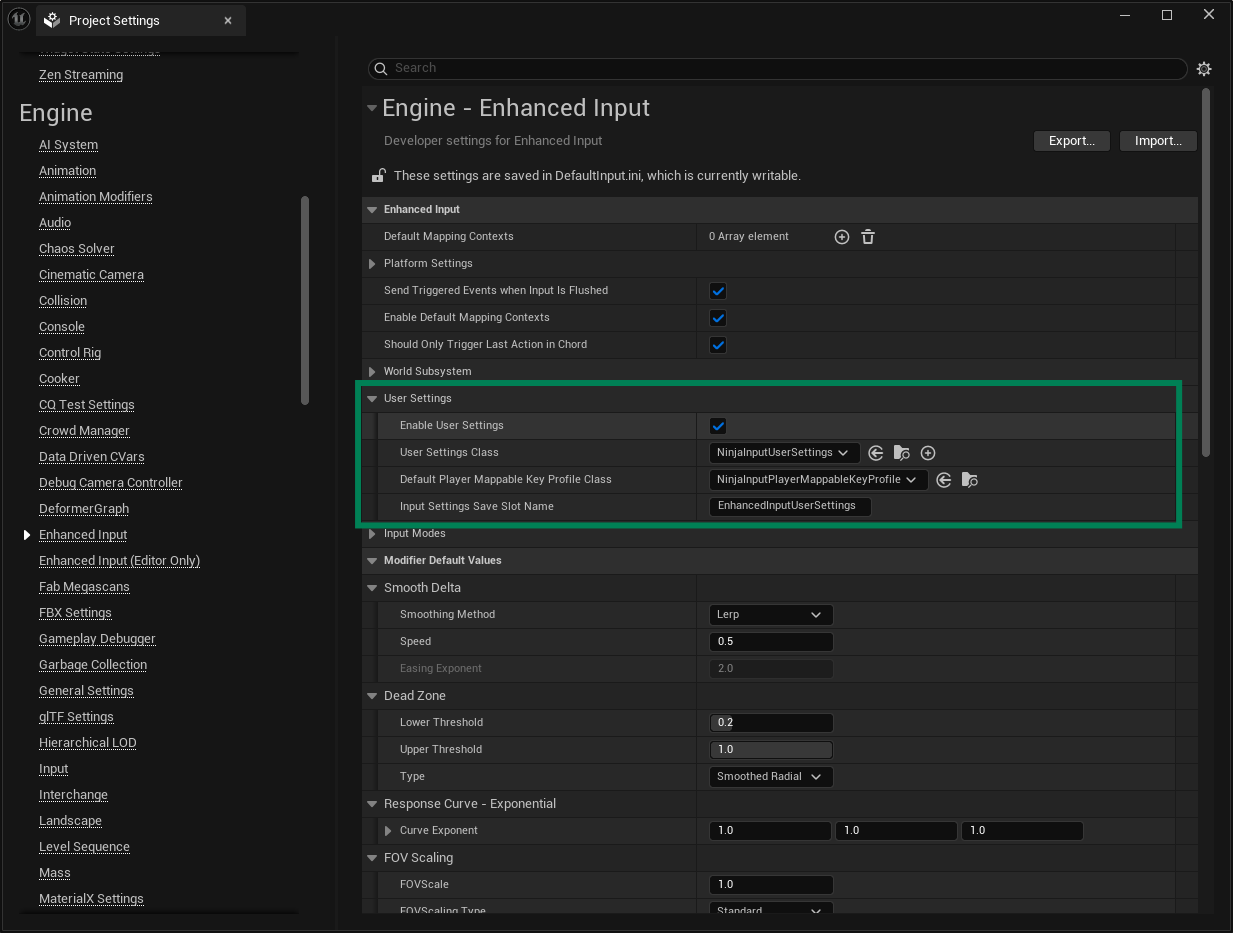
To enable Input Remapping with Ninja Input, you first need to ensure the correct Settings Classes are configured in your project. You can use the classes provided by the framework or your own subclasses.
Enabling Input Remapping
In the engine, open the Project Settings window.
Navigate to Engine → Enhanced Input, and expand the User Settings category.
Check the Enable User Settings option.
Set
NinjaInputUserSettings(or a subclass) as the User Settings Class.Set
NinjaInputPlayerMappableKeyProfile(or a subclass) as the Default Player Mappable Key Profile.
Mappable Inputs
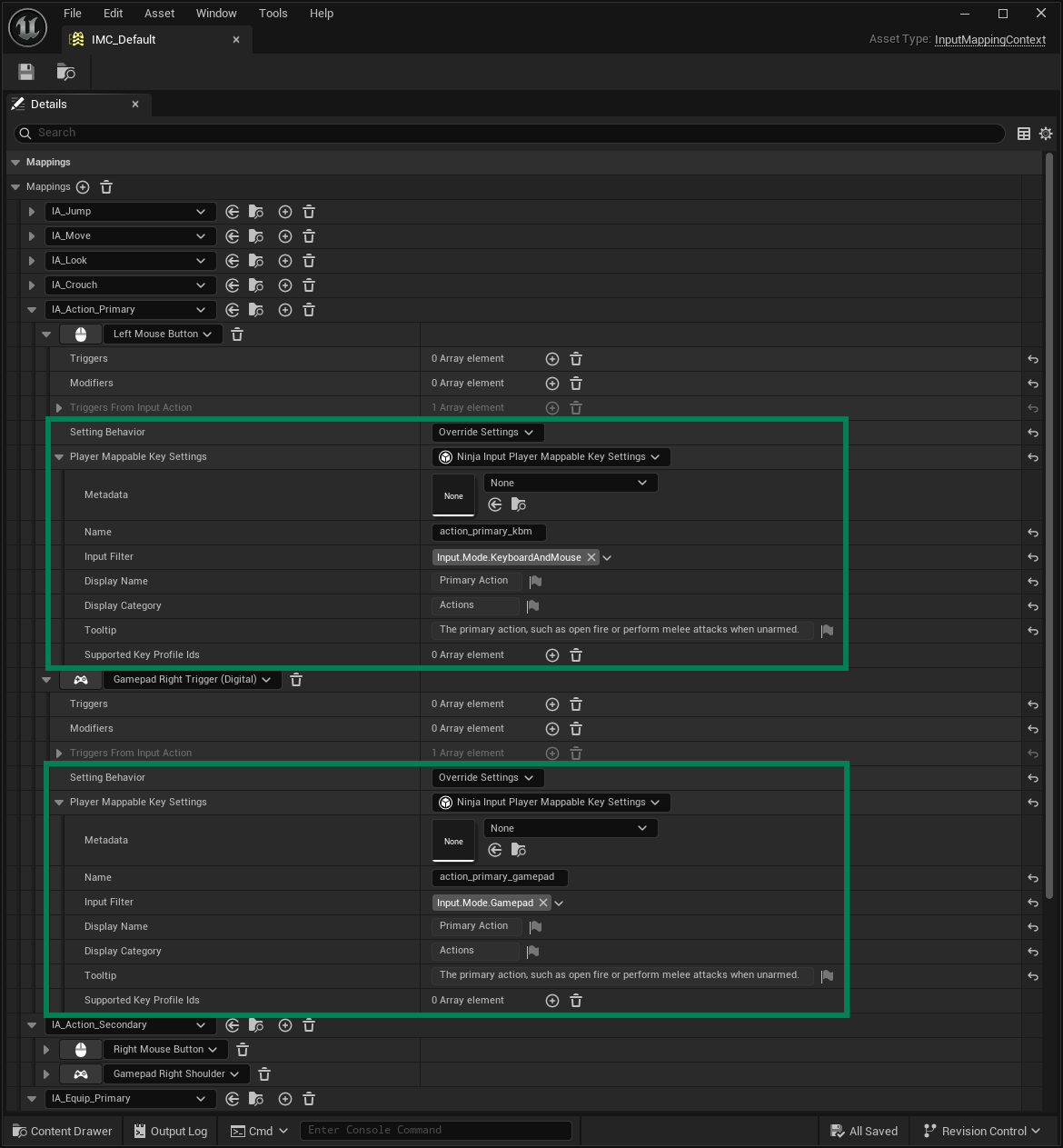
You can configure mappable inputs either in your Input Actions or your Input Mapping Context.
In this guide, we'll use the latter, so all settings remain centralized in a single place.
The goal here is to define which actions can be remapped and how they should be represented in the user interface.
Repeat the steps below for every input you want to support remapping.
Configuring Mappable Inputs
Open the Input Mapping Context that contains the remappable Input Actions.
Set the Setting Behavior to
Override Settings.Set the Player Mappable Key Settings to
NinjaInputPlayerMappableKeySettings(or a subclass).Assign a unique Name for this key. It must be distinct across all Input Actions and their keys.
Set the Input Filter to specify the type of input (e.g., keyboard, mouse, gamepad). This helps the UI categorize keys correctly.
Define the Display Name and Display Category. These values are shown in the UI and support localization.
Optionally, define a Tooltip to be displayed in the UI. This also supports localization.
Common UI Configuration
Most of the ViewModel functionality for Input Remapping works with default UMG.
However, the Icon Brush property in the Key Mapping Entry ViewModel requires the Common UI key setup in order to display the correct icon for the current key.
To configure this, follow the official Common UI documentation to create your controller data binding, making sure to set up items for platform-specific UI elements.