Key Remapping UI
The Input Remapping Layer includes a set of ViewModels that serve as a bridge between the Input Backend and your game's User Interface.
Using ViewModels helps decouple UI logic from the underlying remapping system, making your implementation more flexible and agnostic to specific UI frameworks.
Key Mapping Entry
This ViewModel represents a single mapping entry and exposes the following fields:
Field | Description |
|---|---|
| Indicates whether this entry has been modified by the user. |
| The current key assigned to this binding. |
| The default key defined in the Input Action Mapping. |
| The unique mapping name that identifies this binding. |
| The display name configured in the Key Mapping settings. |
| The display category configured in the Key Mapping settings. |
| Informative tooltip text configured in the Key Mapping info. |
| Slate brush obtained from the Common UI platform icon library. |
This is a two-way ViewModel, meaning you can both read its properties and call its functions, either via data binding or directly in your widget. These functions automatically invoke the Input Remapping backend on your behalf.
Function | Description |
|---|---|
| Rebinds a key using the provided |
| Rebinds a key by specifying a |
| Resets the current binding to its default key. |
The initialization of this ViewModel is typically handled by the Key Mapping Category ViewModel, which provides a list of entries for each input binding. For this reason, when using it inside your entry widget, the creation type should be set to Manual.
Key Mapping Category
This ViewModel represents a mapping category, grouping all key entries by their Display Category. It provides the following fields:
Field | Description |
|---|---|
| Retrieves a list of all bindings for this category, represented as Key Mapping Entry ViewModels. |
| Retrieves a list of all bindings for this category specific to a gamepad, based on the Input Filter Gameplay Tag property. |
| Retrieves a list of all bindings for this category specific to keyboard and mouse, based on the Input Filter Gameplay Tag property. |
| The localized display name of this category. |
This ViewModel is often used in combination with a ViewModel Extension on widget containers such as a Vertical Box, Grid, or List. Once the extension is enabled on a component, you can link its SetItems function to any of the available GetBindings fields.
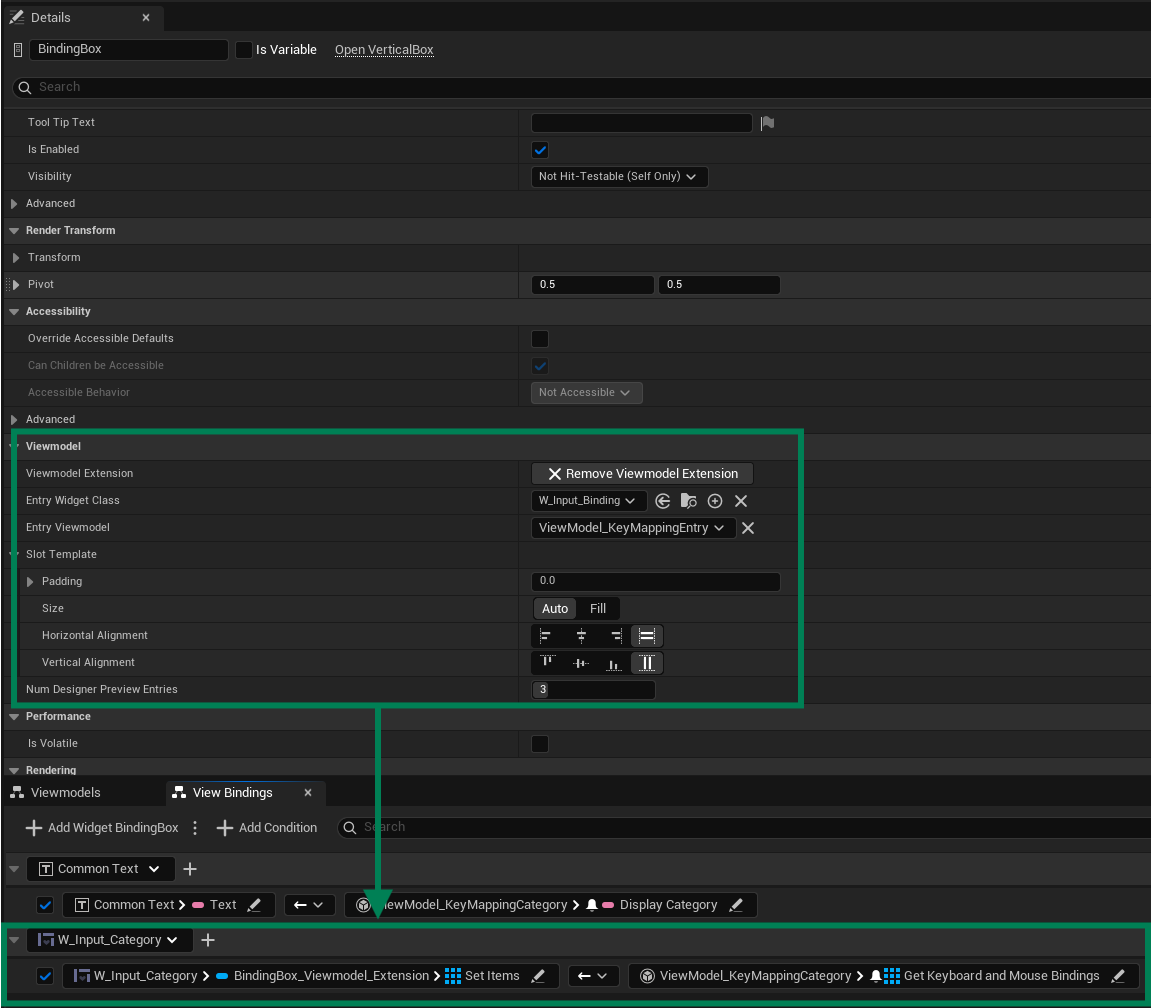
The initialization of this ViewModel is typically handled by the Key Mappings ViewModel, which provides a list of entries for each category. For this reason, when using it inside your category widget, the creation type should be set to Manual.
Key Mappings
This ViewModel provides a list of all Key Mapping Categories configured in the game. From each category, you can then access its aggregated bindings.
Field | Description |
|---|---|
| Notifies that a saving operation is currently happening. |
| Retrieves a list of all categories, represented as Key Mapping Category ViewModels. |
This is a two-way ViewModel, meaning you can both read its properties and call its functions, either via data binding or directly in your widget. These functions automatically invoke the Input Remapping backend on your behalf.
Function | Description |
|---|---|
| Saves all bindings in their current state. Blocked if another save operation is in progress. |
This ViewModel is often used in combination with a ViewModel Extension on widget containers such as a Vertical Box, Grid, or List. Once the extension is enabled on a component, you can link its SetItems function to the GetCategories field.
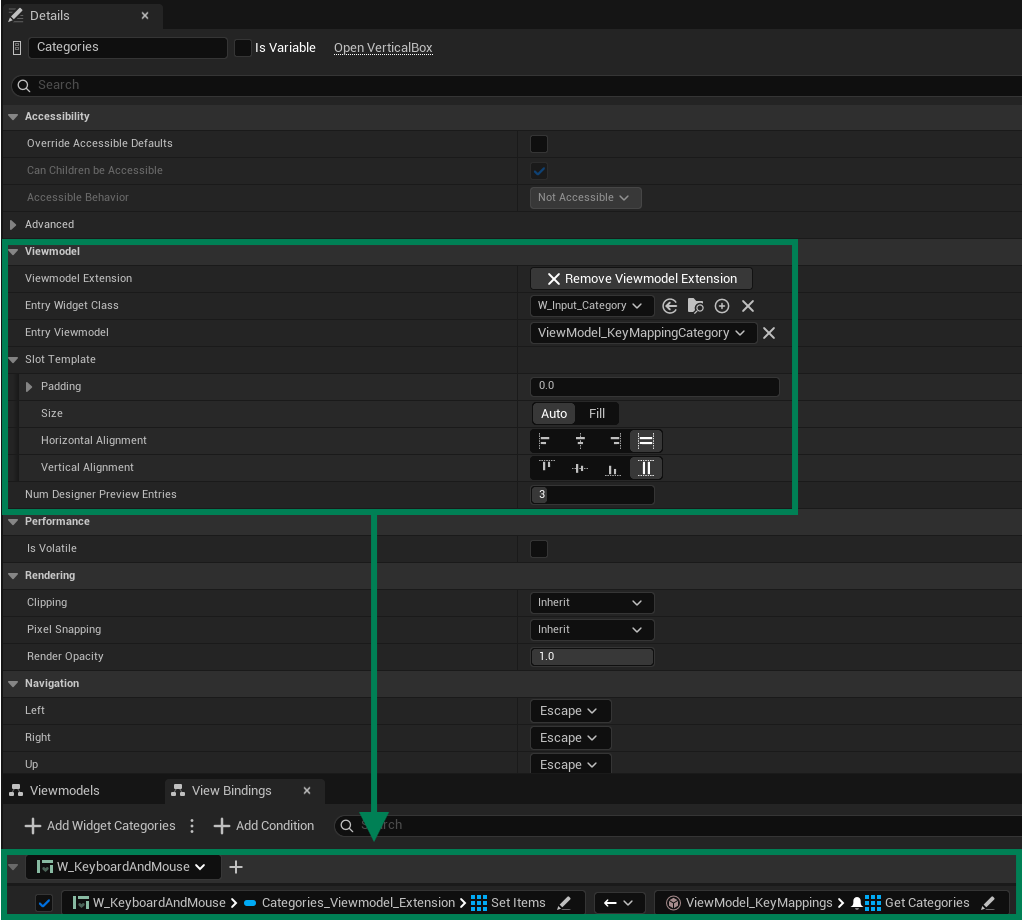
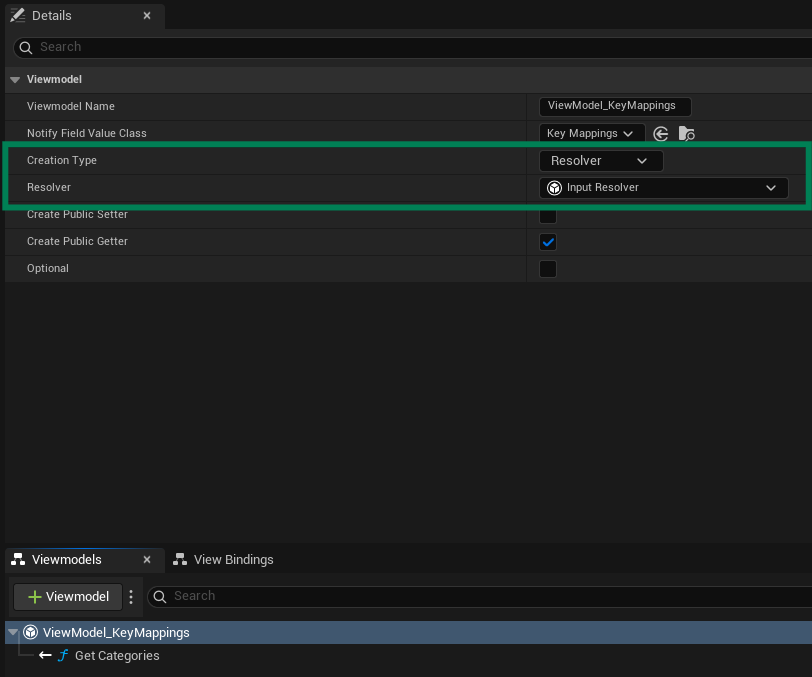
As the primary ViewModel in this chain, there is no parent widget responsible for its creation.
Instead, you should initialize it by setting the Creation Type to Resolver and the Resolver to Input Resolver.
Hierarchy Summary
The following diagram summarizes the remapping UI stack:
Key Mappings is the root ViewModel that enumerates all Key Mapping Categories.
Each category aggregates multiple Key Mapping Entries. Categories group entries by Display Category and expose filtered getters (all/gamepad/keyboard and mouse).
Each entry represents a single binding with readable properties (e.g.,
CurrentKey,DefaultKey) and commands (RebindKey,ResetKeyBinding).