Combos
A combo is a sequence of attacks (or other abilities) triggered by the player or an AI agent by inputting specific commands within a time-limited combo window.
The Combo System is designed to leverage core Unreal Engine features, allowing you to author combos in a visual and modular way—with little to no code and no need for custom tooling or UI extensions.
Combo Manager
Combos are orchestrated by the Combo Manager, an Actor Component that implements CombatComboManagerInterface. The default implementation uses the State Tree Component, and combos are authored as State Tree assets.
To start using the Combo System, add a Combo Manager Component to your character and implement the appropriate getter function from the Combat System Interface.
Adding the Combo Manager Component
In your Character Blueprint or base class, add
NinjaCombatComboManagerComponent.Implement
GetComboManagerComponentfrom theCombatSystemInterface, returning your Combo Manager Component.
Combo States
Each ability in a combo is represented by a state in the State Tree, at least in the default Combo Manager implementation. State transitions are driven by State Tree Events, which must be explicitly triggered, typically via player input or AI logic, during a designated combo window.
The first step in authoring a combo is configuring the Animation Montages used by the combo abilities to include a Combo Window Animation Notify State, which marks the frames during which transitions to the next combo state are allowed.
Configuring Combo Windows
Open the Animation Montage used by your first Gameplay Ability in the combo (e.g. a melee attack).
Add a Combo Window Animation Notify State to the montage. It should cover the range of frames during which the next combo input can be triggered.
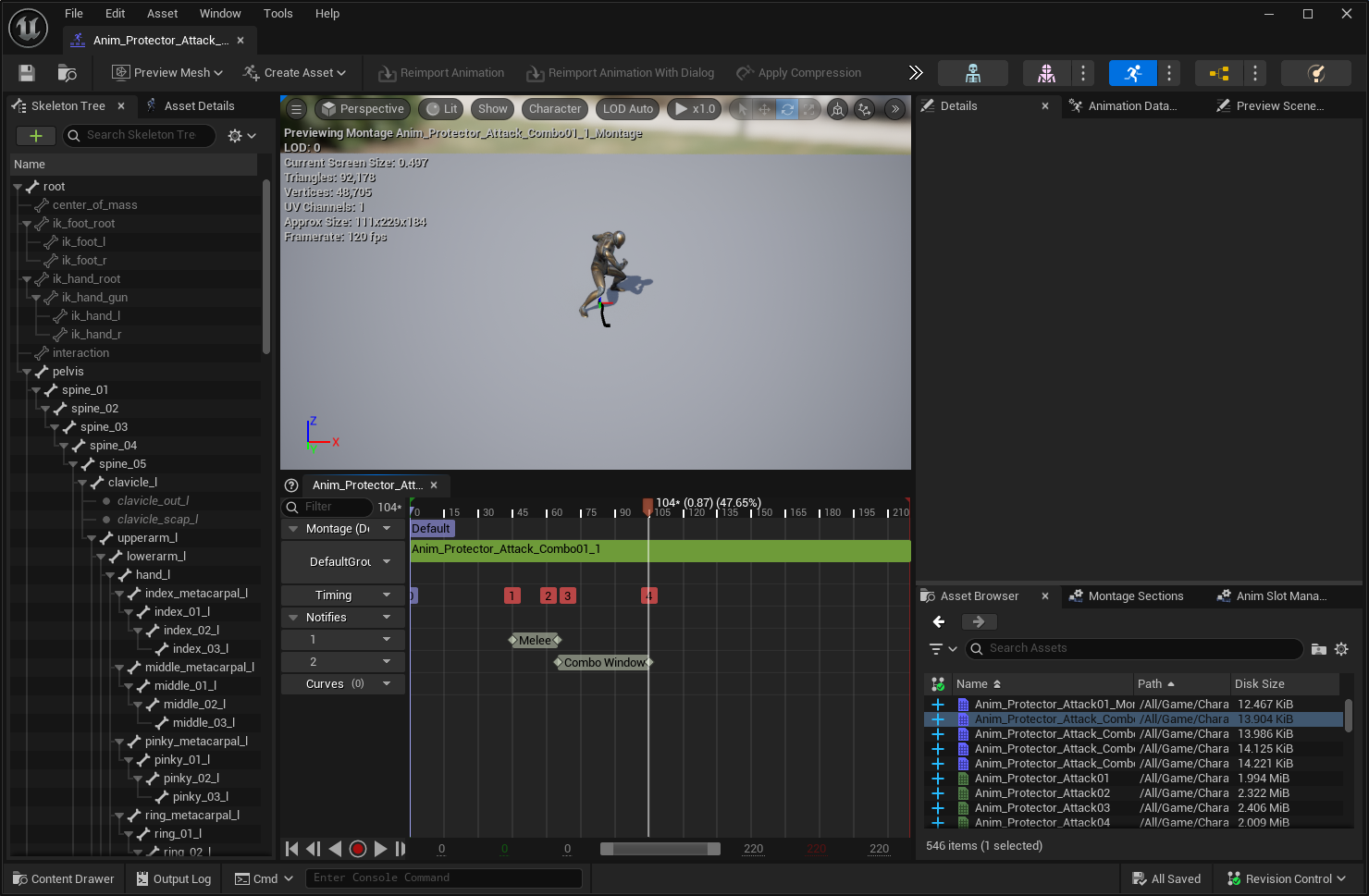
Repeat this step for all Animation Montages used in the combo.
At this stage, you can create your Gameplay Abilities. These can be Melee Attacks, Ranged Attacks, Casts, or any other ability, even those not directly related to Ninja Combat.
State Tree
With all Gameplay Abilities prepared, it's time to create the State Tree that defines how the combo flows, including attack order, branching paths, and looping options.
Creating a Combo Tree
In your Content Browser, create a new State Tree and set its schema to Combat Combo.
Add a new Evaluator, select Combo State, and bind the Combo State to the one available from the Context.
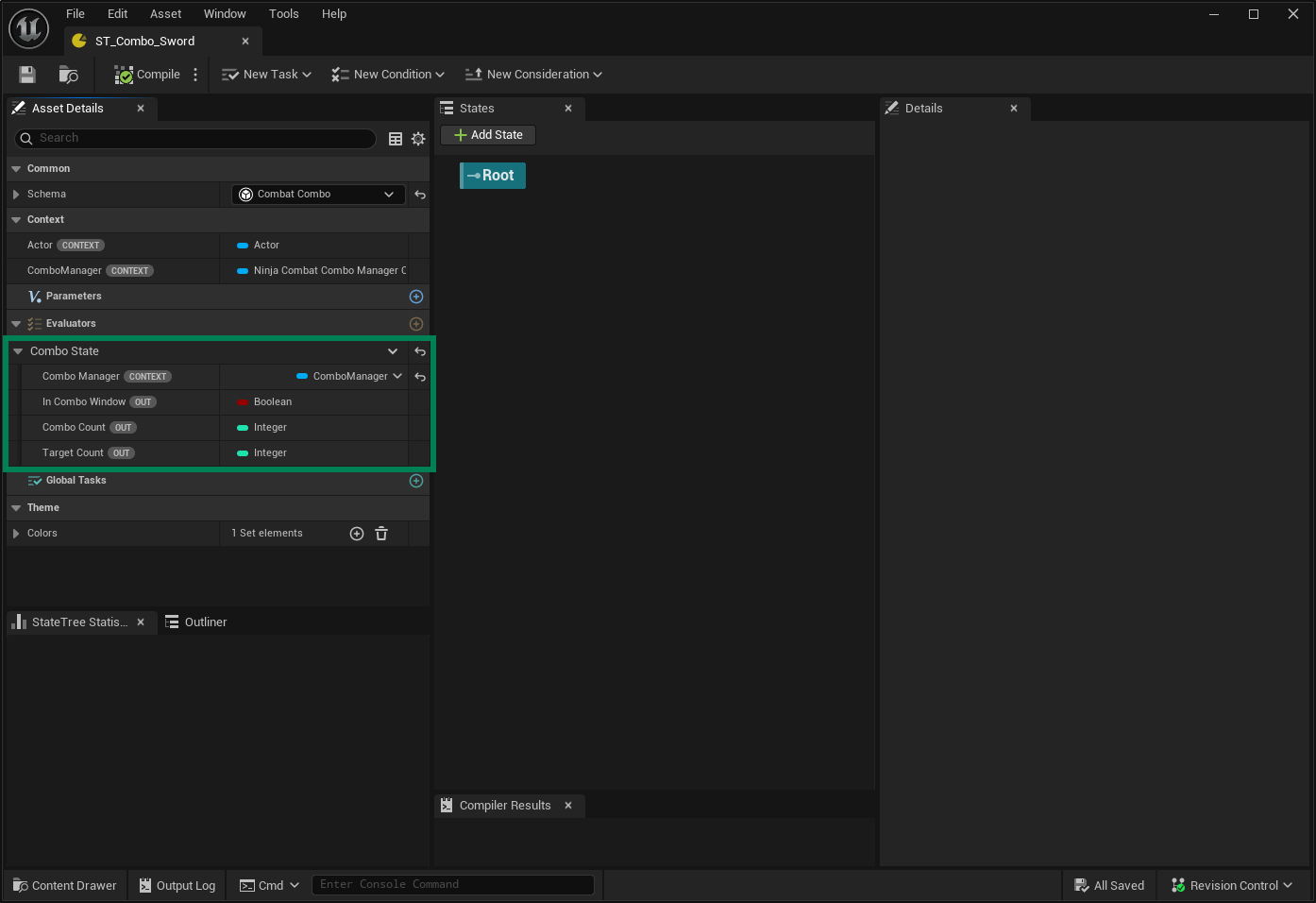
From the Root Node, add a new Child State. In this state, add an Activate Combo Ability Task, bind the Combo Manager, and set the correct
Ability Tags(e.g.,Combat.Ability.Attack.Combo01A).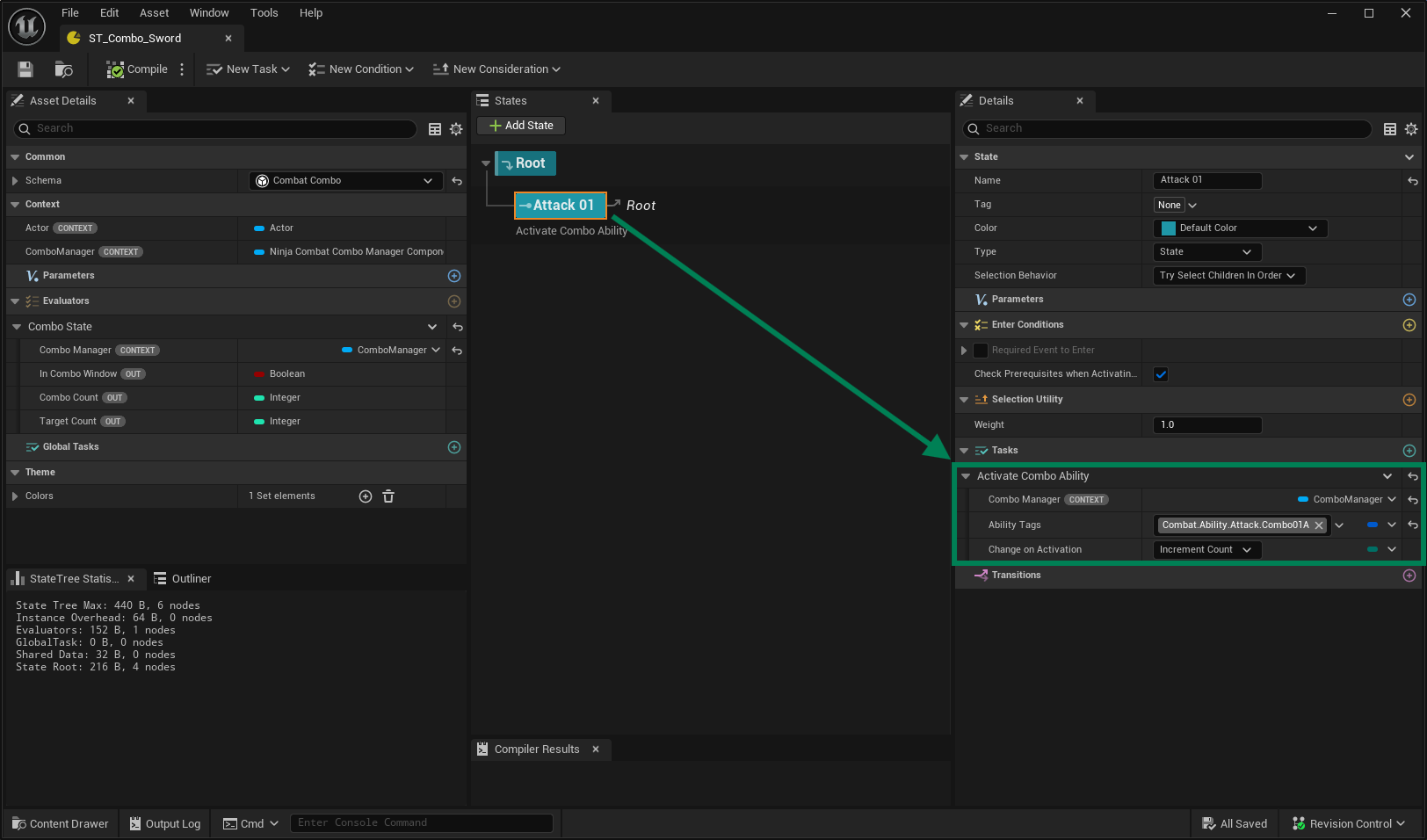
Add a Sibling State, configure it with the next
Ability Tag(e.g.,Combat.Ability.Attack.Combo01B), and add an Enter Condition checking ifComboState.ComboCountequals1.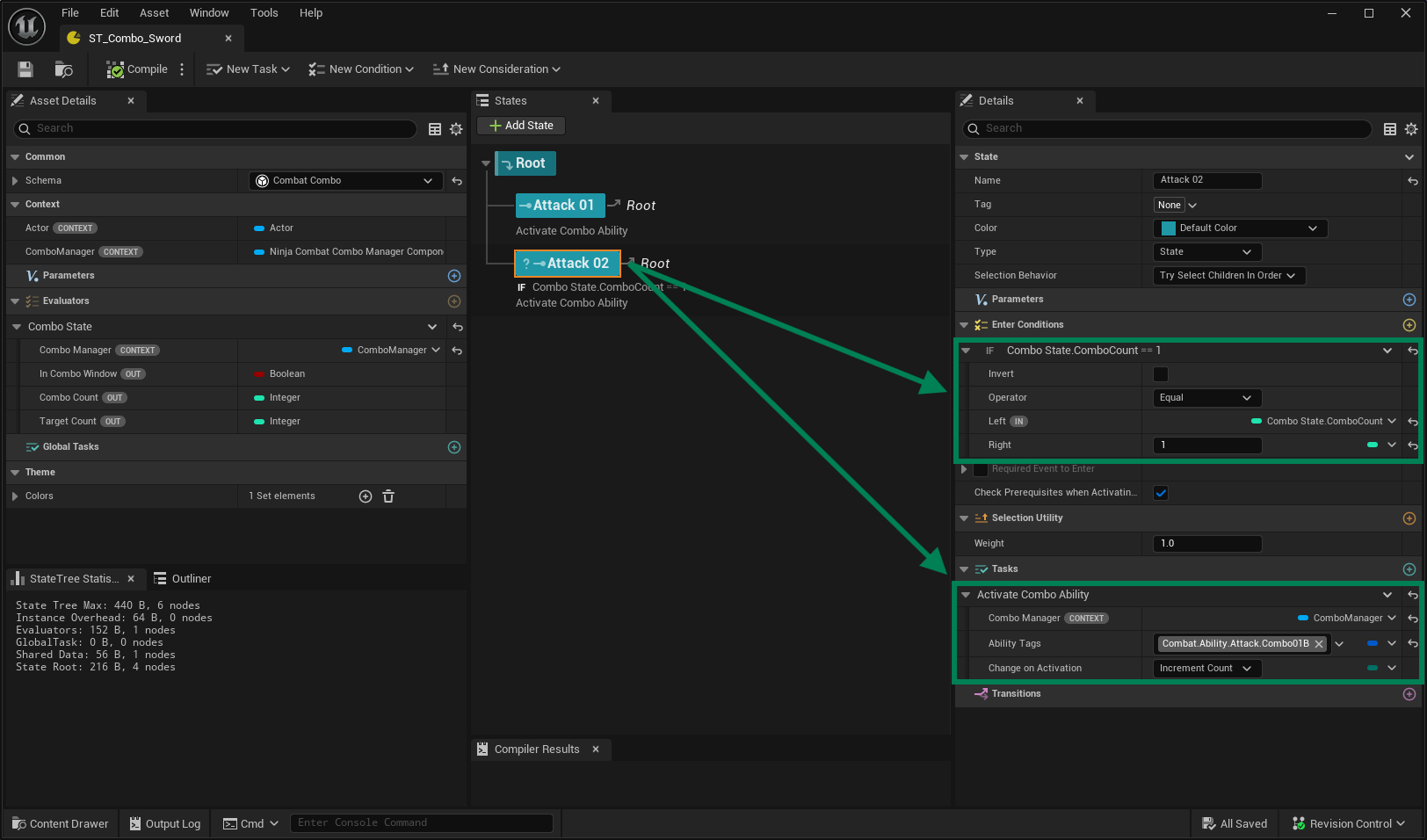
Create additional states as needed for your combo sequence. Ensure each state's Enter Condition is incremented appropriately, and each uses the correct tag.

Return to the first attack state and add a Transition. Set the Trigger to Event, use
Combat.Event.Combo.Attack.Primaryas the Event Tag, and point it to the second state.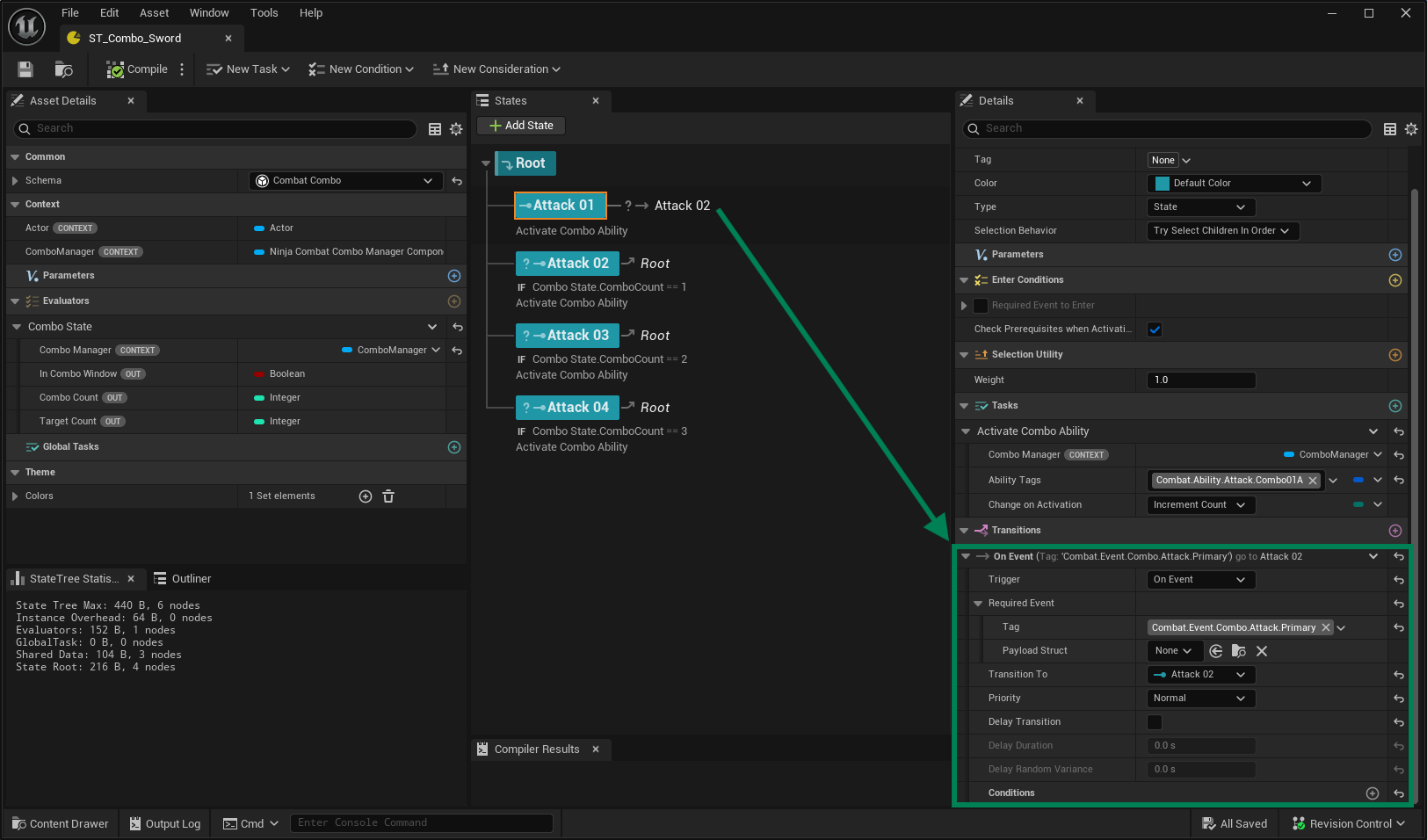
Repeat for all states, using the same Event Tag, but adjusting the Next State each time. Additionally, for each attack, add an On State Complete transition to Tree Succeeded.

We'll revisit this State Tree later to explore more advanced features like branching, conditions, and loopable sequences. For now, you have a linear combo that flows cleanly from one attack to the next and ends the combo after the final hit.
Combo Ability
The Combo Ability is responsible for orchestrating abilities based on its own activation and follow-up gameplay events.
Any GameplayAbility - including melee attacks, spells, or custom logic - can be used in a combo.
The Combo Ability can also automatically grant and remove any supporting abilities needed by the combo.
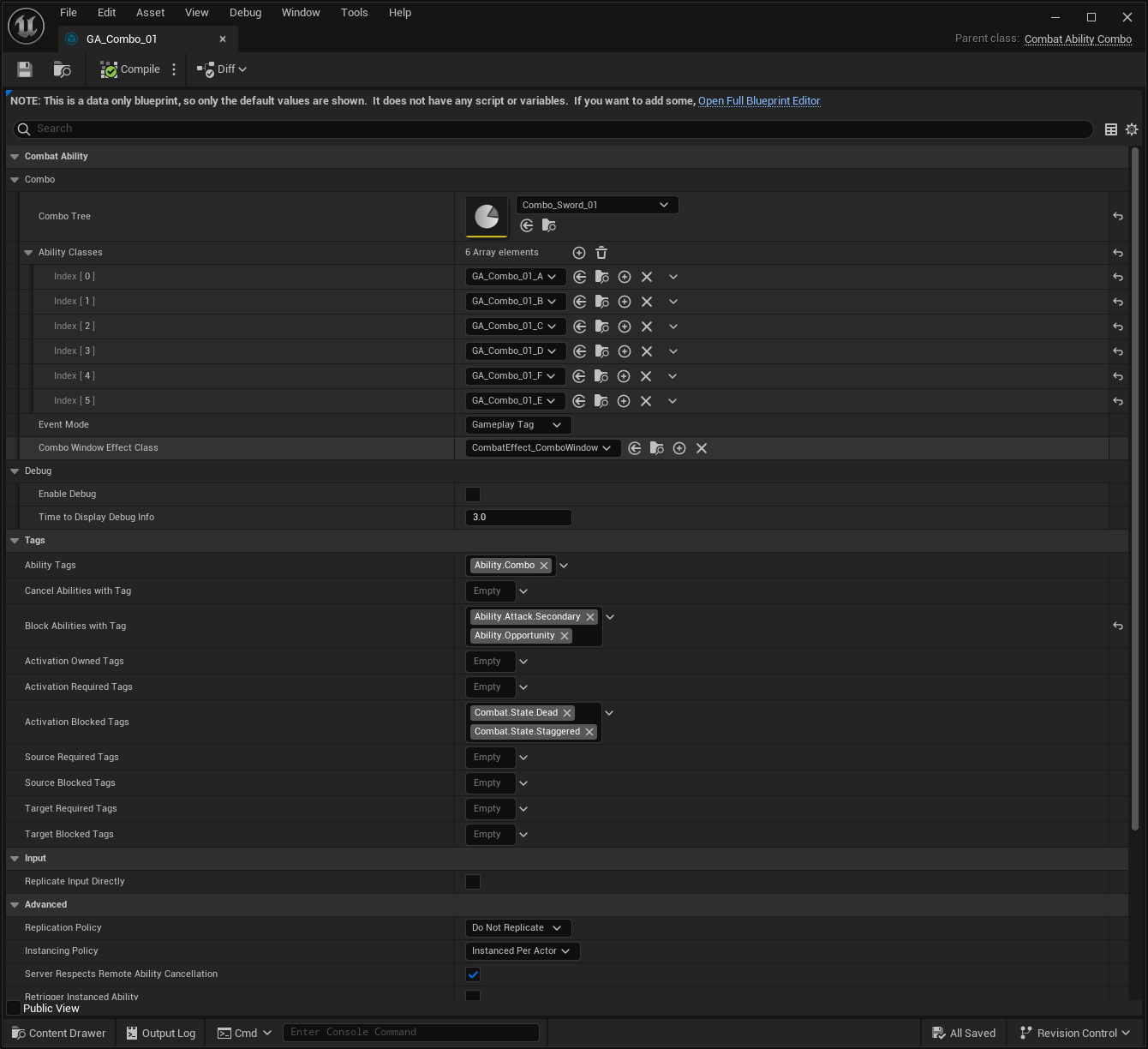
Property | Description |
|---|---|
Combo Tree | The State Tree Asset that defines the combo flow and transitions. |
Ability Classes | Supporting Abilities required by the combo. These are automatically granted along with the Combo Ability. |
Event Mode | How combo events are interpreted. You can use direct gameplay tags or input action mappings. |
Event Mappings | A map of Input Actions and Event Tags that should be sent to the Combo State Tree. Only used if the Event Mode is set to Input Action. |
Combo Window Effect Class | Optional Gameplay Effect applied to the character during the active combo window. Useful for visuals or reactions. |
The Combo Ability expects two types of input:
First, the standard activation input, which usually triggers the initial combo attack;
Then, a sequence of gameplay events, which advance the combo during the combo window defined in each ability's animation.
The exact gameplay event used depends on the configured Event Mode:
Gameplay Tag: The received gameplay event's tag is forwarded directly to the State Tree. This tag must match one of the transition tags defined in the State Tree (e.g.
Combat.Event.Combo.Attack.Primary).Input Action: The received gameplay event should use the tag
Combat.Event.Combo.Attack. The payload must include theInputActionthat triggered it. This input is then mapped to a specific event tag used by the State Tree.
If you're using Ninja Input, or any other input system, the next chapter covers how to set up input actions and gameplay events accordingly. Otherwise, if your input setup is already complete, you're ready to use the Combo Ability with your State Tree.