Team and Attitude Configuration
At this point, the Bot is perceiving the player as a friendly target, since no team or attitude resolution has been configured.
Ninja Bot separates team resolution logic through the use of Team Providers. It natively supports two options: Unreal Engine’s Team Agent Interface and Ninja Factions.
Before starting, make sure you have completed the previous steps or have an equivalent setup.
Implement the Team Agent Interface
Create a new C++ class extending
APlayerController. AddIGenericTeamAgentInterfaceto the class declaration, declare an override forGetGenericTeamId, and create auint8property named TeamId.#include "GenericTeamAgentInterface.h" #include "GameFramework/PlayerController.h" UCLASS() class SAMPLEPROJECT_API ASamplePlayerController : public APlayerController, public IGenericTeamAgentInterface { GENERATED_BODY() public: virtual FGenericTeamId GetGenericTeamId() const override; protected: UPROPERTY(EditDefaultsOnly, BlueprintReadOnly, Category = "AI Team") uint8 TeamId = 1; };Switch to the implementation file and implement
GetGenericTeamId, returning aFGenericTeamIdconstructed from the TeamId value.FGenericTeamId ASamplePlayerController::GetGenericTeamId() const { return FGenericTeamId(TeamId); }
Set the Default Team Provider
Navigate to Ninja Bot’s default properties: Edit → Project Settings → Ninja Bot.
Set
NinjaBotTeamProvideras the Team Provider Class.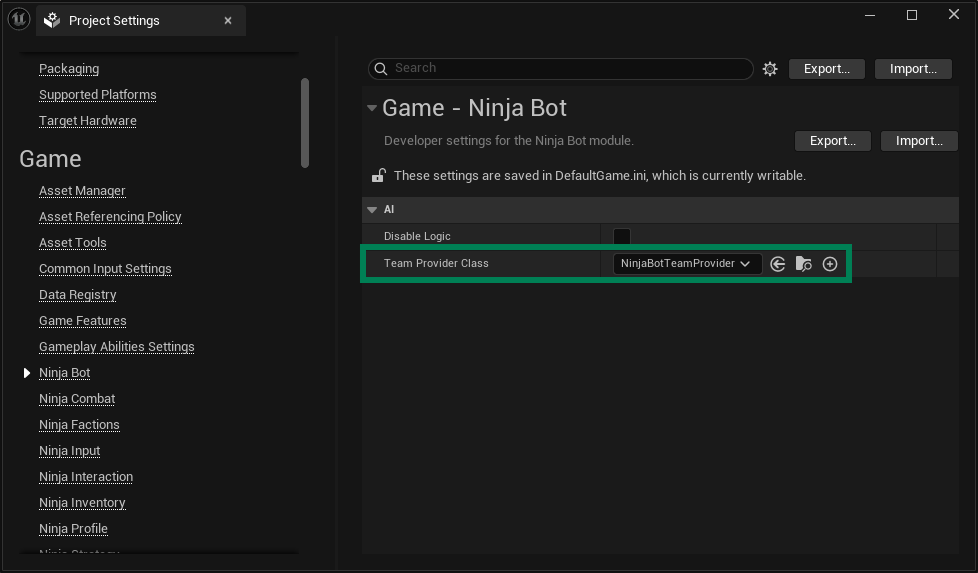
Create the Player Faction
In your Faction Data folder, create a new Faction using the Content Browser contextual menu: Ninja Bear Studio → Ninja Factions → Faction. Name this faction Players.
Configure the Player Faction with an appropriate Display Name, Faction Tag, and set the Team ID to
1. The default attitude settings are sufficient for this setup.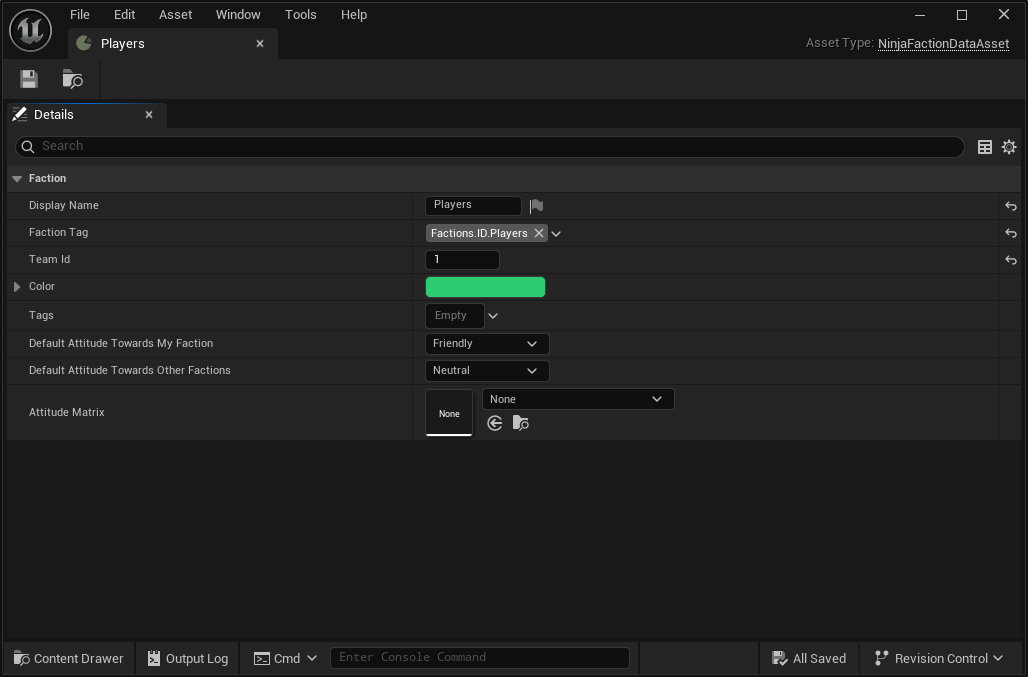
Add a new membership to the Player’s Faction Component and assign this faction as the Main Faction.
Create the Enemy Faction
In your Faction Data folder, create a new Faction using the Content Browser contextual menu: Ninja Bear Studio → Ninja Factions → Faction. Name this faction Enemies.
Configure the Enemy Faction with an appropriate Display Name, Faction Tag, and set the Team ID to
2. Set the Default Attitude Towards My Faction toNeutraland the Default Attitude Towards Other Factions toHostile.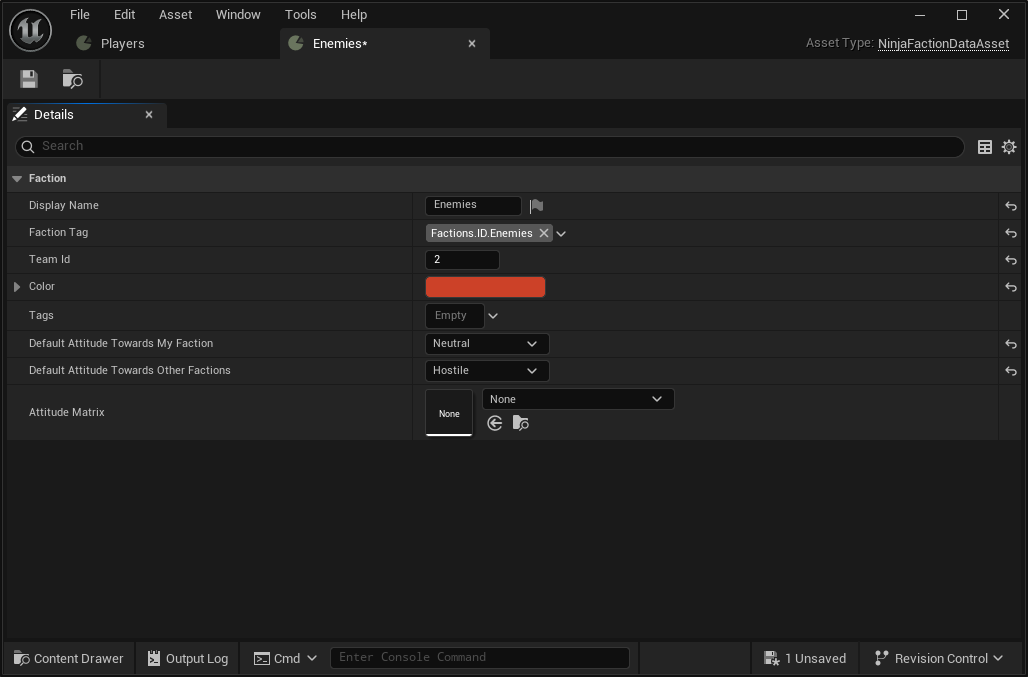
Add a new membership to the Enemy’s Faction Component and assign this faction as the Main Faction.
Set the Faction Team Provider
Navigate to Ninja Bot’s default properties: Edit → Project Settings → Ninja Bot.
Set
UTeamProvider_Factionsas the Team Provider Class.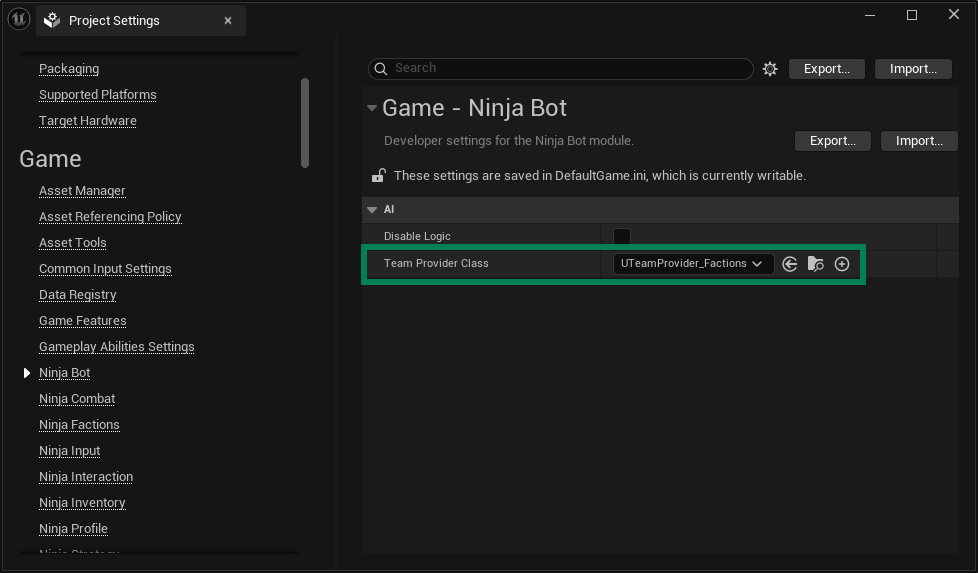
Review your Perception Profile
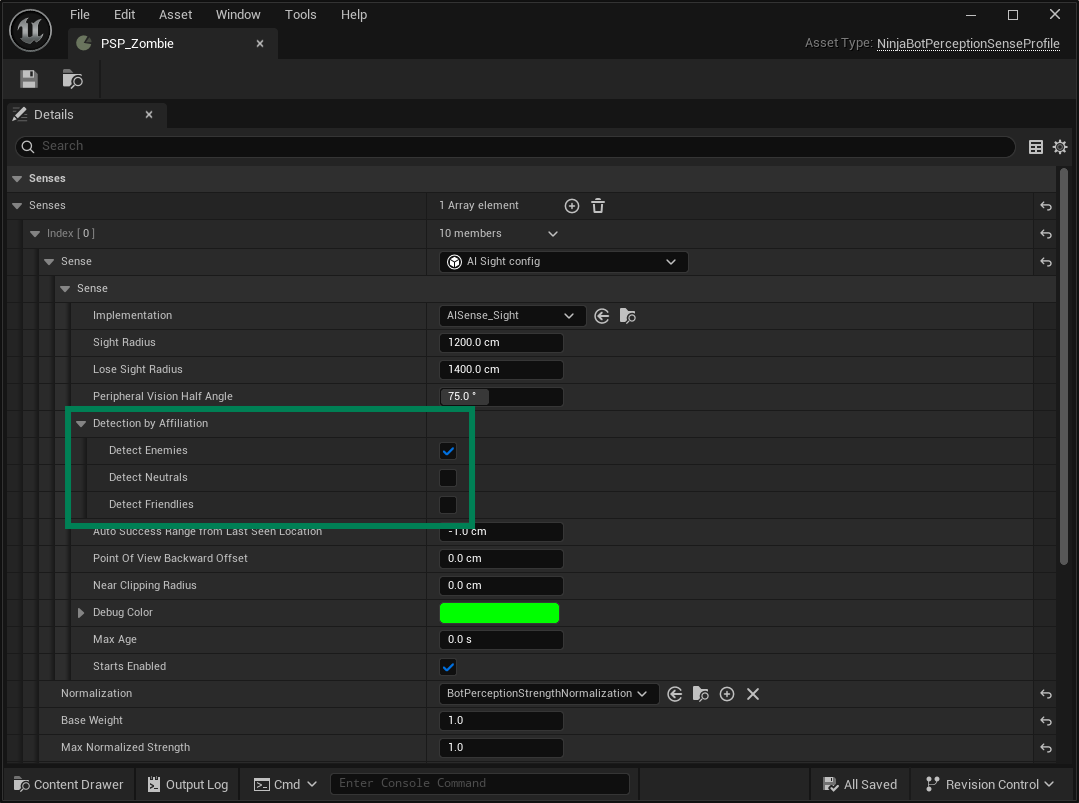
Open your Perception Sense Profile.
Modify the Sight Configuration, updating Detection by Affiliation so that only Hostiles are detected.
Your Bot behavior should remain unchanged, but the AI now correctly identifies players as hostile targets. Furthermore, when using Ninja Factions, this behavior can change dynamically based on reputation.