Input System
The first step when using Ninja Input is configuring the Input Manager Component and setting up your first few Input Handlers.
Input Manager Component
The Input Manager Component is the most important component in the framework. It is responsible for registering, receiving and dispatching Input Actions to the correct Input Handlers, small objects dedicated to handle specific inputs.
This component can be added to either the Player Controller or Player Character, but not both. For prototypes and smaller projects, both are valid options, but in general, the Player Controller is the best choice:
Fewer requirements in the Player Character, allowing a leaner character hierarchy.
Support for different pawns, providing their own Input Setups when possessed, via
InputSetupProviderInterface.
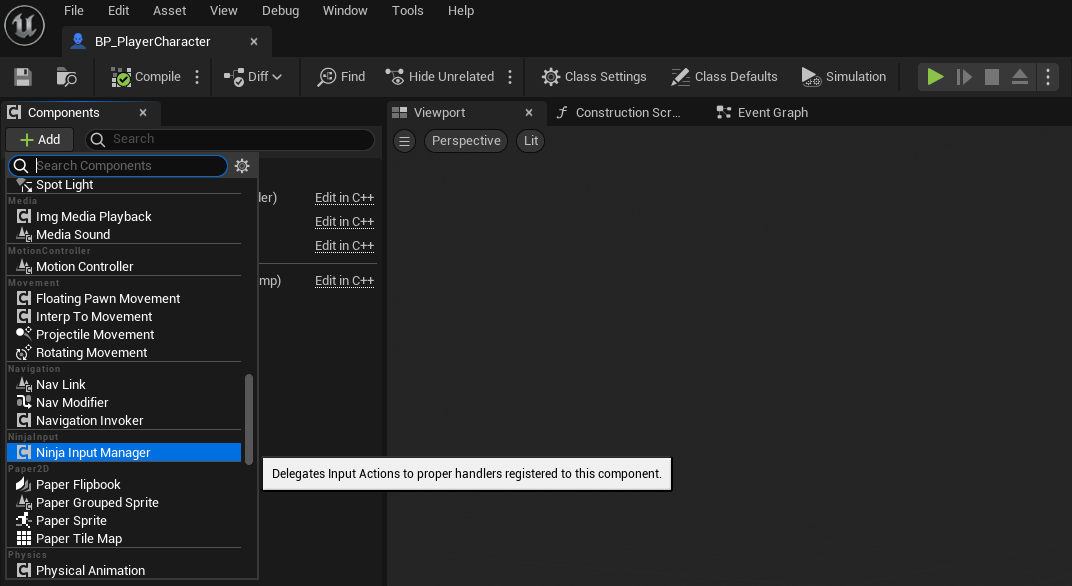
Add the Input Manager Component
In your Base Character Class, add the Input Manager Component.
Header
#pragma once #include "CoreMinimal.h" #include "GameFramework/PlayerController.h" #include "NBSPlayerController.generated.h" class UNinjaInputManagerComponent; UCLASS() class NBSTECH_API ANBSPlayerController : public APlayerController { GENERATED_BODY() public: ANBSPlayerController(const FObjectInitializer& ObjectInitializer); private: /** Manages player input, using Enhanced Input/Ninja Input. */ UPROPERTY(EditDefaultsOnly, BlueprintReadOnly, Category=Components, meta=(AllowPrivateAccess=true)) TObjectPtr<UNinjaInputManagerComponent> InputManager; };Implementation
#include "GameFramework/NBSPlayerController.h" #include "Components/NinjaInputManagerComponent.h" ANBSPlayerController::ANBSPlayerController(const FObjectInitializer& ObjectInitializer) : Super(ObjectInitializer) { static const FName InputManagerName = FName("InputManager"); InputManager = CreateDefaultSubobject<UNinjaInputManagerComponent>(InputManagerName); }
Creating and Assigning Input Setups
The Input Manager uses a dedicated Data Asset to group Input Mapping Contexts, Input Actions and Input Handlers: the Input Setup.
You can have multiple setups, grouping inputs by their role, such as " Locomotion Inputs ", " Driving Inputs ", " UI Inputs " and so on. Please check the Input Management page for information about adding and removing them in runtime.
Remove the original input handling logic
Open your Project Settings, navigate to Enhanced Input and make sure that there are no Default Mapping Contexts.
Navigate to your Character Blueprint, open it and go to the Event Graph.
Remove all input-related nodes, including the ones connected to Begin Play setting up Input Mapping Contexts.
Configure the Input Setup
In the Content Browser, navigate to your Input folder.
Right click to open the Context Menu, navigate to the Input category and select Ninja Input Setup. Name it in a way that it correlates with your Input Mapping Context, for example:
IMC_Gameplay→IS_Gameplay.Open the new Input Setup and add your Input Mapping Context.
Add three new entries to the Input Handlers list, selecting:
Character: Move,Character: LookandCharacter: Jump.For each one of these entries, expand their properties and add the appropriate Input Action.
By default, they will have Input Actions starting with
IA_NI, which are the ones provided by Ninja Input. Make sure to replace them with your project-related counterparts.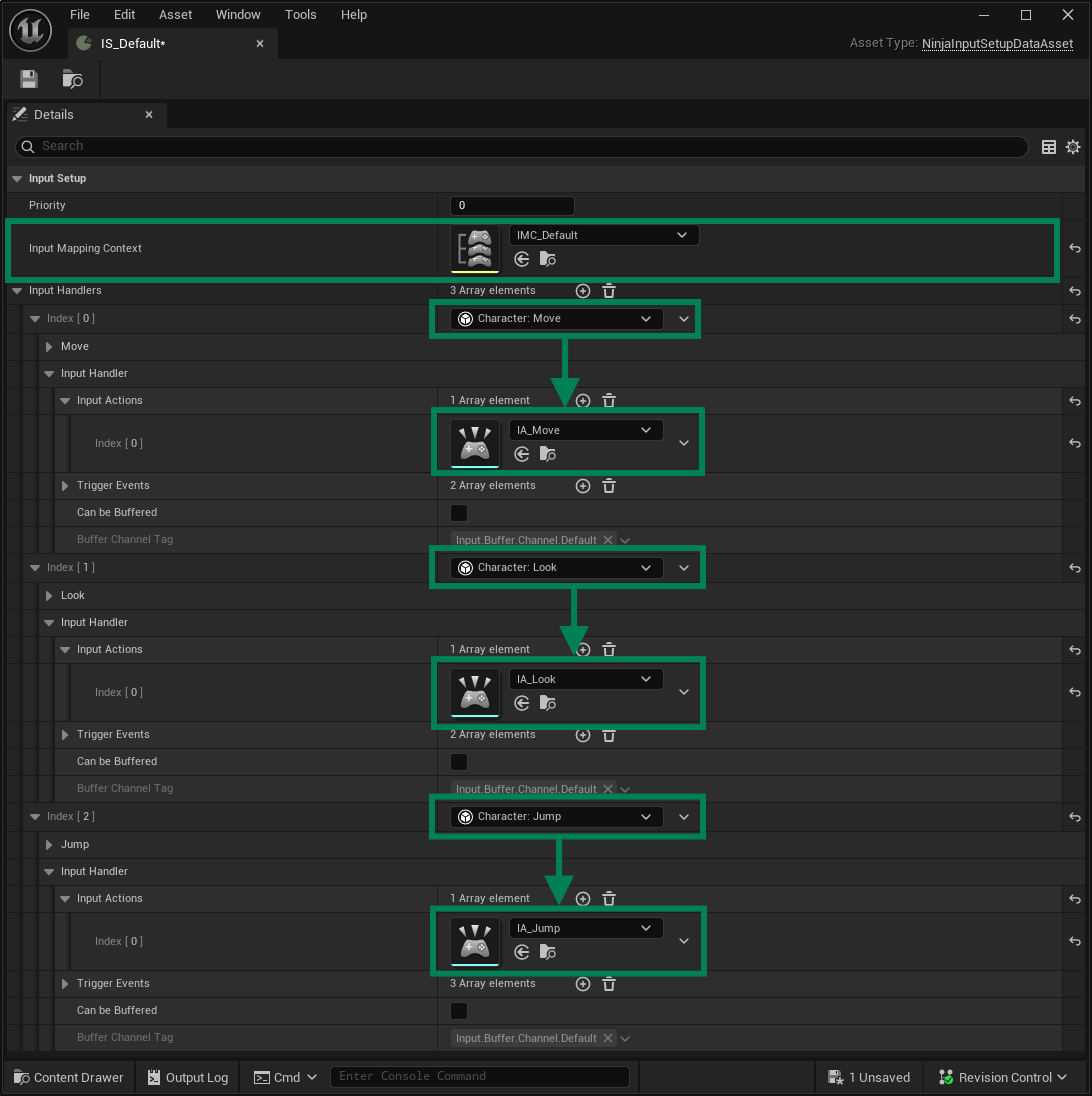
Assign the Input Setup to the Input Manager
Navigate to the Player Controller, where the Input Manager was added.
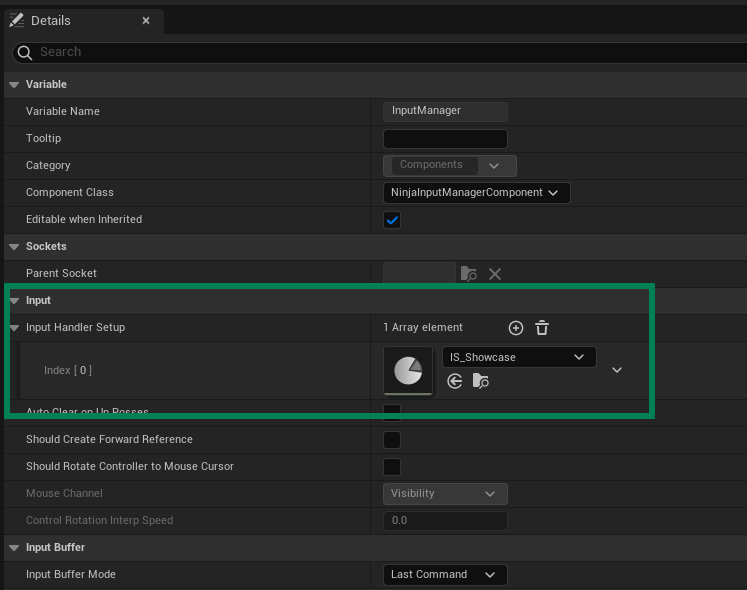
Click the Input Manager Component to open its Default Values.
Add the newly-created Input Setup to the list of Input Setups.
Forward Reference
Certain types of games, such as a top-down game with WASD movement will require a reference that movement handlers can use to calculate forward and right directions. In Ninja Input, this reference is called Forward Reference.
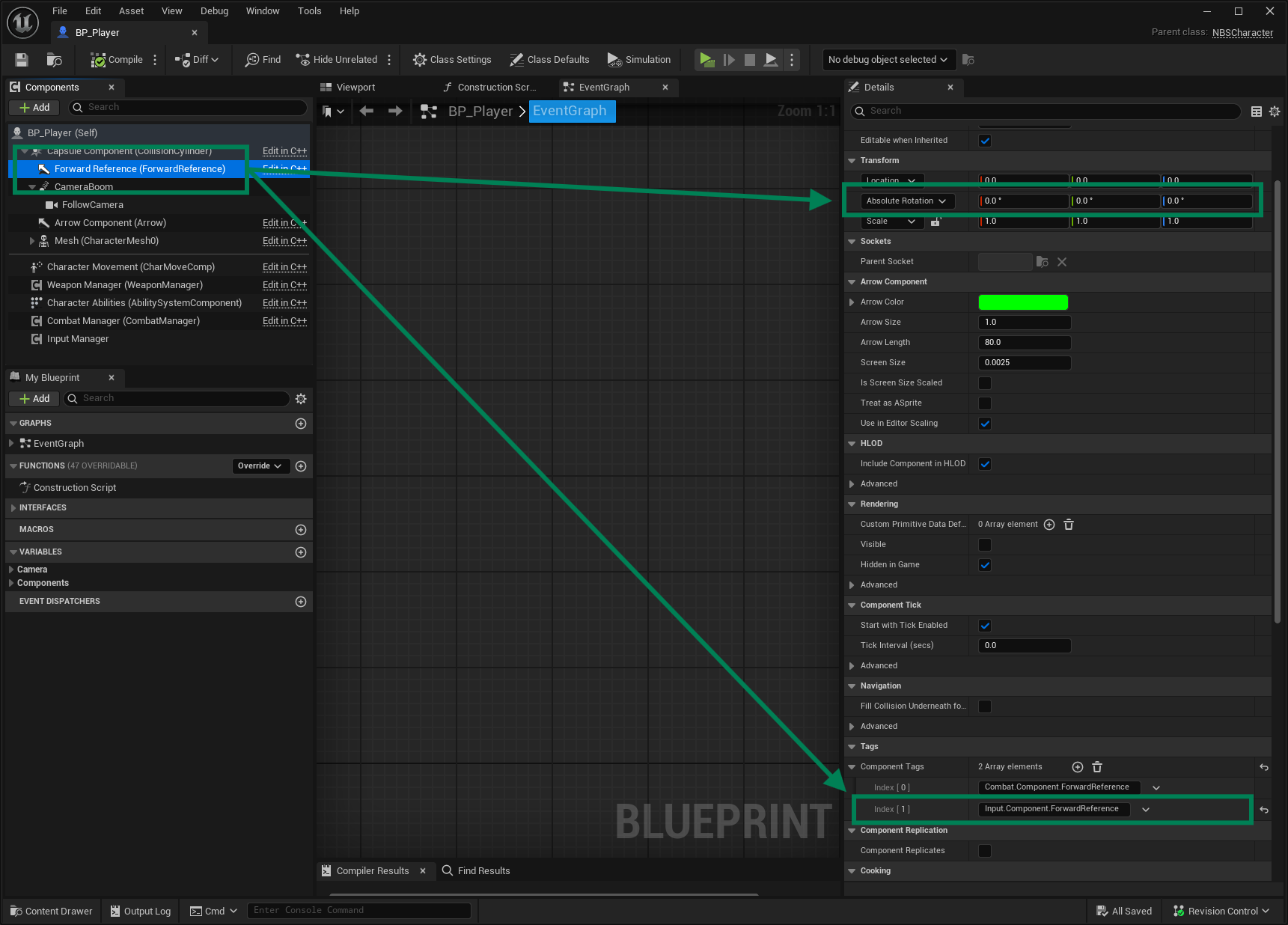
The Forward Reference is a Scene Component that always points North (or Positive X) in relation to the world, instead of following the character rotation. This means it is set to have absolute rotation.
Any Scene Component in the Character can be used as a Forward Reference, but the most common choices are either the Camera or an Arrow Component. To mark a component as the Forward Reference, all you have to do is add the Input.Component.ForwardReference component tag it.
The Input Manager component can automatically create a Forward Reference for you. You can enable that behavior by setting the ShouldCreateForwardReference property to true, in the Input Manager defaults panel. You can also modify the default creation logic, by overriding the CreateForwardReference function.
If you need more control over your Forward Reference component, then you can create your own Forward Reference and assign the appropriate Gameplay Tag.
Creating a Forward Reference
In your Base Character Class, add the Input Manager Component.
Header
public: APluginLabsCharacter(const FObjectInitializer& ObjectInitializer = FObjectInitializer::Get()); private: UPROPERTY(EditDefaultsOnly, BlueprintReadOnly, Category = "Components", meta = (AllowPrivateAccess = true)) TObjectPtr<UArrowComponent> ForwardReference;Implementation
#include "Components/ArrowComponent.h" #include "Components/NinjaInputManagerComponent.h" ANinjaFrameworkCharacter::ANinjaFrameworkCharacter(const FObjectInitializer& ObjectInitializer) : Super(ObjectInitializer) { const FName ForwardReferenceTag = Tag_Input_Component_ForwardReference.GetTag().GetTagName(); ForwardReference = CreateDefaultSubobject<UArrowComponent>(TEXT("ForwardReference")); ForwardReference->ComponentTags.Add(ForwardReferenceTag); ForwardReference->SetVisibleFlag(false); ForwardReference->SetUsingAbsoluteRotation(true); ForwardReference->SetWorldRotation(FRotator::ZeroRotator); ForwardReference->SetArrowColor(FLinearColor::Green); ForwardReference->SetAutoActivate(true); ForwardReference->SetupAttachment(GetRootComponent()); }