Tag-Based Visibility
Equipment actors in Ninja Inventory can use a tag-driven approach to control their visibility in-game. This allows developers to keep multiple weapons or tools active and equipped in the world while only displaying the ones that should be visible at a given moment.
For example, a survival shooter might want a firearm to remain visible while a melee weapon stays hidden until the player triggers a melee ability. Both are active and ready, but visibility is managed by tags.
Configuration
Each equipment actor with a UNinjaEquipmentActorComponent can be configured with a Visibility Tag. When this tag is present in the owning character's ASC (Ability System Component), the actor is shown. When it is removed, the actor is hidden.
This is handled entirely through Gameplay Tag events, usually driven by Gameplay Effects or other ASC-based logic. For this purpose, the following properties can be used:
Property | Description |
|---|---|
| If set, this equipment is only visible if the tag is present in the owner's ASC. |
| If set, this delay is applied before showing the actor, due to the visibility tag. |
| If set, this delay is applied before hiding the actor, due to the visibility tag. |
Usage Example
The following example shows how to keep a firearm visible by default and, during a melee ability, hide the firearm and show a melee weapon. When the ability ends, visibility returns to the firearm.
Configuring tag-based visibility for actors
Assign the firearm's component a
Visibility TagofInventory.Equipment.Visibility.Firearm.Optionally set
Delayed when Shownto a small value (e.g.,0.2) to avoid instant pop-in when returning to the firearm.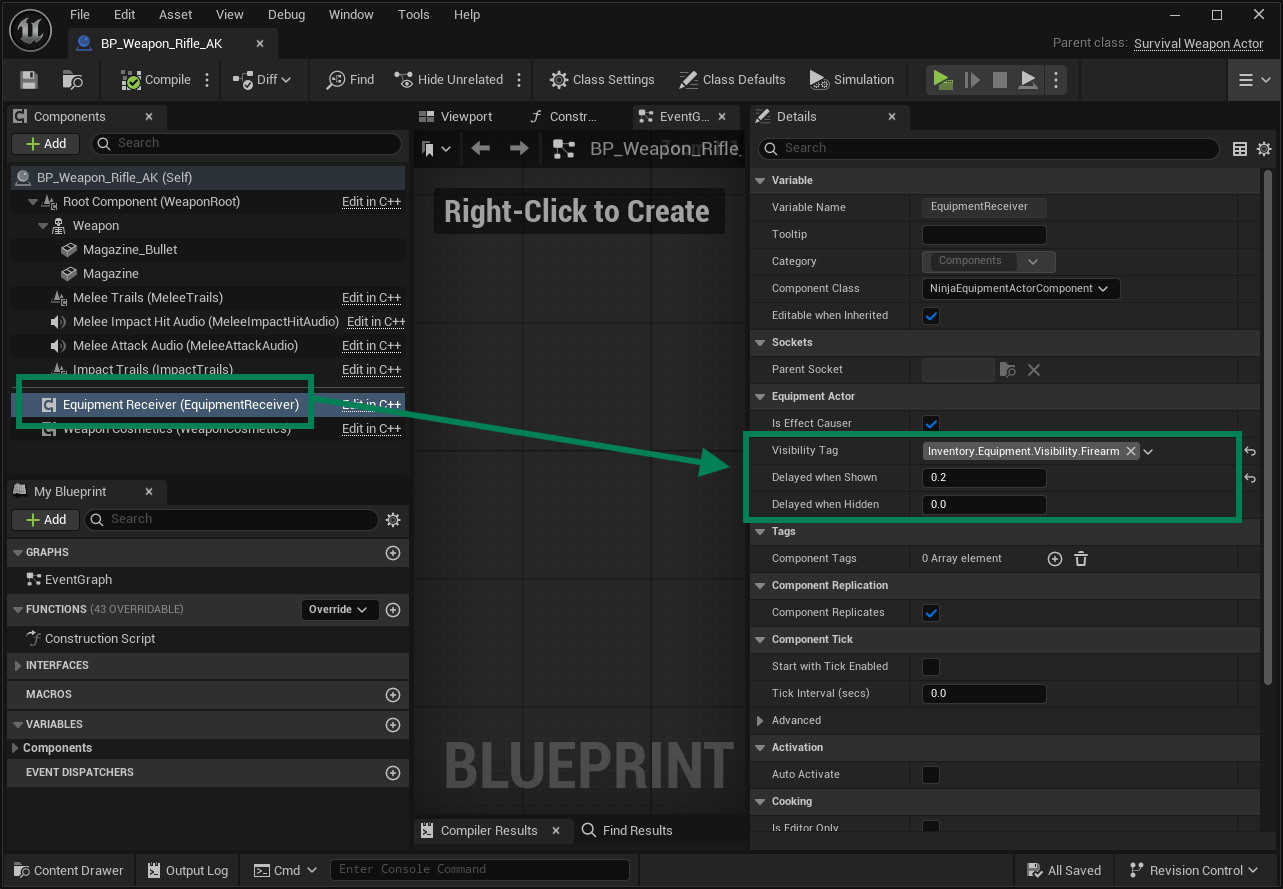
Assign the melee weapon's component a
Visibility TagofInventory.Equipment.Visibility.Melee.Leave both delays at
0.0for immediate swaps during the combo (or adjust if you want smoother transitions).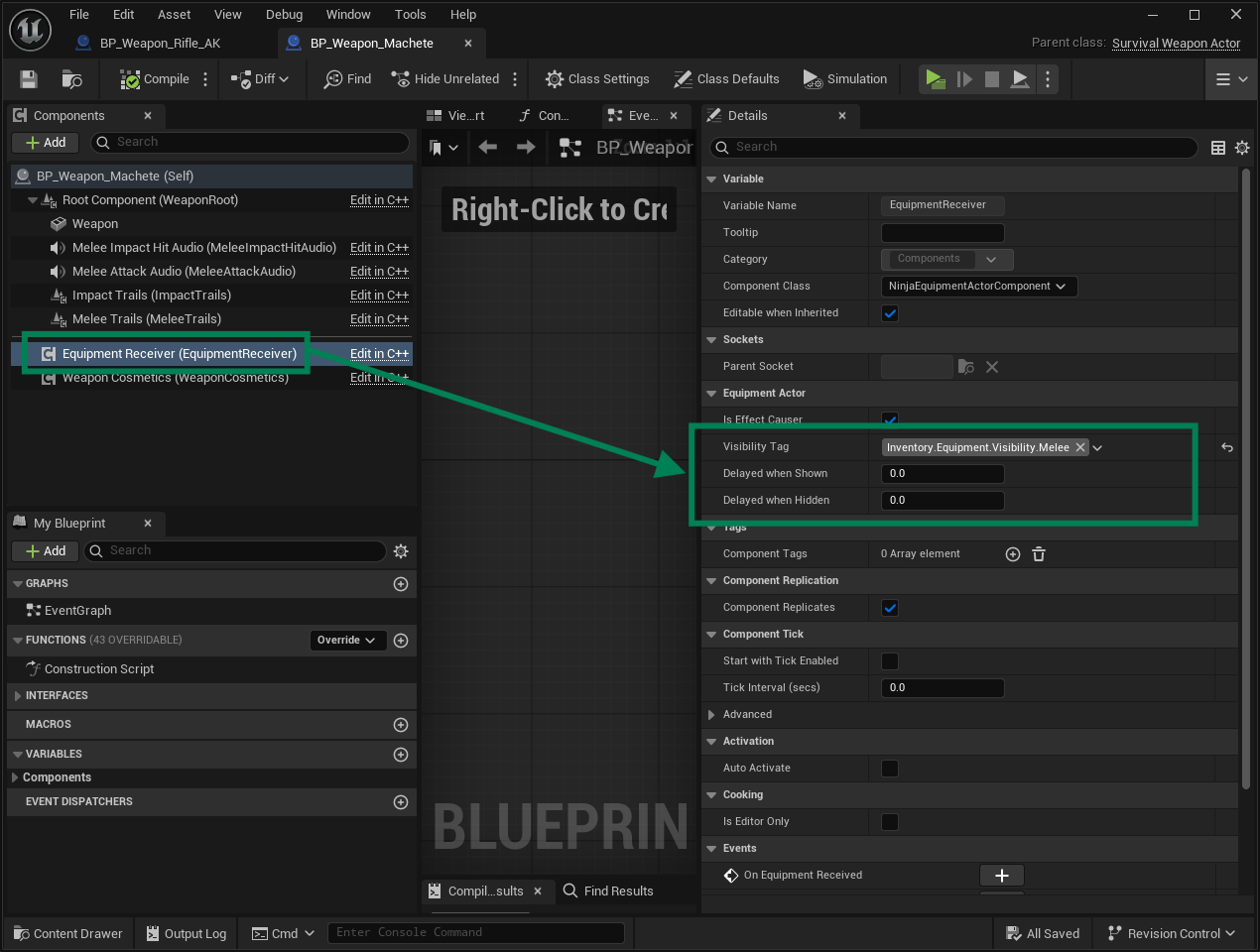
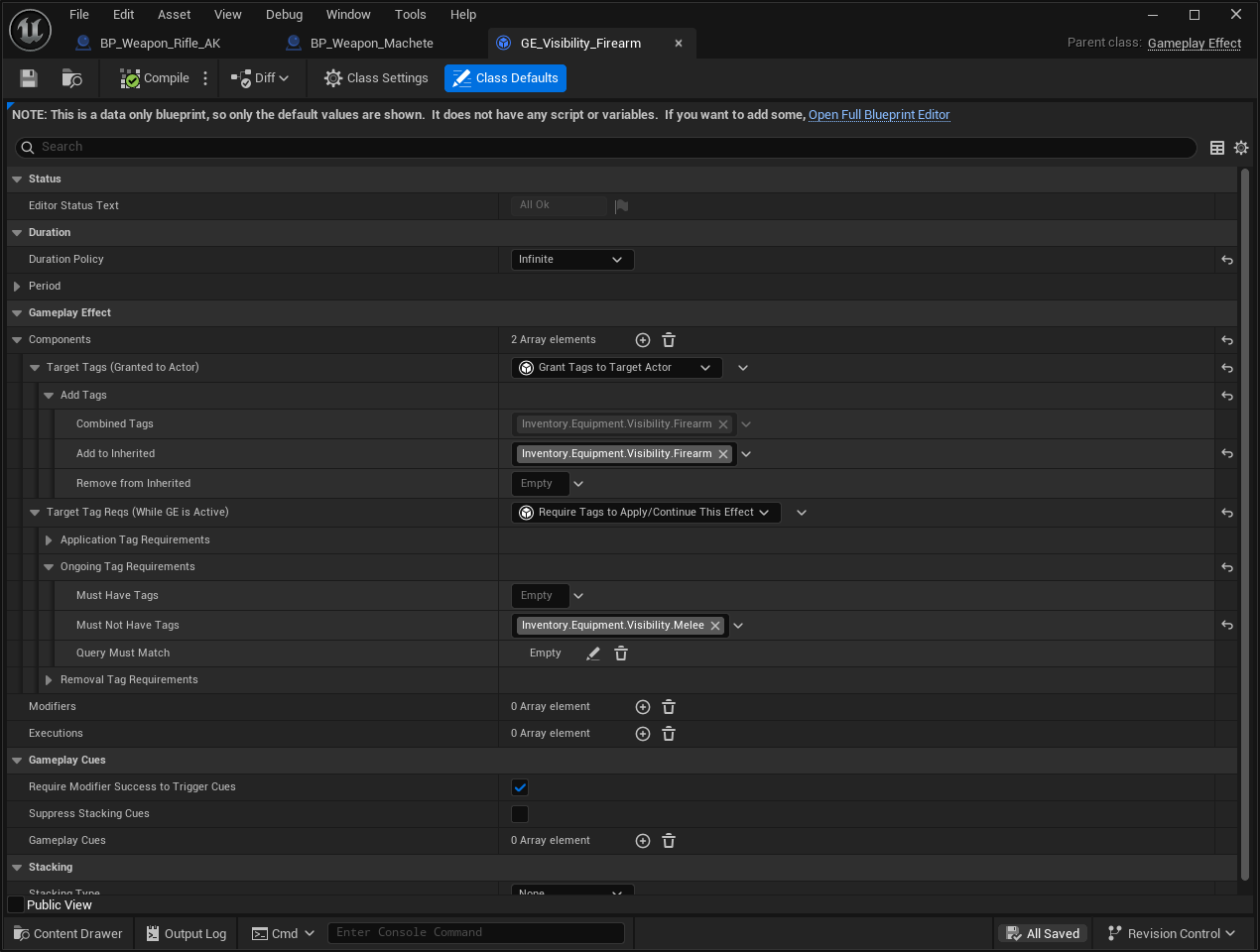
Create a Gameplay Effect (e.g., GE_Visibility_Firearm) with the following settings:
Duration Policy: Infinite
Add Tags:
Inventory.Equipment.Visibility.FirearmOngoing Tag Requirements → Must Not Have Tags:
Inventory.Equipment.Visibility.Melee(so firearm visibility suspends while melee is active)
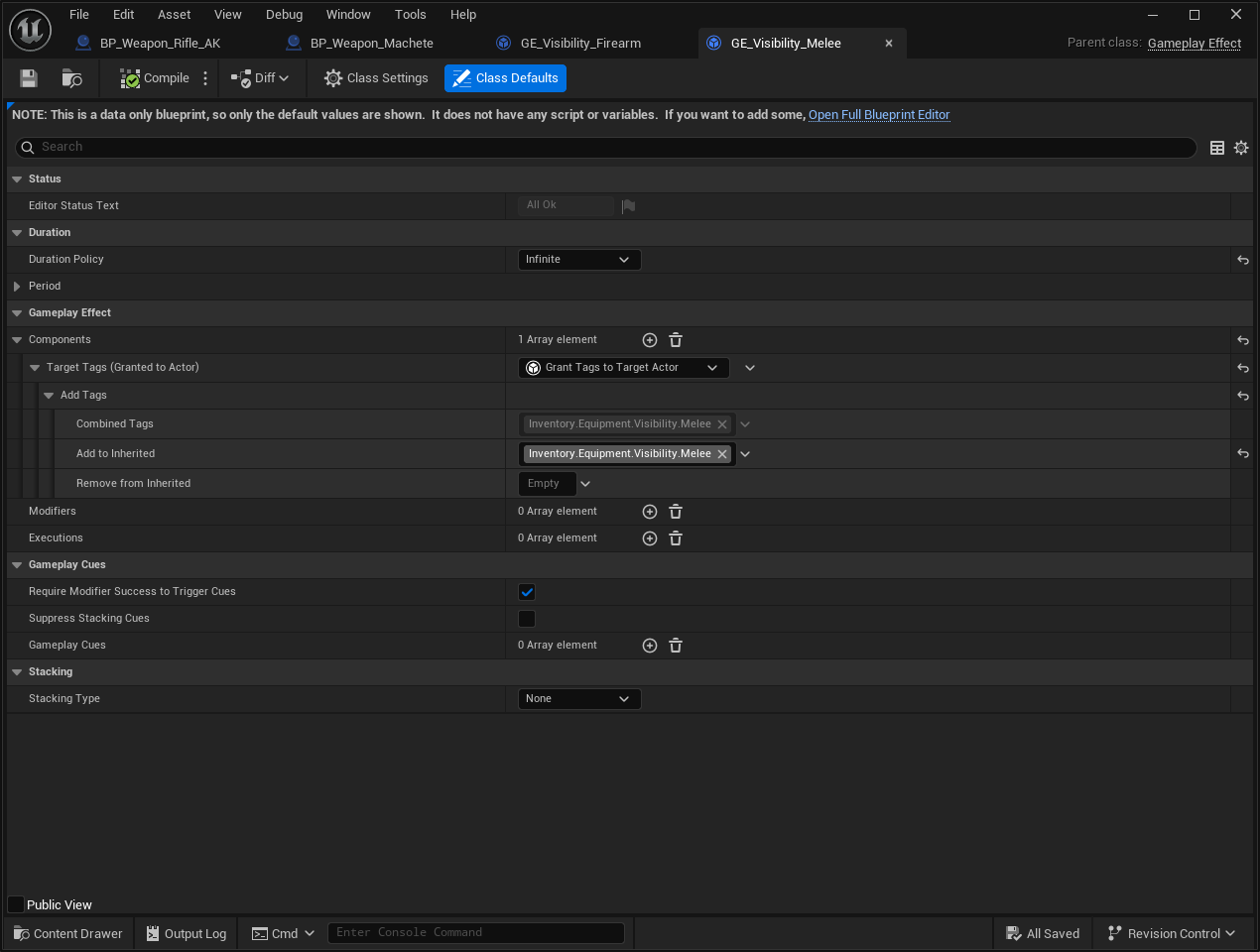
Create a Gameplay Effect (e.g., GE_Visibility_Melee) with the following settings:
Duration Policy: Infinite
Add Tags:
Inventory.Equipment.Visibility.Melee
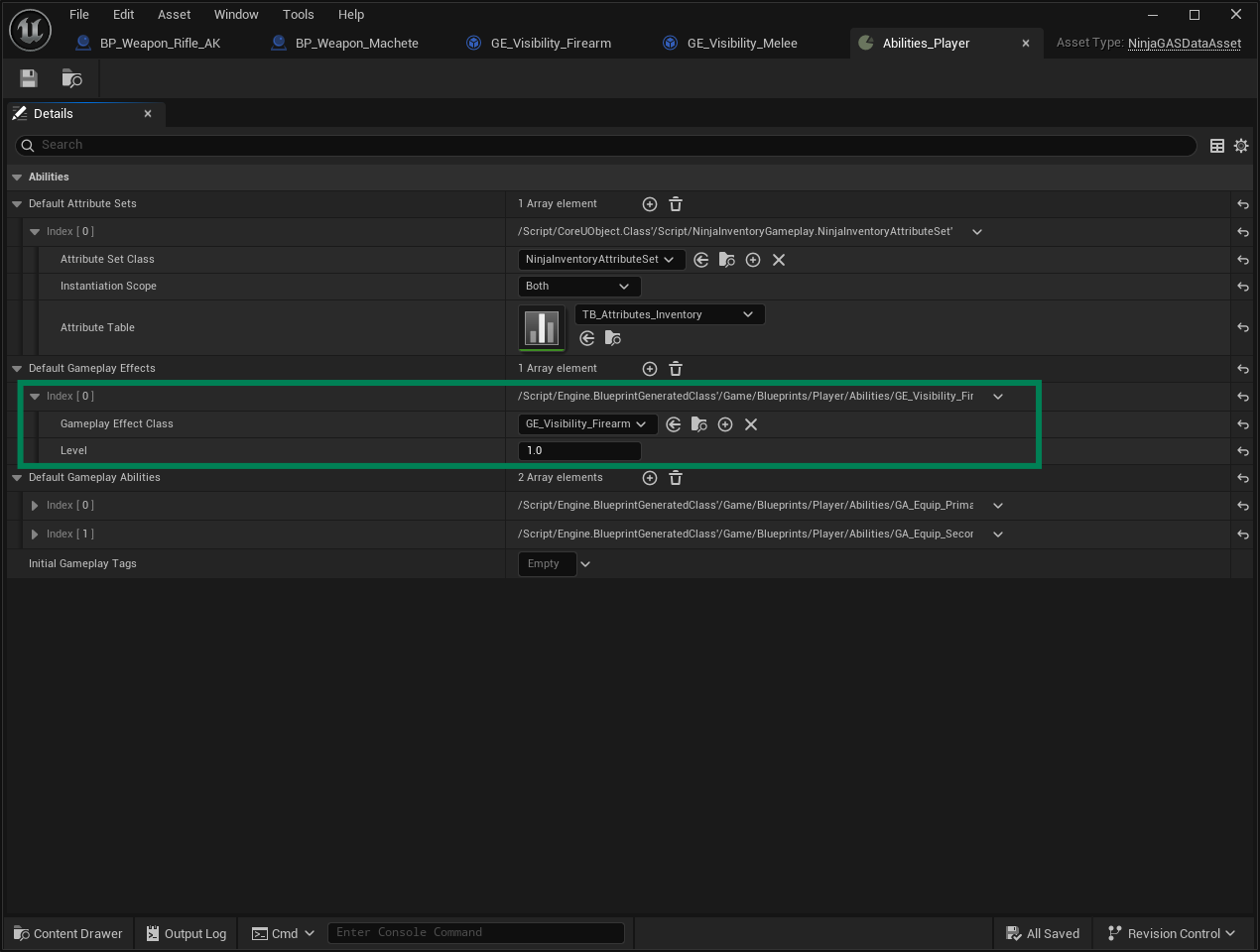
Using your GAS setup (Ninja GAS in this example), add GE_Visibility_Firearm to the player's Default Gameplay Effects so the firearm starts visible when the player spawns.
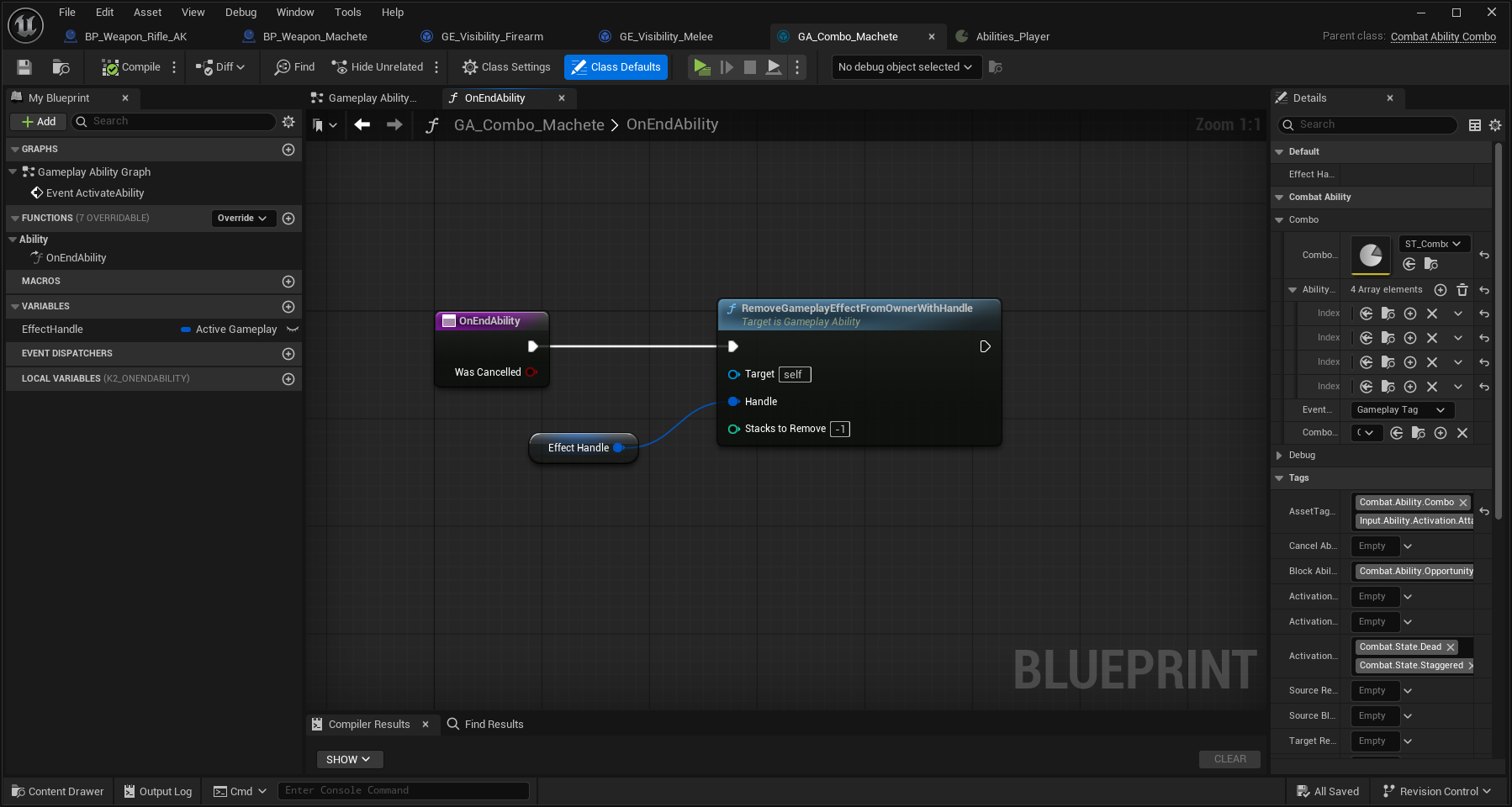
In the melee ability (e.g., a combo ability), apply GE_Visibility_Melee on ActivateAbility and save the returned handle for later removal.
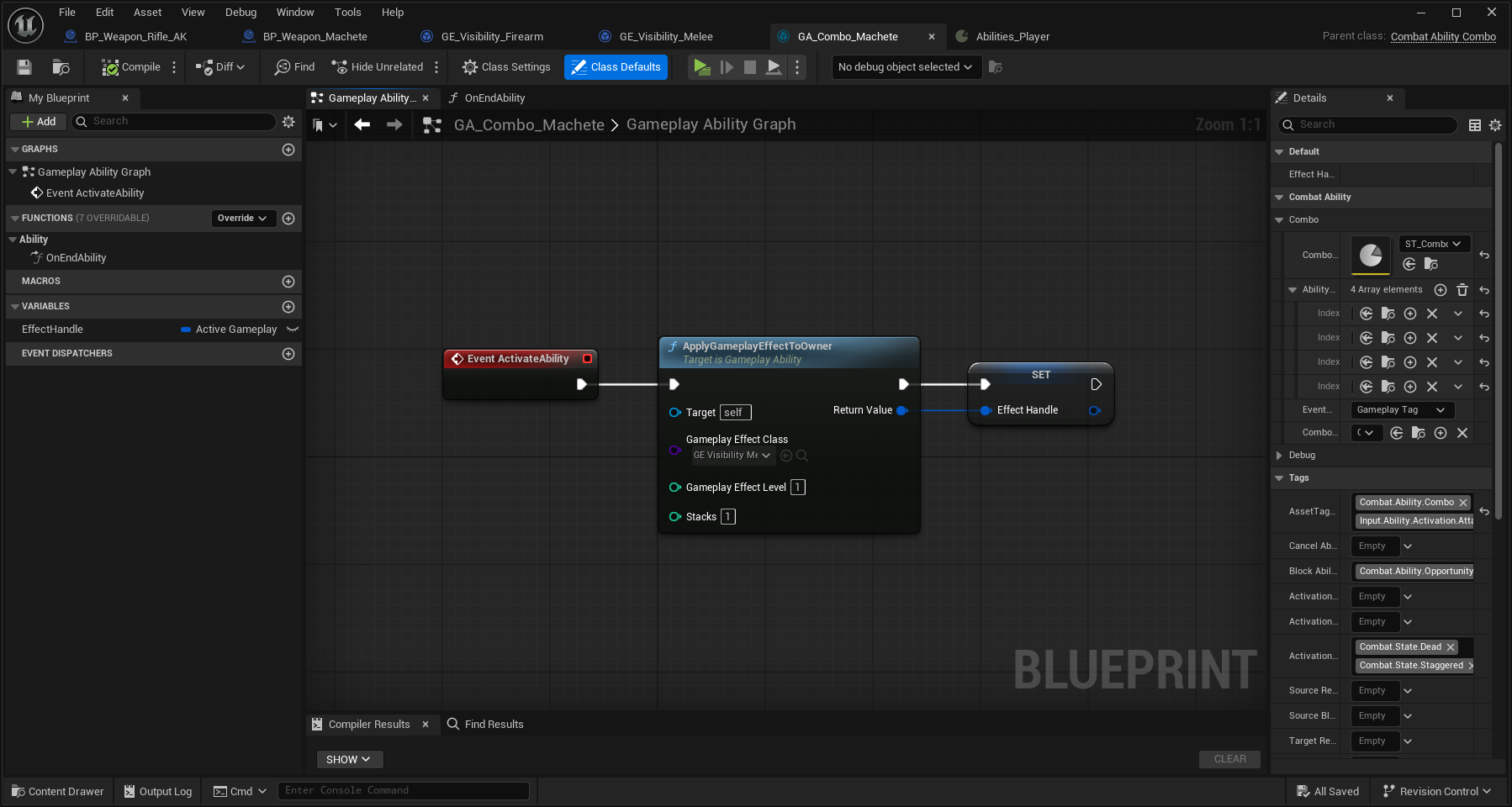
On EndAbility, remove GE_Visibility_Melee using the saved handle. This restores the firearm's visibility effect.