Damage Reactions and Vulnerable States
After damage is confirmed, combatants can react in different ways depending on the incoming hit, their current state, and the systems configured for them.
These reactions can range from simple directional hit animations to stronger state changes such as stagger, knockdown, recovery, riposte opportunities, or death. Some systems, such as parry windows, also create temporary vulnerabilities before damage is applied, allowing other combatants to respond with a counterattack.
This page introduces the main Combat System features used to represent damage reactions, temporary vulnerabilities, and follow-up opportunities.
Hit Reactions
The Hit Reaction Ability executes hit reactions from confirmed, non-fatal damage. It supports directional hit reactions and can map specific damage types or hit contexts to appropriate animations.
It is typically triggered by Gameplay Events, so it should usually be granted by default to all characters that can react to incoming damage.
Ability Trigger
By default, the Hit Reaction Ability is triggered by the Combat Manager, specifically from the Damage Manager component.
Incoming hits are evaluated and, unless overridden by another effect such as fatal damage, may trigger the Hit Reaction Ability. Since it is activated by a Gameplay Event, it can also be triggered by other systems as needed.
Directional Hit Reactions
The Hit Reaction Ability uses the Directional Hits Animation Provider, which selects a Montage Section based on the direction of the incoming attack. This allows a single Animation Montage to provide different reactions for hits from the front, back, left, or right.
Hit Angle Calculation
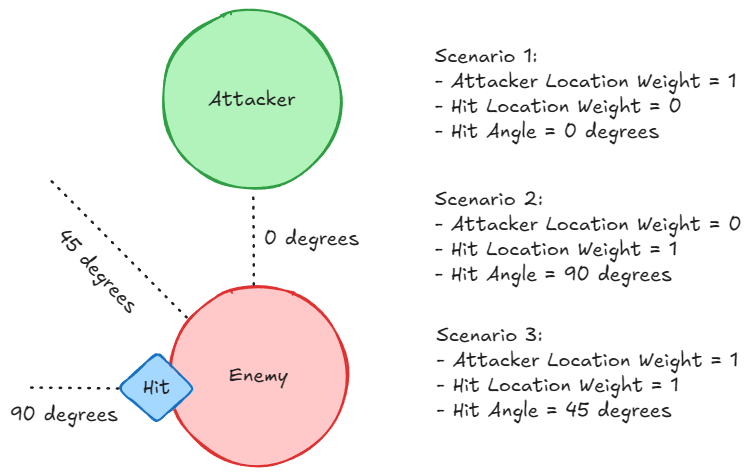
The Directional Hits Animation Provider calculates the hit angle using two sources: the Hit Result Location and the Attacker Location.
You can control their influence using the Hit Location Weight and Attacker Location Weight properties. This allows you to favor one source, ignore one entirely, or use a blended approach.
Contextual Hit Reactions
The Animation Provider also supports contextual hit reactions, where animations are selected based on Gameplay Tags found in the incoming damage.
Each context maps a tag filter to a specific Animation Montage, while still preserving the directional section selection within that montage. For example, you might assign different hit reaction animations for knockback attacks, stagger hits, or special blows.
If no context matches the incoming damage, the default Animation Montage set in the Animation Provider is used.
Gameplay Tag Filtering
Contexts are evaluated using Gameplay Tag Filters, which can inspect tags from both the instigator and the target. These filters are defined by the Instigator Tags Filter and Target Tags Filter in the Animation Provider.
You can also extend the Hit Reaction Animation Provider in Blueprint or C++ to add custom evaluation logic or dynamic montage selection.
Stagger
Stagger is a temporary vulnerable state usually caused by Poise Damage. When a combatant receives enough Poise Damage to deplete their Poise, the damage can resolve into a stagger, interrupting the combatant and temporarily limiting their ability to act.
Stagger is handled by the Stagger Damage Outcome. When damage is received, the outcome checks whether the incoming hit should stagger the target. If the check succeeds, it applies the Stagger Gameplay Effect, which adds the Combat.State.Staggered Gameplay Tag.
Enabling Stagger
To enable stagger for a combatant:
Add the Stagger Damage Outcome to the combatant's Damage Data outcome pipeline.
Grant the Stagger Ability to the combatant.
Configure valid values for the stagger attributes.
Make sure attacks that should build stagger apply Poise Damage.
The Combat System provides the following Gameplay Attributes to support stagger.
Attribute | Description |
|---|---|
| Defines how much accumulated Poise Damage is required before staggering. |
| Tracks the current accumulated Poise Damage. |
| Defines how much Poise Damage is recovered when poise recovery happens. |
| Defines how often Poise Damage is recovered. |
| Defines how long the stagger state lasts. |
Poise Damage
Poise represents the combatant's resistance to stagger. As attacks apply Poise Damage, the accumulated value moves toward the combatant's Poise value.
When PoiseDamage reaches Poise, the Stagger Damage Outcome can apply the Stagger Gameplay Effect. The default Stagger effect lasts for the duration defined by StaggerDuration.
When the stagger effect ends, the default setup immediately recovers poise, allowing the combatant to begin building toward a future stagger again.
Forced Stagger
Attacks can also force stagger directly by adding the Combat.Damage.Modifier.ForceStagger Gameplay Tag to the incoming damage source tags.
This is useful for special attacks, heavy counters, parries, boss mechanics, or any hit that should stagger regardless of the current Poise Damage value.
Stagger Gameplay Effect
The Stagger Gameplay Effect represents the actual stagger state. It adds the Combat.State.Staggered Gameplay Tag and uses the target's StaggerDuration attribute to determine how long the state lasts.
You can also apply the Stagger Gameplay Effect directly if you want to force the state without going through damage resolution. This is useful for scripted moments or custom systems where the target should immediately become staggered.
Stagger Ability
The Stagger Ability is activated when the Combat.State.Staggered Gameplay Tag is added to the avatar.
By default, it cancels and blocks common combat abilities while the character is staggered, such as attacks, casts, combos, evades, and opportunity attacks. It also exposes a HandleStagger event that can be implemented in Blueprint or C++ to play animations, trigger effects, or run additional stagger-specific behavior.
Stagger Animation
The Combat Manager broadcasts changes to the stagger state, and the Ninja Combat Animation Instance is aware of this state through bIsStaggered.
This allows Animation Blueprints to blend into stagger poses, locomotion, recovery animations, or other animation states while the combatant is staggered.
Knockdown and Recovery
Knockdown is an optional fatal damage reaction. When enabled, fatal damage can place a combatant into a temporary knocked down state instead of immediately starting the normal death flow.
This is handled by the Knock Down Damage Outcome. When fatal damage is received, the outcome checks whether the combatant can enter knockdown, whether the incoming damage allows knockdown, and whether the required knockdown attributes are configured. If all checks pass, the fatal hit is resolved as a knockdown, the Combat.Event.KnockedDown Gameplay Event is broadcast, and fatal resolution stops.
Enabling Knockdown
To enable knockdown for a combatant:
Add the Knock Down Damage Outcome to the combatant's Damage Data outcome pipeline.
Enable knockdown on the combatant's Damage Manager or Combat Manager.
Grant the Knock Down Ability to the combatant.
Grant the Knock Down Recovery Ability if the combatant can be recovered.
Configure valid values for the knockdown attributes.
The Combat System provides the following Gameplay Attributes to support knockdown.
Attribute | Description |
|---|---|
| Defines how long the combatant can remain knocked down before dying. |
| Defines how much health is restored when recovering from knockdown. |
Both attributes must be configured with values greater than zero for the default Knock Down outcome to resolve fatal damage as a knockdown.
Knock Down Ability
The Knock Down Ability is activated by the Combat.Event.KnockedDown Gameplay Event. It plays the knockdown animation and applies the Knocked Down Gameplay Effect, which adds the Combat.State.KnockedDown Gameplay Tag.
This Gameplay Tag represents the actual knocked down state. It can be used by other abilities, UI, animation systems, or gameplay logic to detect that the combatant is currently knocked down.
The default Knocked Down Gameplay Effect also cancels health, mana, and stamina regeneration while the state is active.
Knockdown Duration
Once the Knock Down Ability starts, it waits for the duration defined by the KnockDownDuration attribute.
If the duration expires before the combatant recovers, the ability applies the death effect and starts the death flow. The same can happen if a Combat.Event.GiveUp Gameplay Event is sent while the combatant is knocked down.
Recovery
Recovery is handled by the Knock Down Recovery Ability, which is activated by the Combat.Event.RecoverFromKnockDown Gameplay Event.
The recovery ability requires the combatant to currently have the Combat.State.KnockedDown Gameplay Tag. When activated, it applies the recovery effect, restores health, removes the knocked down state, and plays the recovery animation.
By default, the recovered health is calculated from the combatant's maximum health and knockdown recovery percentage: MaxHealthTotal * KnockDownHealthPercent. Once the knocked down Gameplay Tag is removed, the Knock Down Ability ends and the combatant exits the knocked down state.
Knockdown Animation
The Combat Manager broadcasts changes to the knocked down state, and the Ninja Combat Animation Instance can use this information to expose an animation-facing flag.
This allows Animation Blueprints to blend into knocked down poses, locomotion, recovery animations, or other animation states while the combatant is knocked down.
Parry and Riposte
Parries and ripostes are common counterattack mechanics, popularized by the souls-like genre. They work by creating moments where an attacker becomes vulnerable, allowing the victim to respond with a timed parry.
A successful parry opens the original attacker to a counterattack, or riposte. This is usually a stronger attack that rewards the precise timing required to execute the parry.
In the Combat System, any attack can contain a parry window, and parry attacks and ripostes are usually variations of a melee attack.
Parry Windows
Parry windows define moments when an attacker is vulnerable to a counterattack. They are defined using the Parry Window Animation Notify State. This state can also apply a Gameplay Cue, which can be used to communicate the parry opportunity through particles, sounds, or other cosmetic feedback.
Parry Scans
The victim can then perform an attack using the Parry Ability, which scans for targets currently inside a parry window and applies a dedicated Hit Gameplay Effect to them.
The Parry Ability can perform this scan directly when it is not relying on a montage-based Gameplay Event. When the ability is driven by montage-based Gameplay Events, the animation should include a Parry Scan Animation Notify State to trigger the scan at the correct moment.
The Parry Scan can also check whether a specific Parry Scan Window is currently available. Each Parry Scan Animation Notify State has a ParryScanWindowTag, using tags under Combat.Parry.Window.
The default window is always available. Other windows are only available when the melee source, such as the owner or weapon, allows that window through the Combat Melee Interface.
This makes it possible to add multiple Parry Scan windows to the same animation. For example, a single parry montage can include different scan windows for different shield types, allowing each shield to enable the window that matches its own parry efficiency, timing, or coverage.
Riposte Opportunity
The performer of a successful parry receives a successful parry Gameplay Effect defined by the Parry Ability. This Gameplay Effect is based on CombatEffect_RiposteOpportunity and usually has a duration that defines a counterattack, or riposte, window via the Combat.Opportunity.Riposte Gameplay Tag.
Riposte Attacks
You can then activate a Gameplay Ability based on the Riposte Melee Attack, which represents the counterattack and requires the Combat.Opportunity.Riposte Gameplay Tag to be present on the avatar.
The Riposte Ability can also apply a successful riposte Gameplay Effect when the counterattack succeeds.
Other abilities may disregard the window, execute common attacks, and close the window. Attacks can do that automatically via the bRemoveRiposteEffect property, but you can also deliberately remove active Gameplay Effects using the FGameplayEffectQuery struct and RemoveActiveEffects from the Ability System Component.
The Combat System provides the following Gameplay Attributes to support this feature.
Attribute | Description |
|---|---|
| Defines the duration of a Riposte Window when applied by the Riposte Opportunity effect. |
| Multiplies base damage when using the default Combat Damage Execution. |
Death
The death flow begins when fatal damage is received and no defense mechanisms, such as Last Stand, are available to prevent it. Once initiated, it triggers the Death Ability, which manages the character's final actions and cleanup.
When the Death Ability ends, the character is destroyed and the death flow is completed. Alternatively, a Gameplay Event can be sent manually, typically from a Death Animation Notify, to finalize the flow earlier.
Death Ability
The Death Ability should be granted by default to all combatants. It can cancel active abilities and handle the final phase of death, including animations and destruction logic.
You can configure the death animation to either end naturally or loop in a specific animation state.
Looping is useful for holding ragdoll poses or collapsed states before cleanup.
When configuring an Animation Montage for the Death Ability, add the Death Notify at some point. Additionally, you optionally use the Ragdoll Notify as well.

Interrupting Abilities
When a death occurs, other active abilities may need to be cancelled.
To do that, configure the Cancel Abilities With Tag container in the Death Ability to include the relevant tags.