UMG ViewModels
The ViewModel layer acts as a bridge between backend data and UI widgets. In the context of the Inventory System, the responsibility of all ViewModels is to translate backend Containers and Items into UI data-types.
Backend Data
The backend provides several inventory-related data types that are consumed by the ViewModel layer:
Container: Represents a section of the inventory capable of holding items.
Item Instance: A live, managed item currently stored within a container.
Item View: A detached representation of an item, commonly used for previews, loot drops, vendor displays, etc.
Fragments: Modular data blocks that define specific aspects of an item, such as stack size, quality, or durability.
These types are not used directly by UI widgets. Instead, they serve to transfer structured data into the ViewModel layer, where UI-safe representations are created and maintained.
Item ViewModel
The Inventory Item ViewModel exposes Item Instances and Item Views to the user interface.
It accepts either an Item Instance or an Item View.
Normalizes access to shared information between both data types.
Can be directly connected to all Fragment ViewModels, such as Stack and Quality.
Uses the Inventory Resolver for its Creation Type.
Preparing the Item Widget
Create a new Item Widget, extending from
UserWidget.Add the Inventory Item ViewModel to the widget. Set its Creation Type to
Manual, since it will be provided later on by a ViewModel extension.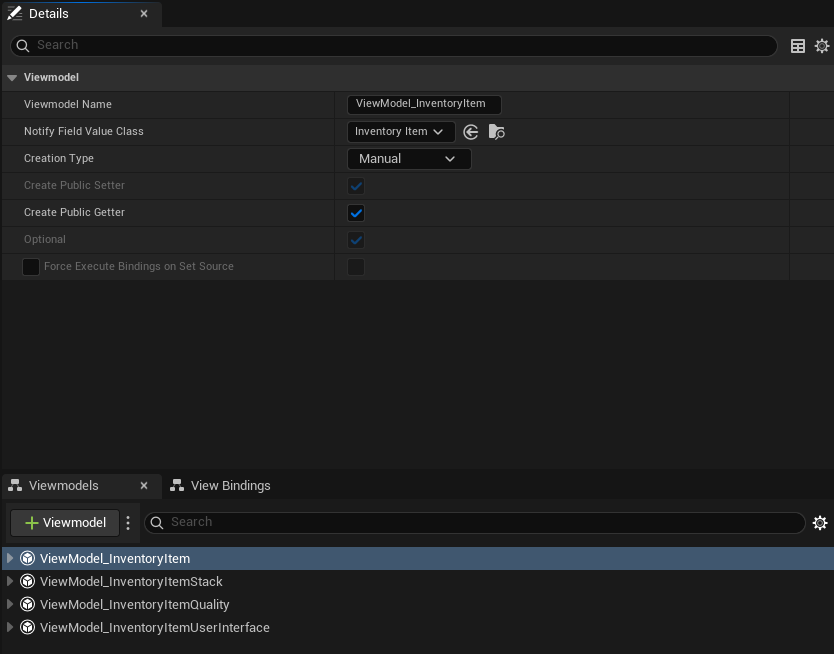
Add other item-related fragment ViewModels you might need, such as Stack, Quality, or User Interface. Set each of them to use Creation Type
Resolver, and assign theInventory Resolverto ensure they are correctly initialized.Compile and save your widget, so all ViewModel entries will be available in the View Bindings panel.
In the View Bindings panel, configure the bindings, setting the Item Instance and Item View from the Item ViewModel to each Fragment ViewModel.
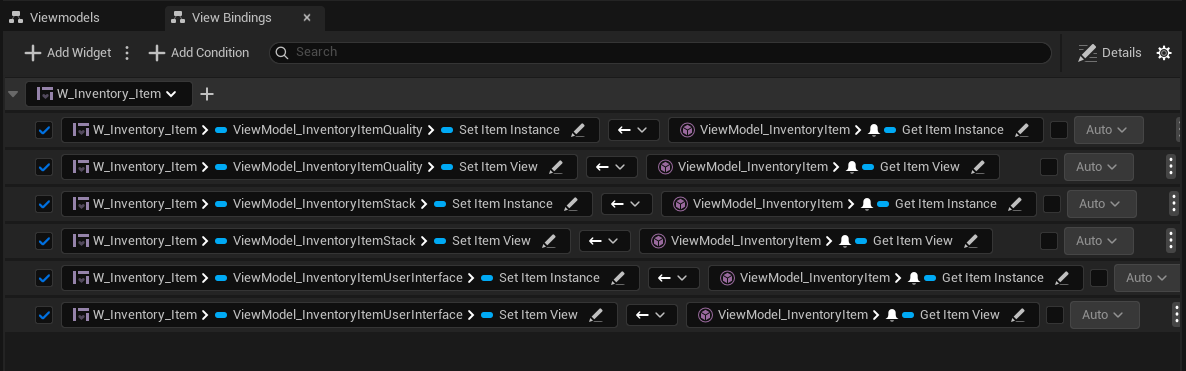
Now bind the values from each Fragment ViewModel to the appropriate UI elements. This includes setting widget properties or calling functions that use those values at runtime.
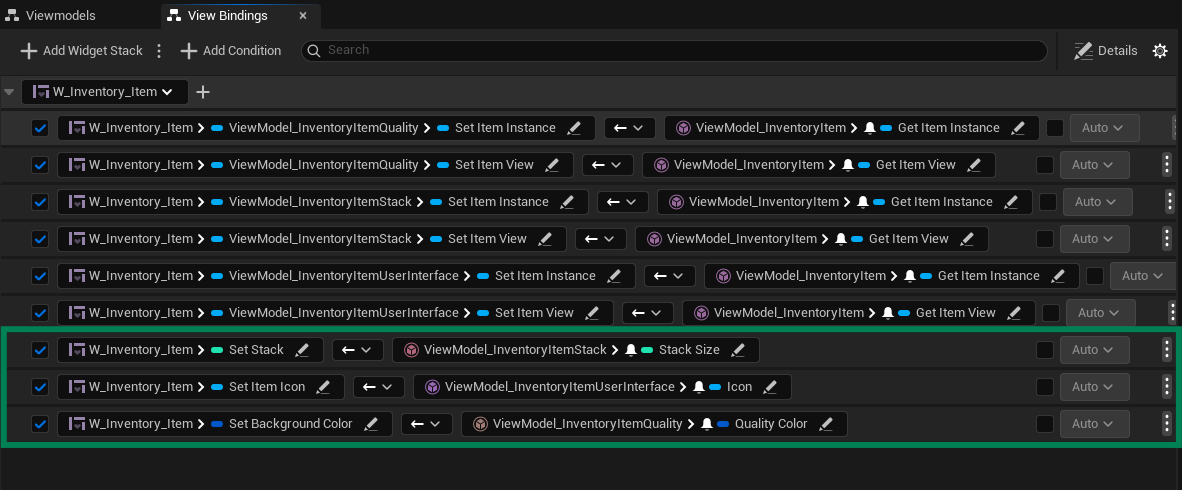
To recap, we have two important ViewModel responsibilities in this widget:
Data Entry Point:
The Item ViewModel receives data from external sources (e.g., the container) and broadcasts an Item Instance or View to Data Processors.
Since a ViewModel Extension will provide a valid instance, the Creation Type should be set to
Manual.
Data Processor:
Fragment ViewModels will receive data from the Entry Point and perform their own data collection and processing.
Since these instances are not created externally, their Creation Type should use the provided Resolver, the
Inventory Resolver.
However, as shown in the steps above, binding the Item ViewModel directly to every Fragment ViewModel can become repetitive and error-prone, especially as your UI becomes more complex.
Bindings with the Item Widget
To simplify this, the Inventory System provides a built-in Base Item Widget (NinjaInventoryItemWidget or its Common UI counterpart) that automatically propagates item data to all child ViewModels, so you don't need to bind to each fragment representation.
Using the Base Item Widget
Reparent your Item Widget to
NinjaInventoryItemWidget.Update your ViewModel bindings in the View Bindings panel so that the Item ViewModel calls the functions
SetItemInstanceandSetItemView, which are provided by the base class.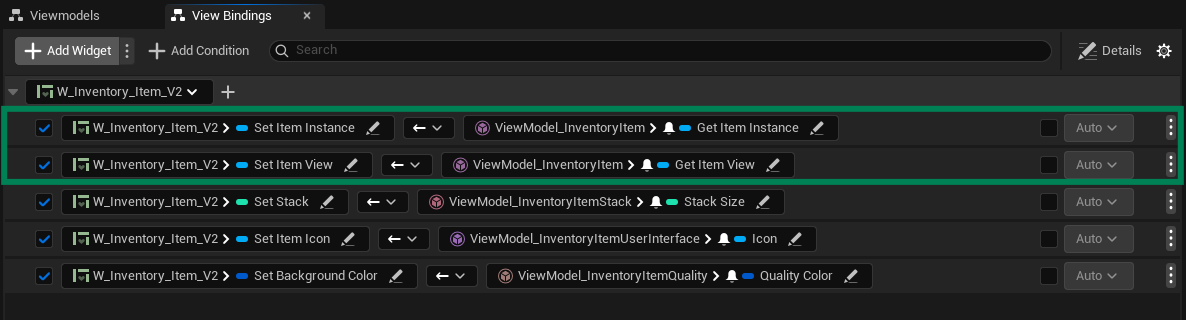
Add a one-time binding from the Item ViewModel to the widget, setting the owning container.

Container ViewModel
With an Item Widget ready, the next natural step is to prepare a Container Widget that represents an Inventory Container in the UI, such as a Backpack or Equipment Panel.
The steps below will guide you through setting up a fully reactive container using the Inventory Container ViewModel and the ViewModel Extension workflow.
Preparing the Backpack Container Widget
Create a new Container Widget by extending from
UserWidget.Add the Inventory Container ViewModel to the widget. Set its Creation Type to
Resolver, and selectInventory Resolveras the resolver class.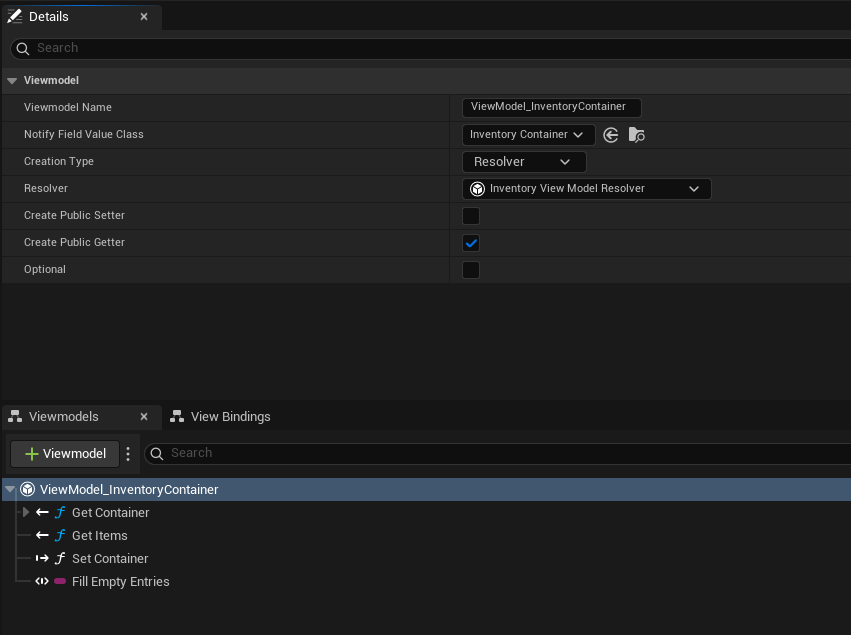
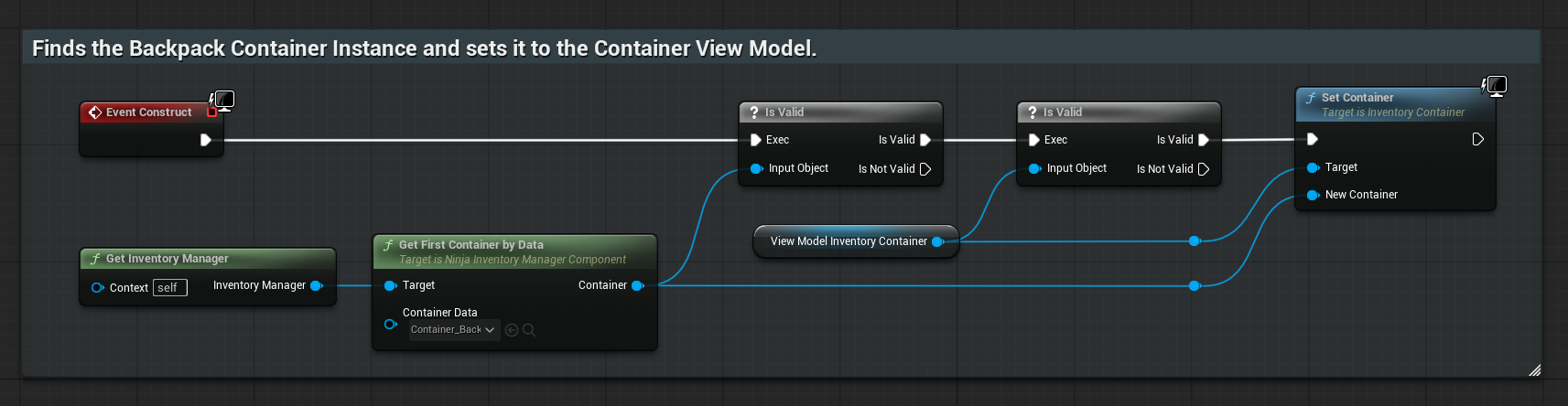
In your Widget Graph, initialize the Container ViewModel by retrieving the desired Container Instance from the Inventory Manager and passing it to the ViewModel.
Design your Container Widget layout using a WrapBox to display items. Adjust its size, spacing, and style as needed. Once the layout is complete, click Add ViewModel Extension.
In the ViewModel Extension panel, set the Entry Widget Class to your Item Widget, and assign the Inventory Item ViewModel as the Entry ViewModel.
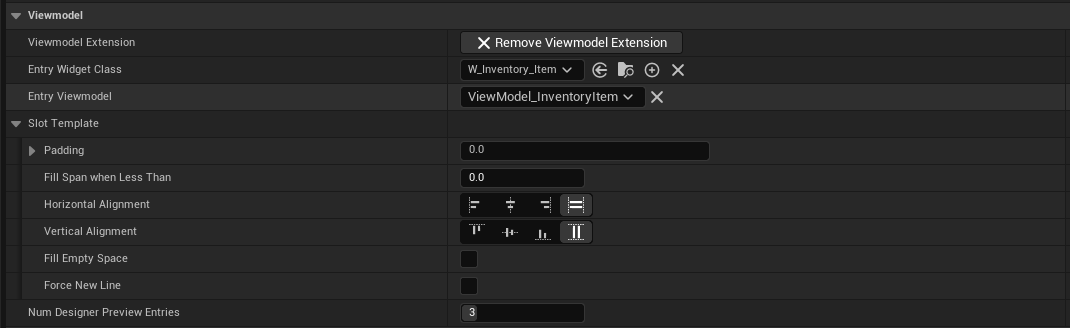
Compile and save your widget to ensure the new ViewModel Extension is registered and accessible in the View Bindings panel.
In the View Bindings panel, connect the
GetItemsfunction from the Container ViewModel to theSetItemsfunction provided by the ViewModel Extension.
Still in the View Bindings panel, you can optionally connect the
GetContainerNamefunction from the Container ViewModel to a Text Block in your widget.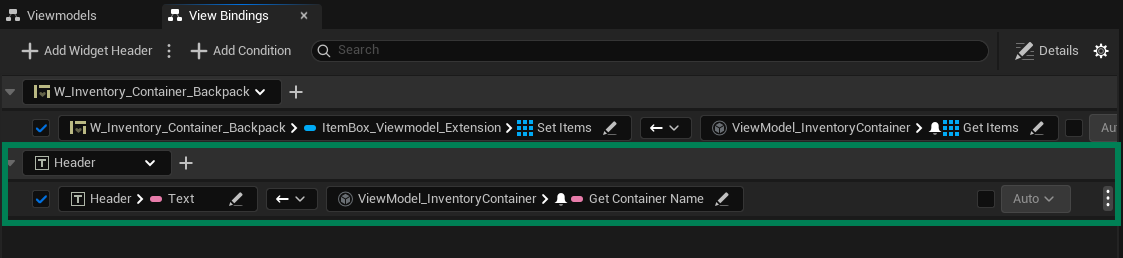
To simplify the setup, the Inventory System provides a built-in Base Container Widget (NinjaInventoryContainerWidget) that automatically manages the target container and its ViewModel lifecycle.
This removes the need to set up the container manually during OnConstruct, and exposes a ContainerDataAsset property that can be set directly in the Designer.
Using the Base Container Widget
Reparent your Container Widget to
NinjaInventoryContainerWidget.Open the widget's Designer tab and select the root widget. In the Details panel, locate the Container Data Asset property and assign the appropriate container definition.
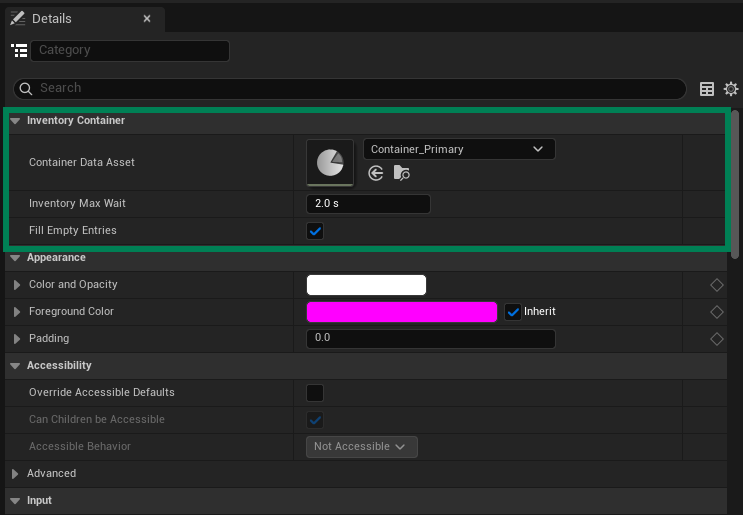
Remove any manual logic from your OnConstruct or Widget Graph that was used to initialize the container manually. The base widget will now handle initialization and ViewModel binding automatically.
ViewModel Library
Ninja Inventory provides a modular library of ViewModels that you can use to build flexible, data-driven user interfaces.
All concepts introduced in this chapter apply across the entire ViewModel library, which is organized into the following categories:
Attributes: Exposes Gameplay Attribute values from the Inventory Manager.
Containers: Represents containers owned by the Inventory Manager, automatically updating when items are added, removed, or repositioned.
Item Data Entry: Acts as the entry point for each Item Widget. Usually paired with a ViewModel Extension to distribute data to processors.
Item Data Processor: Handles a specific Item Fragment (e.g., Stack, Quality, UI data).
Loot: Displays loot recently received by the Inventory Manager, designed for temporary UI panels or pickup logs.
You can explore each category in detail using the following pages.